[ First ] [ Previous ] [ Next ] [ Last ] [ Manuals ]
Choosing a Project Stationery File

To use a project stationery file to create a new project, choose File > New
New Window: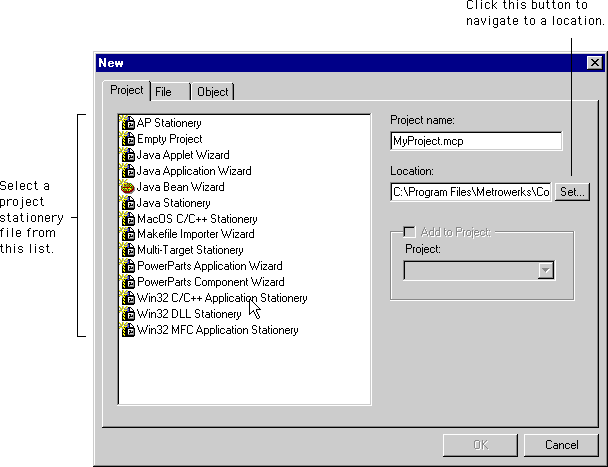
Click the Project tab near the top of the New window to display the Project panel. The items listed in the Project panel represent various types of project files. The items with names ending in Stationery represent project stationery files.
To create new projects from stationery, you progress through a hierarchy of choices. First, you select stationery for a particular platform target, such as a computer that runs the Windows¨ or Mac¨ OS operating systems. Next, you specify a specific operating system, language, or programming framework. After you designate these more general options, you can choose from several pre-configured project stationery files.
After you select an item in the Project panel list, various options appear along the right side of the panel.
To create a new project from stationery, select the appropriate Stationery item in the Project panel list. For example, to create a project that uses the C or C++ programming language to develop an application for the Mac OS, select the Mac OS C/C++ Stationery item in the list.
To create an empty project that has no libraries or other support files, select the Empty Project item in the Project panel list.
For beginners
Selecting Empty Project is not recommended because of the complexities of including the correct libraries and files and choosing the correct target settings. Instead of creating an empty project, use the project stationery files provided by the CodeWarrior IDE. These pre-configured stationery files already contain basic settings for getting started with a new project.
For more information about project stationery, see "Working with Project Stationery".
[ First ] [ Previous ] [ Next ] [ Last ] [ Manuals ]
Visit the Metrowerks website at: http://www.metrowerks.com
For assistance contact Metrowerks Technical Support at: cw_support@metrowerks.com
Copyright © 2000, Metrowerks Corp. All rights reserved.
Last updated: August 17, 2000