[ First ] [ Previous ] [ Next ] [ Last ] [ Manuals ]
Using the New Project dialog box

The New Project dialog box, shown in Figure 3.7, presents a list of project stationery based on your choice from the New window. For example, if you selected the Win32 C/C++ Application Stationery item in the New window, the New Project dialog box shows a list of C or C++ project stationery for the Windows platform. Browse through this list, select the stationery file representing the type of project you wish to create, and click OK.
New Project Dialog Box: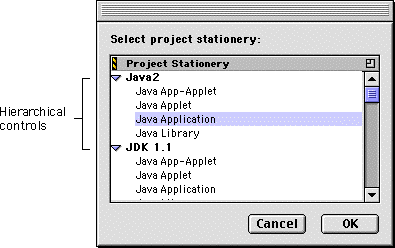
In some cases, the New Project dialog box presents a hierarchy of project stationery. The topmost level of the hierarchy shows the languages or programming frameworks for which project stationery is available. Click the hierarchical control next to the particular language or framework you want to use for your project. Then, browse through the expanded list and select the stationery file representing the type of project that you wish to create.
For example, suppose you want to create a new project geared towards a Java 2 application. First, you would click the hierarchical control next to the Java2 option in the New Project dialog box. The list expands and shows the project stationery for the Java programming language. Expanding the Java2 option reveals a project stationery file named Java Application. This file provides a Java 2 application structure. When you select Java Application and click OK, the CodeWarrior IDE creates a new project with all the libraries and support files you need.
After you select a project stationery file and click OK, the CodeWarrior IDE automatically sets up a new project in the following ways:
[ First ] [ Previous ] [ Next ] [ Last ] [ Manuals ]
Visit the Metrowerks website at: http://www.metrowerks.com
For assistance contact Metrowerks Technical Support at: cw_support@metrowerks.com
Copyright © 2000, Metrowerks Corp. All rights reserved.
Last updated: August 17, 2000