To rename a group, follow these steps:
1. Select the group that you wish to rename.
For more information about selecting items, see "Selecting Files and Groups". You can also use the arrow keys on your keyboard to navigate to the desired group.
2. Display the Rename Group dialog box.
Use this dialog box, shown in Figure 3.17, to rename the selected group.
Press Enter to display the dialog box.
Press Return to display the dialog box
3. Enter a new name for the group in the Enter Group Name field.
The new group name appears in the Project window.
Rename Group Dialog Box: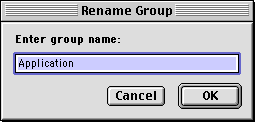
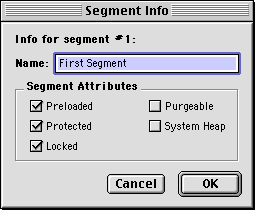
On Mac OS 68K build targets, the Segment Info dialog box shown in Figure 3.18 appears. This dialog box contains a series of checkboxes that affect segment loader information. The Mac OS 68K linker uses the text that you enter in the Name field to name the code segment when building the project. See the Targeting Mac OS manual for more information on using segments.
Segment Info Dialog Box: