[ First ] [ Previous ] [ Next ] [ Last ] [ Manuals ]
Component Tools

The bottom of the Component Palette displays tools from the current catalog. You click a particular tool and then "draw" an object in the layout window. When you finish drawing the object, the Layout editor updates the layout window display. The process is illustrated in Figure 13.7.
To use the Component Palette, do the following:
1. Click the tool representing the component you want to place in the layout window.
 If you decide against using the tool you selected, click the Unselect tool. After you click this tool, you can click a different component tool to use in the layout window.
2. Drag the cursor while inside the layout window.
As you drag the cursor, the Layout editor displays a heavy outline to indicate the final position and shape of the component in the layout.
Windows
The cursor's icon changes to a crosshair during this step. While you drag the crosshair, a pop-up window displays the layout window's coordinate system. If you decide against using the component tool while dragging the crosshair, press the Esc key. The Layout editor dismisses the component tool and removes the heavy outline from the layout window.
Drawing an object in the layout window: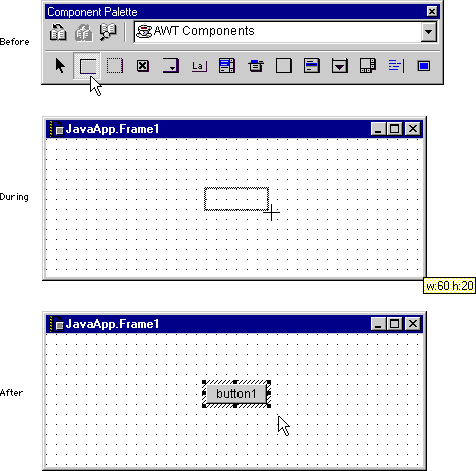
3. Release the outline.
The component is placed in the layout window. You can modify the component's properties and events using the Object Inspector.
For more information about the various component tools in the Component Palette, refer to "RAD Components".
 TIP
TIP
(Windows) If you position the cursor over a component tool and wait briefly, the IDE displays the name of that tool. Use this feature to quickly distinguish the various tools.
[ First ] [ Previous ] [ Next ] [ Last ] [ Manuals ]
Visit the Metrowerks website at: http://www.metrowerks.com
For assistance contact Metrowerks Technical Support at: cw_support@metrowerks.com
Copyright © 2000, Metrowerks Corp. All rights reserved.
Last updated: August 17, 2000