[ First ] [ Previous ] [ Next ] [ Last ] [ Manuals ]
Menu Editor

The Menu editor lets you create and modify an application's menu bar and its associated hierarchy of menu commands. This editor displays the menu bar onscreen so that you can see the menus as they appear in the application.
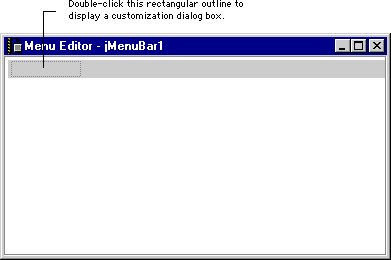
Double-click the representative icon in the layout window to display the Menu editor. Initially, the display is blank, as shown in Figure 14.1. As you build the menu hierarchy, the Menu editor updates the display to reflect your changes.
This section discusses the following topics:
Creating menu items
To create a menu item in the application's menu bar, double-click the rectangular outline shown in the Menu editor. A dialog box displays to help you customize a new menu item. The contents of the dialog box depend on the catalog that contains the component. For example, when you use the Menu editor to customize a Java Swing menu bar, the dialog box has the items shown in Figure 14.2.
Menu editor dialog box for Java Swing menu items: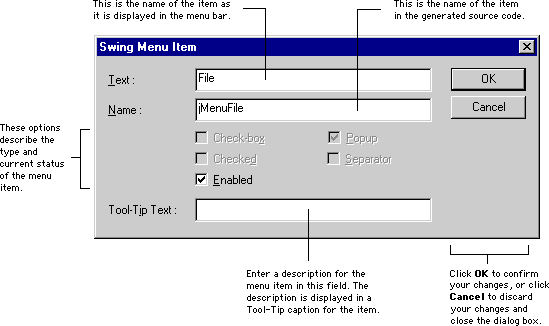
After you enter some information in the dialog box and click OK, the Menu editor updates the menu-bar display. For example, if you enter File in the Text field of the dialog box and click OK, the Menu editor display shows the new File menu item in the menu bar. The rectangular outline moves to the right of the File menu item.
Modifying menu items
You can continue modifying your application's menu bar by double-clicking existing menu items or by clicking rectangular outlines. For example, if you click the File menu item shown in Figure 14.3, the Menu editor displays a rectangular outline beneath the File menu. This way, you modify the commands that are displayed for each menu item in the menu bar.
A Menu editor with modified menu items: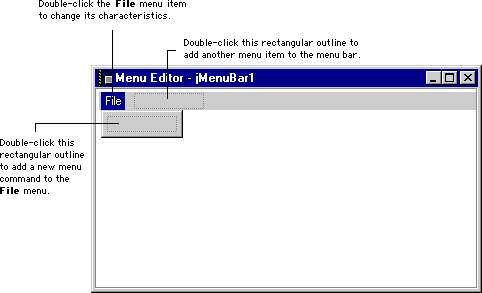
When you finish modifying the menu bar, close the Menu editor window. Although the original representative icon appears in the layout window, your changes to the menu bar remain in place. To immediately save changes to the menu bar, choose Save from the File menu after closing the Menu editor window.
Removing menu items
To remove a particular menu item, click its name in the Menu editor window and press Delete. The Menu Editor removes the menu item and updates the display. Removing a menu item from the menu bar also removes that menu item's associated commands.
 NOTE
NOTE
When removing menu items from the menu bar, you might need to close and then re-open the Menu editor to accurately reflect your changes.
[ First ] [ Previous ] [ Next ] [ Last ] [ Manuals ]
Visit the Metrowerks website at: http://www.metrowerks.com
For assistance contact Metrowerks Technical Support at: cw_support@metrowerks.com
Copyright © 2000, Metrowerks Corp. All rights reserved.
Last updated: August 17, 2000