[ First ] [ Previous ] [ Next ] [ Last ] [ Manuals ]
New Property Window

The New Property window helps you create a new property for a selected component in the Browser window. To display this window, make sure that the Browser window is frontmost, then choose  ), as shown in Figure 15.2. The
 New Property command changes slightly, based on the framework you use to develop your code. For example, when developing a Java RAD project, the command changes to New Bean Property.
The New Property window is shown in Figure 15.5. This window consists of the following parts:
Name
Enter a name for the new property in this field. The name you enter must comply with naming conventions in the framework programming language. For example, you cannot use spaces in names for some languages.
New Property window: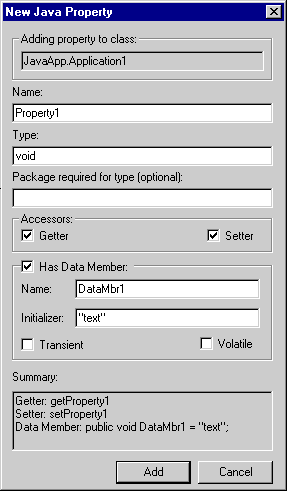
Type
Enter an appropriate property type in this field. The type you specify must be a valid property type in the framework language.
Package required for type
If you wish, you can enter in this field a required package for the property type.
Accessors
These checkboxes determine the accessor characteristics for the property.
Has Data Member
Enable this checkbox if you want the property to have a data member. If you enable the checkbox, the Name and Initializer fields become available, as well as the Transient and Volatile checkboxes. Enter the data member name in the Name field. You can supply the remaining information as desired.
Summary
This section shows you a synopsis of the information currently specified in the window. As you change a particular value or checkbox, the Summary field updates to reflect your changes. This field displays information only after you complete the Name and Type fields and enable at least one of the Accessors.
Add and Cancel buttons
Click Add to confirm the current window information and add the new property, or click Cancel to discard your changes.
[ First ] [ Previous ] [ Next ] [ Last ] [ Manuals ]
Visit the Metrowerks website at: http://www.metrowerks.com
For assistance contact Metrowerks Technical Support at: cw_support@metrowerks.com
Copyright © 2000, Metrowerks Corp. All rights reserved.
Last updated: August 17, 2000