[ First ] [ Previous ] [ Next ] [ Last ] [ Manuals ]
Activating VCS Software

The VCS Setup panel, as shown in Figure 16.1, is present if you have installed recognized revision control software. You use the VCS Setup panel to specify client options for connecting to a revision control systems.
The VCS settings panel: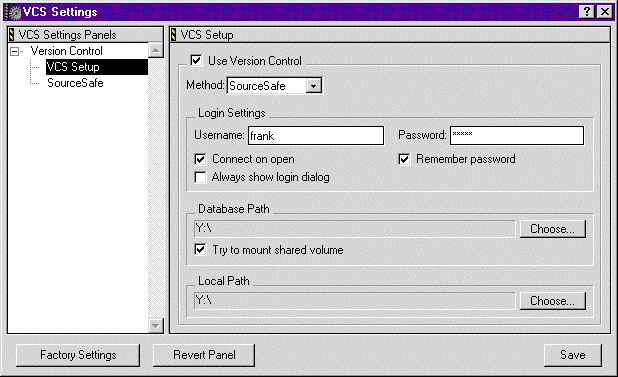
Setting up a CodeWarrior project for version control is simple. You just need to enter some information in the VCS Setup panel while a project is open. You'll need to input the information separately for each project that uses revision control.
 NOTE
NOTE
Be sure to follow the activation instructions that accompany the VCS software you plan to use. If you encounter any problems, contact the VCS software vendor for assistance.
To Activate Your VCS Settings:
1. Choose Version Control Settings from the Edit menu.
The VCS Settings window appears (Figure 16.1).
2. Enable the Use Version Control option.
Click the Use Version Control option to activate version control.
3. Choose a version control system from the Method menu.
The CodeWarrior IDE is capable of supporting several different types of version control. If your VCS software has been correctly installed, its name should be present on the Method list as shown in Figure 16.2.
Method pop-up list.: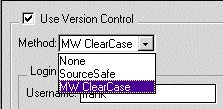
4. Enter your username.
Enter your user name in the Username field.
5. Enter your password (optional).
Enable the Remember Password option, then enter your password in the Password field.
6. Set additional Login Settings options.
To customize your development interaction with the chosen VCS setting you can enable any or all of the following options:
Click Choose to select the VCS database that you want to access. The actual setting of the Database Path field is dependent upon which VCS software you are using. See the VCS software documentation for more information.
8. Choose the Local Path.
Click Choose to select the destination folder where your local files will be stored. The actual setting of the Local Path field is dependent upon which VCS software you are using. See the VCS software documentation for more information.
9. Click Save.
Save your changes using the Save button.
If all your data was correct, you should be connected to the VCS database set in the Database Path field. If you aren't, review the above steps, ensuring that the data entered is correct.
NOTE
Some VCS software may have additional setup requirements. If you encounter any problems, contact the VCS software vendor for assistance.
[ First ] [ Previous ] [ Next ] [ Last ] [ Manuals ]
Visit the Metrowerks website at: http://www.metrowerks.com
For assistance contact Metrowerks Technical Support at: cw_support@metrowerks.com
Copyright © 2000, Metrowerks Corp. All rights reserved.
Last updated: August 17, 2000