[ First ]  [ Previous ]  [ Next ]  [ Last ]  [ Manuals ]


VCS Menu

Once version control is activated for a project, a VCS menu appears as shown in Figure 16.3. You select commands from the VCS menu to perform Get, Checkout, Checkin, and other common operations available from the specified version control system.


Macintosh

On the Macintosh, the VCS menu appears on the menubar as an icon that looks like this:.


NOTE

The VCS menu appearance may differ depending upon which VCS operations are available. See the documentation that came with the VCS software for more information.
VCS menus for Windows and Mac OS:
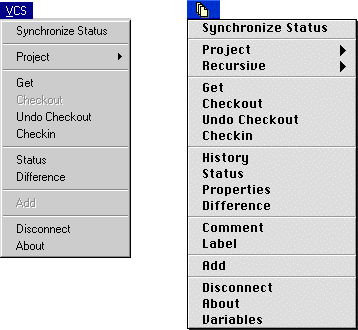
Supported VCS Operations:

Command
Description
Synchronize Status  
Updates the VCS Status column in the Project window by examining each project file's status and updating its information.  
Project  
Contains a submenu of VCS commands that enable you to perform Get, Checkout, Undo Checkout, Checkin, Status, and Add operations on project files themselves.  
Recursive  
Contains a submenu of VCS commands that enable you to perform recursive operations.  
Get  
Retrieves a copy of the file without checking it out of the project database.  
Checkout  
Checkout files for exclusive modification.  
Undo Checkout  
Cancels a checkout, voiding all changes.  
Checkin  
Returns a modified file to the database and relinquishes the checkout.  
History  
Displays a modification history of a project or file.  
Status  
Displays a file's checkout status.  
Properties  
Displays database information about a project or file.  
Comment  
Changes a comment for a specific version of a project or file.  
Label  
Assigns a label to a project or file.  
Add  
Adds a file to the database.  
Connect or
Disconnect
 
Connects or disconnects you from the project database depending upon the current open status.  
About  
Displays VCS plug-in copyright and version information.  
Variables  
Displays the VCS user's variable settings in an editor window.  


NOTE

Each VCS plug-in may assign different names to these operations. See the documentation that accompanied your VCS software to determine which operations are supported.
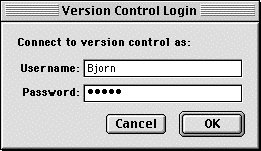
VCS Login dialog:
[ First ]  [ Previous ]  [ Next ]  [ Last ]  [ Manuals ]

Visit the Metrowerks website at: http://www.metrowerks.com
For assistance contact Metrowerks Technical Support at: cw_support@metrowerks.com
Copyright © 2000, Metrowerks Corp. All rights reserved.

Last updated: August 17, 2000