This chapter covers some frequently asked questions about the CodeWarrior® IDE on Windows® platforms. If you have a problem, come here first. Others may have encountered similar difficulties, and there may be a simple solution.
This chapter discusses various problems people have encountered while writing and debugging their code. There are suggested solutions for each problem. If your problem is not in this chapter, please contact Metrowerks Technical Support for assistance.
 NOTE
NOTE Currently, this section is small, but will expand in the future as more problems are encountered. If you have a problem that is not addressed here, send a note to Metrowerks Technical Support. See the front of this manual for contact information.
This section covers known problems that relate to programming in the Win32 environment. Not all problems addressed here are specific to the CodeWarrior IDE.
min() and max() I'm trying to port C/C++ code written with a different programming
environment. I'm encountering the following error message from
mlimits.h:
Error : `,' expected
mlimits.h line 70 static T min() throw();
This is actually a known issue with Win32 programming, and is
not specific to the CodeWarrior IDE. The Win32 API defines two
macros named min() and max() in windef.h. However, these can conflict with the ANSI C++ min() and max() template functions. This happens if you #include <windows.h> and one of the ANSI C++ headers that declare or call the template
min() and max() functions.
However, Microsoft's min() and max() macros can be disabled by
adding the line #define NOMINMAX before you #include <windows.h> (the min() and max() macro definitions are enclosed in an #ifdef NOMINMAX block in windef.h).
For an example of how to do this, open the Win32Headers.pch file in the Windows precompiled headers sample project named Win32Headers, which is located on the CodeWarrior Reference disc. This file includes the following code:
#pragma precompile_target "Win32Headers.mch"
//#pragma once on
#include "ansi_prefix.win32.h"
#include <windows.h>
#pragma precompile_target "Win32Headers.mch"
//#pragma once on
#include "ansi_prefix.win32.h"
#define NOMINMAX
#include <windows.h>
Refer to the Microsoft Win32 SDK documentation for more information.
You've successfully made a Windows executable and would like to compile it for the Macintosh® on Windows NT®. However, when you try to compile your program, it seems to do nothing. The executable appears not to exist, yet you do not receive an error message. What is a programmer to do?
NOTE You can compile a Windows executable on a Macintosh only if your code uses the C and C++ standard libraries. If your project uses operating-system specific code, you have to maintain separate code bases for each platform.
Actually, your executable is there: It exists as a 0-byte file with the same name as your project. The Windows-hosted Macintosh tools included with the CodeWarrior IDE deal with the data/resource fork situation by emitting two files: a data fork image file and a resource fork image file. Because they have the same name, the resource fork image file is put into a folder called Resource.frk. You must copy both the 0-byte data fork image and the Resource.frk folder onto a FAT formatted floppy disk before bringing the executable over to the Macintosh using PC Exchange (which will merge the two image files back together).
NOTE After you copy the files over to the Macintosh, remember to use ResEdit to set the creator and type of the binary to the application so the Macintosh will recognize it as an executable.
An easier way to compile Macintosh programs created on Windows NT exists. Follow these steps using the target settings panels.
1. Display the Target Settings panel.
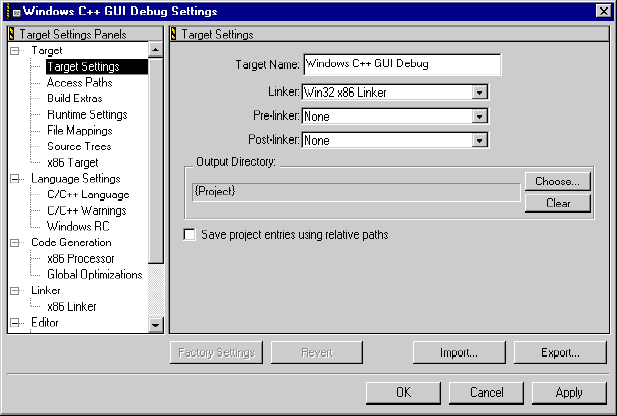
Choose Edit > Target Settings, where Target is the currently selected target for your project. The Target Settings panel appears in the window by default, as shown in Figure 15.1.
2. Select the proper post-linker
Choose MacBinarize Post Linker from the Post-linker list-box. This creates the executable packaged as a MacsBin archive.
3. Copy the file to your Macintosh.
Copy the executable to your Mac OS machine. It should be a full-fledged Macintosh executable with the correct creator and type.
I am trying to run a C/C++ program in Windows, but I am getting the following error:
Link Error: Undefined symbol: _WinMainCRTStartup in file: [no
		file name given]
This link error usually means that no runtime library was found in the project. You will need to add this library to the project. Find the MWCRTL.LIB file in the Win32-x86 Support folder and add it to your project. A good way to avoid missing libraries is to use the project stationery files provided with the CodeWarrior IDE.
It appears that trying to catch an unnamed exception does not work. My code looks like that in Listing 15.1.
Example throw and catch problem code:
#include <iostream>
using namespace std;  file://introduces namespace std
int main( void )
cout "This is a test of catching an unnamed exception" endl;
cout "It doesn't work under debug or release" endl;
try {
throw;
}
catch (...) {
cout "Caught unnamed exception" endl;
}
return 0;
Using throw without any trailing argument will just re-throw the current
exception. It is used in the case where you might need to catch
an exception from which you cannot totally recover, but you need
to catch to do some cleanup work first. Then, you use throw to re-throw the exception and let it continue propagating back
to someone that can fully handle the exception, as shown in Listing 15.2.
Example throw and catch solution code:
{
    foo *theFoo = new Foo;
    try {
        SomethingThatCouldThrow();
    } catch (...){
        // we can't recover from any exception here, but we
        // do need to delete theFoo so there's no memory leak
        // and rethrow the exception

        delete theFoo;
        throw;
    }
}
Then, whatever the thrown exception was (bad_alloc, bad_cast, a long), it will continue along. There is nothing really illegal about
the code in Listing 15.1, just improper use of throw in this context.
Throwing without an operand throws the exception being handled. This should be within a catch clause:
try {} catch(...) { throw; }
A throw expression with no operand re-throws the exception being handled.
If no exception is presently being handled, executing a throw expression with no operand calls terminate() (_except.terminate_).
I am having trouble adding files to my project. I either get errors that say I cannot add a file to a project, or it takes an extremely long time to add the file.
If you cannot add a file to a project, make sure that file mappings are present for the file being added. This problem is common if an alternative extension is used and the IDE is not configured to recognize it (like .pascal instead of .p). The solution is to create a new file mapping for the extension. See "Set file mappings." and the IDE User Guide for more information on setting file mappings.
For files that take a long time to add to a project, check if you have MacAffee VirusScan installed. CodeWarrior IDE users have reported problems when adding files by choosing Project > Add Files. When you select the file(s) to add, VirusScan will scan the entire hard drive before adding the file(s). Disabling the VirusScan program solves the problem.
How can I print the output displayed in my Java application output window? (runjava.exe or JVIEW windows)
The way the output appears in the JVIEW or runjava.exe windows cannot be modified or sent to a printer by the CodeWarrior IDE, but it is possible to cut and paste from this window into an editor. To do this, click on the MS-DOS® symbol in the upper left of the output window. choose Edit > Mark. Use the mouse to select text in the output window, then choose Edit > Copy. Paste the output into a text editor and you can print out the text file.
How do I clear the WinSioux screen?
This code in Listing 15.3 illustrates how to clear the WinSioux C++ screen.
Clearing the WinSioux C++ screen:
#include <iostream.h>
#include <console.h>
#include <unistd.h>
int main()
{
        cout << "Hello World, this is CodeWarrior!" << endl << endl;
        cout << "This is how to clrscr:  " << endl;
        sleep(3);
        clrscr();
        return 0;
}
How do I force my subprojects to build or remove object code when I build or remove object code from my current target?
In the Target tab of the project window, there are two settings for each sub-target. The Build Against flag will make sure that the sub-target is built before the parent target. Set it by clicking on the bull's-eye symbol next to the sub-target name. An arrow appears, indicating that the flag has been set. Make sure that an arrow appears next to the sub-target for any targets you want to make sure are up-to-date when the parent target is built.