
To generate debugging information for a source-code file, click in the Debug column of the Project window. A Debug Info marker appears in the column, as shown in Figure 3.24. The IDE automatically sets this marker as you add files to your project, unless you disable the option in the project's Linker panel.
Debugging Information Markers: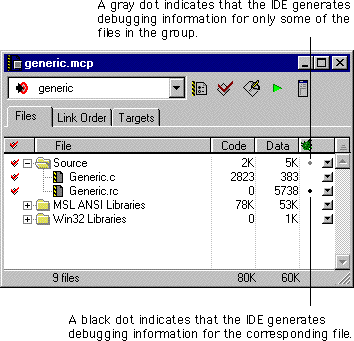
You can also use the Project Inspector to enable or disable debugging information. See "Using the Project Inspector" for more information. The debug state of each file that you add to the project matches the state of the Enable Debugger menu command. When you see the Enable Debugger command, the debugger is disabled and debugging information is also disabled. When you see the Disable Debugger command, the debugger is enabled and automatically configures each added file to generate debugging information.
The Debug Info marker (Figure 3.24) indicates whether the IDE generates debugging information for a file while building the project. Clicking a file's Debug Info marker removes it and disables debugging-information generation for that file.
Shift-click in the Debug column.
Option-click in the Debug column.
 NOTE
NOTE
You can toggle debugging information for groups by clicking the Debug Info marker in the Debug column (Figure 3.24). The Debug column shows one of the following markers for a group: