[ First ] [ Previous ] [ Next ] [ Last ] [ Manuals ]
Opening Files from the File Menu

You can open two types of files:
-
Project file-a file containing information on building a CodeWarrior project
-
Text file-a source code, interface, or other text file
Project file
To open a project file, choose the Open command from the File Menu. For information on opening CodeWarrior project files, see "Opening an Existing Project."
Text file
To open a text file or a source code file, choose the Open command from the File Menu. The IDE displays an Open dialog box, as shown in Figure 4.1 (Windows), Figure 4.2 (Mac OS), and Figure 4.3 (Solaris).
Windows
From the Files of Type pop-up menu, select All Files. The list of files changes to show all the files in the current folder, including text files.
Mac OS
The dialog box displays a list of the available project and text files in the current folder. If the file is a stationery text file, the IDE will open a new, untitled editor window and copy the contents of the stationery file into the window.
Solaris
The dialog box displays a list of the available project and text files in the current directory.
Open Dialog Box (Windows):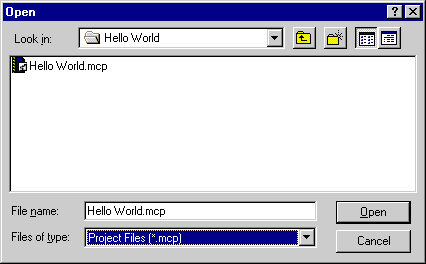
Select the file you would like to open, and click Open. The CodeWarrior IDE opens the file in an editor window.
For more information about editing source code, see "Editing Source Code."
Open Dialog Box (Mac OS):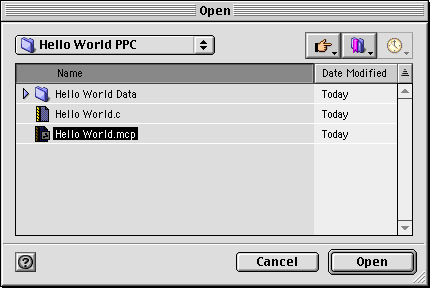
Open Dialog Box (Solaris and Linux):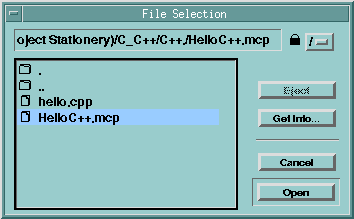
[ First ] [ Previous ] [ Next ] [ Last ] [ Manuals ]
Visit the Metrowerks website at: http://www.metrowerks.com
For assistance contact Metrowerks Technical Support at: cw_support@metrowerks.com
Copyright © 2000, Metrowerks Corp. All rights reserved.
Last updated: August 17, 2000