[ First ] [ Previous ] [ Next ] [ Last ] [ Manuals ]
Opening Files from the Project Window

There are different ways to open files from within the project window, depending on the type of file you wish to see. These different ways are:
 TIP
TIP
(Mac OS) Files that contains binary data cannot be opened and displayed in a CodeWarrior editor window. If the file was created using another application, double-clicking the file name in the File column will open the file in the application that created it. Refer to "Disassembling Source Code" to learn how to view the contents of a library file.
File column
If the file you wish to see appears in the File column of the project window's File or Link Order views, double-click the file name to open it. If the file is a text file, CodeWarrior opens it in an editor window.
Mac OS
On the Mac OS, if the file is any other type, the CodeWarrior IDE opens the application that created the file. If the file is a binary file, such as a library file, it will not be opened, because binary files are not viewable using printable characters.
Another way to open a file is to select it, and then press the Enter/Return key. You can select multiple files in the Project window, and open them all by pressing the Enter/Return key. If you do not know how to select multiple files in a project, refer to "Selecting Files and Groups."
For more information about the File Column, refer to "File column."
TIP
To open several files from the File Column at one time, hold down the Ctrl/Command key and click each file that you want to see. Then, double-click on one of the selected files.
Group pop-up menu
Another way to open a source file is to use the Interface pop-up menu for a group. A similar menu is shown in Figure 4.4. From this pop-up menu you may select the file in the group that you want to open.
You can open a source file by choosing it from the Interface pop-up menu menu for the group that contains the file. This works even if the group is collapsed and the file is not visible in the project window.
Interface pop-up menu
To open a header or interface file, click on the Interface pop-up menu to see a list of files. Select the file you want to open from this list, as shown in Figure 4.4.
Interfaces Files Pop-up Menu in the Project Window: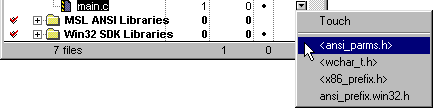
Note that header files inside "<...>" are system header files located within the Metrowerks CodeWarrior folder. Files without these symbols are header files that you have created. Your header files are stored in the same folder as your project or other Access Paths you have designated. To learn more about Access Paths and how to configure them, refer to "Access Paths."
TIP
To switch between a source file and its interface file, use the same name for both files, except for the extension. For example, name your files foo.cpp and foo.h. Then press Ctrl/Command-\Q to instantly switch between the two files.
When the Interfaces File Pop-up is clicked for a library file that is part of your project, you will only have the option to Touch or Untouch the library file. Since libraries do not contain header or interface files, these files can not be opened from a pop-up corresponding to a library file.
To learn more about touching files, see "Touching and Untouching Files."
[ First ] [ Previous ] [ Next ] [ Last ] [ Manuals ]
Visit the Metrowerks website at: http://www.metrowerks.com
For assistance contact Metrowerks Technical Support at: cw_support@metrowerks.com
Copyright © 2000, Metrowerks Corp. All rights reserved.
Last updated: August 17, 2000