
To close a window, choose Close from the File Menu.
If you close a text file using the File Menu and have not yet saved your changes, the CodeWarrior IDE asks if you want to save the changes before closing the window, as shown in Figure 4.12. If you choose to close the file without saving your changes, all changes are lost.
Unsaved Changes Dialog Box: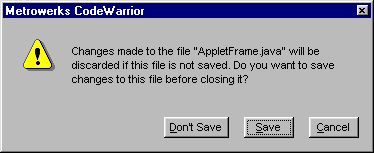
Another way to close a window is by clicking the close box of the active window. This is exactly the same as choosing the Close command in the File Menu.
Closing an active project window automatically saves the project, and you will not see the dialog shown in Figure 4.12. For more on saving project files, consult "Saving a Project."
The Close command also saves other properties of the window, such as the size, location, and the selected text in the active window. Refer to "Editor Settings" for information on how to configure these options. If the appropriate options are enabled, the next time the source code file is opened, it will occupy the same position on your screen and the same text will be selected.
The Close command saves the window position information in a format that is compatible with the Macintosh Programmer's Workshop (MPW). If you open a saved CodeWarrior editor file with MPW, the same window parameters are respected. For more information about MPW, refer to the documentation on the CodeWarrior Reference CD.