[ First ] [ Previous ] [ Next ] [ Last ] [ Manuals ]
Multi-Class Hierarchy Window

The Multi-Class Hierarchy window displays a complete graphical map of the classes in the browser database. Each class name is displayed in a box, and related classes are connected to each other by lines. Choose Class Hierarchy from the Window Menu to display the Multi-Class Hierarchy window. Figure 7.7 shows the Multi-Class Hierarchy window.
Use the arrow keys to change the selected class "geographically." The up and down keys work on siblings. The left and right keys work on ancestors and descendants.
You can use the keyboard to change the selection. The current selection most closely matches the characters you type. Use the Tab key to change the selected class alphabetically.
 TIP
TIP
If you select a class in the Classes pane in the Browser Window, the selection in the Multi-Class Hierarchy Window changes too.
If you double-click a class entry, or select the entry and press the Enter/Return key, you open a Browser Window for that class.
In addition to the entry for each class, the Multi-Class Hierarchy window has three items:
Line button
The Line button controls the display of the lines that connect related classes. You can toggle between diagonal lines and straight lines. The choice is entirely aesthetic.
The Multi-Class Hierarchy window: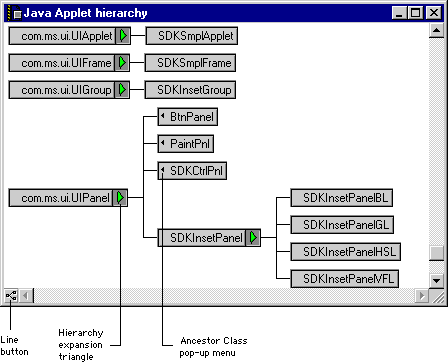
Hierarchy expansion triangle
The hierarchy expansion triangle controls the display of subclasses.
If you click this triangle, the next level of subclasses is displayed or hidden from view. To be more precise, the expanded state restores to what it was the last time this class was open.
 NOTE
NOTE
Alt/Option click a disclosure triangle to open all subclasses at all levels. This is a "deep" disclosure. Ctrl/Command click to display subclasses for a class and all of its siblings. This is a "wide" disclosure. Ctrl-Alt-click (Windows) or Command-Option-click (Mac OS, Solaris, and Linux) to open both wide and deep. You can use Ctrl/Command-Alt/Option-click to expand or collapse an entire map if you click the expansion triangle for a base class that has no ancestors.
Ancestor Class pop-up menu
Click on the Ancestor Class triangle, shown in Figure 7.7, to display a pop-up menu. This menu lists immediate ancestors. When you choose an item from the pop-up menu, you jump to that class in the map. If the item is not currently visible, the computer beeps.
This control is displayed only for classes that have multiple base classes.
[ First ] [ Previous ] [ Next ] [ Last ] [ Manuals ]
Visit the Metrowerks website at: http://www.metrowerks.com
For assistance contact Metrowerks Technical Support at: cw_support@metrowerks.com
Copyright © 2000, Metrowerks Corp. All rights reserved.
Last updated: August 17, 2000