[ First ] [ Previous ] [ Next ] [ Last ] [ Manuals ]
Window Buttons

Several buttons in the IDE Preferences window control how the IDE applies your settings.
This section discusses the following topics:
Discarding changes
If you change the settings in the IDE Preferences window and then try to close the window, the dialog box shown in Figure 8.2 appears. To discard your changes, click Don't Save. To keep your changes, click Save. To discard your changes and return to the IDE Preferences window, click Cancel.
Preferences Confirmation Dialog Box: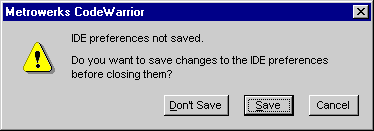
Factory Settings button
Click Factory Settings to revert the current preference panel to its default settings. Clicking this button does not affect the settings in other preference panels.
 WARNING!
The IDE resets all settings within the preference panel to their default values after you click the Factory Settings button. If you do not export the preference panel before restoring its default settings, you will lose your preferences in that panel. See "Export Panel and Import Panel buttons" for more information.
Revert Panel button
Click Revert Panel to undo the changes you made to the current preference panel. Clicking this button resets the preference panel to its last saved state.
Save button
Click Save to commit the current settings in all of the preference panels. After closing the IDE Preferences window, the CodeWarrior IDE behaves according to the preferences that you saved.
Export Panel and Import Panel buttons
Click Export Panel to save the settings in the current preference panel to an Extensible Markup Language (XML) file. Click Import Panel to open an existing XML file and apply its settings to the current preference panel.
OK, Cancel, and Apply buttons (Windows)
Click OK to commit the current settings in all of the preference panels and close the IDE Preferences window. Click Cancel to discard your changes and close the window. Click Apply to commit the current settings in all of the preference panels without closing the window. After you click the Apply button, the Cancel button becomes the Close button. Click Close to dismiss the IDE Preferences window.
[ First ] [ Previous ] [ Next ] [ Last ] [ Manuals ]
Visit the Metrowerks website at: http://www.metrowerks.com
For assistance contact Metrowerks Technical Support at: cw_support@metrowerks.com
Copyright © 2000, Metrowerks Corp. All rights reserved.
Last updated: August 17, 2000