[ First ] [ Previous ] [ Next ] [ Last ] [ Manuals ]
Handling Object Code

After compiling your project, the CodeWarrior IDE adds the object code from each source file to the project file. This binary object code increases the project file's size. You can remove this additional object code if you want the project file to consume less space on your hard disk, or if you want to remove all object code and restart the compilation process. You can also choose to mark your project's files for re-compilation, leaving existing object code intact.
Removing Object Code
In some cases, you might wish to remove all of the object code from your project and restart the compilation process.
To remove all of the object code from a project, follow these steps:
1. Choose Project > Remove Object Code.
The dialog box shown in Figure 10.2 appears.
2. Enable the Compact Targets checkbox.
After enabling this checkbox and completing the following step, the IDE deletes the following items:
After deleting these files, the IDE resets to zero the numbers in the Code column and Data column of each file. The next time the IDE builds your project, it re-creates the target data files.
Remove Object Code Dialog Box: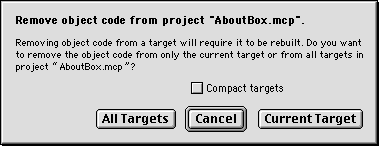
3. Confirm the removal of the object code from your project.
The dialog box contains various buttons for removing object code, depending on the number of build targets in your project:
Click Cancel if you no longer wish to remove the object code. The IDE leaves your project's object code intact, even if you enabled the Compact Targets checkbox.
If your project contains only one build target, click OK to remove the object code from that build target.
If you project contains more than one build target, click Current Target to remove object code only from the current build target, or click All Targets to remove object code from all build targets in the project.
To learn how to change the current build target of your project, refer to "Setting the Current Build Target."
Marking a Project for Re-compilation
In some cases, you might wish to mark your project's files for re-compilation while leaving the existing object code in your project intact.
To mark a project for re-compilation, follow these steps:
1. Choose Project > Remove Object Code.
The dialog box shown in Figure 10.2 appears.
2. Disable the Compact Targets checkbox.
Disabling this checkbox preserves existing target data files in your project. These files end with a .tdt extension.
3. Confirm the marking of the project's files for re-compilation.
The dialog box contains various buttons for marking your project's files for re-compilation, depending on the number of build targets in the project:
To learn how to change the current build target of your project, refer to "Setting the Current Build Target."
[ First ] [ Previous ] [ Next ] [ Last ] [ Manuals ]
Visit the Metrowerks website at: http://www.metrowerks.com
For assistance contact Metrowerks Technical Support at: cw_support@metrowerks.com
Copyright © 2000, Metrowerks Corp. All rights reserved.
Last updated: August 17, 2000