[ First ] [ Previous ] [ Next ] [ Last ] [ Manuals ]
Properties Tab

To view the properties of the selected object, click the Properties tab. The Object Inspector displays a list of applicable properties. Each line in the list displays the name of a property and the current value of that property.
Click the hierarchical control next to a specific property to expand and view its contents. Click the control again to collapse the view. To resize the columns in the list, position the cursor between the columns and drag the cursor. An outline shows the final sizes of the columns. Release the cursor to resize the columns accordingly.
To change the value of a particular property, click its current value. A border is displayed around the line containing the selected property, and the property is highlighted. Type a new value to replace the current one.
Object Inspector (Mac OS):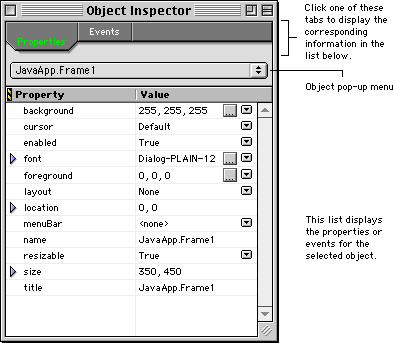
Alternatively, you can change the value of a property by clicking buttons displayed next to the current value:
 Click this button to display a pop-up menu. Choose pre-defined options from the pop-up menu to change the current property value.
 Click this button to display a dialog box. Configure the property value using the options in the dialog box. The current RAD plug-in determines the contents of the dialog box.
If you decide against changing the property's value, press the Esc key on your keyboard. The Object Inspector discards your changes.
The arrow keys on the keyboard provide quick navigation of a component's properties. When a property is currently selected in the Object Inspector, the Up Arrow key selects the property listed above the current one, and the Down Arrow key selects the property listed below the current one.
 TIP
TIP
(Windows) The Left Arrow and Right Arrow keys are useful for toggling between pre-defined property values. Selecting a boolean value, for example, you can use the Left Arrow and Right Arrow keys to toggle the current value between True and False.
[ First ] [ Previous ] [ Next ] [ Last ] [ Manuals ]
Visit the Metrowerks website at: http://www.metrowerks.com
For assistance contact Metrowerks Technical Support at: cw_support@metrowerks.com
Copyright © 2000, Metrowerks Corp. All rights reserved.
Last updated: August 17, 2000