[ First ] [ Previous ] [ Next ] [ Last ] [ Manuals ]
VCS Pop-up

The VCS Pop-up menu ( ) (Figure 16.5) appears in editor windows when a version control system is activated. The icon that represents the VCS Pop-up menu indicates the current permission setting for the file. For more information on permission settings, see "VCS States".
VCS Pop-Up Menu: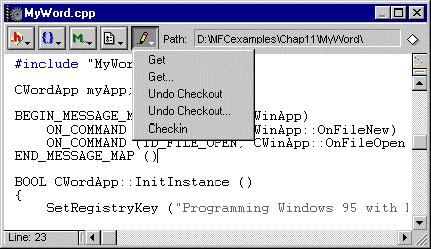
VCS States
When using a version control system, each file in a project can have a different permission setting. A file's permission setting can be viewed in the Project window's Checkout Status Column (Figure 16.6) and as part of the file's editor window's VCS Pop-up menu (Figure 16.6). See Table 16.3 for a description of each state indicator.
VCS state Icons:
Depending on the state of the VCS Pop-Up menu when you click on it, certain operations may be performed on the file you are editing. These supported operations are described in Table 16.4.
You choose an item from the VCS Pop-up menu to execute a VCS operation. If the menu item contains an ellipsis character "", a dialog box of advanced options for the operation appears, enabling you to customize the operation before executing it.
Mac OS
Press the Option key before choosing a menu command to access any advanced VCS options. If an ellipsis character "" appears next to a menu command, advanced VCS options are available for that operation.
For more information on these operations, refer to the documentation that came with your revision control system.
Supported VCS Pop-up Operations:
[ First ] [ Previous ] [ Next ] [ Last ] [ Manuals ]
Visit the Metrowerks website at: http://www.metrowerks.com
For assistance contact Metrowerks Technical Support at: cw_support@metrowerks.com
Copyright © 2000, Metrowerks Corp. All rights reserved.
Last updated: August 17, 2000


