[ First ] [ Previous ] [ Next ] [ Last ] [ Manuals ]
Keyboard Preferences Dialog Box

Modifier keys are used in combination with other keys to generate keyboard shortcuts to certain IDE functions. For instance, to execute the Ctrl/Command - N keyboard shortcut, you depress the Ctrl or Command modifier key, and while holding it down, press the N key on your keyboard.
The Keyboard Preferences dialog box (Figure B.4) allows you to define which physical keys on your keyboard correspond to certain modifier keys used in the CodeWarrior IDE. To display the dialog box, choose Keyboard Preferences from the Info menu.
Figure B.4 The Keyboard Preferences Dialog Box
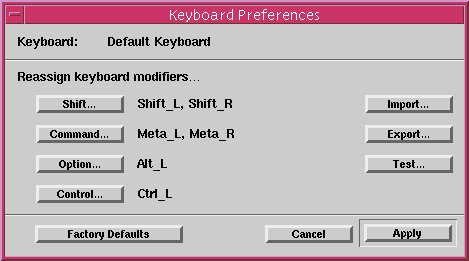
This dialog box contains the following items: Keyboard Display, Reassign Keyboard Modifiers Section, Import Button, Export Button, Test Button, Factory Defaults Button, Cancel Button, Apply Button.
Keyboard Display
This display shows the active keyboard.
Reassign Keyboard Modifiers Section
The Shift, Command, Option, and Control buttons in this section correspond to modifier keys used in the CodeWarrior IDE.
Pressing one of these buttons will cause CodeWarrior to scan the keyboard and record keys that are pressed until a key is released. The key(s) that are pressed during the scan will be mapped to the corresponding modifier key. Once scanning is complete, a list of keys that were pressed will appear to the right of the button.
Once the Apply button is pressed, the changes you have made go into effect. From this point on, when you type any of these keys, CodeWarrior will respond as if the corresponding modifier key has been pressed.
For example, to map both the left and right Shift keys on your keyboard to the Shift modifier key, follow these steps:
1. Press the Shift button in this dialog box.
2. Press and hold down both of the Shift keys on your keyboard.
3. Release the Shift keys on your keyboard.
Shift_L and Shift_R should now appear next to the Shift button in the dialog box.
Import Button
Press this button to display a file open dialog, which will allow you to select a file to import keyboard modifier settings from.
Export Button
Press this button to display a file save dialog which will allow you to export the current keyboard modifier settings to a file on disk.
Test Button
Press this button to test your settings.
Factory Defaults Button
Press this button to reset the settings to the factory defaults.
Cancel Button
Press this button to dismiss the dialog box without applying your changes.
Apply Button
Press this button to apply any changes you have made and dismiss the dialog box.
[ First ] [ Previous ] [ Next ] [ Last ] [ Manuals ]
Visit the Metrowerks website at: http://www.metrowerks.com
For assistance contact Metrowerks Technical Support at: cw_support@metrowerks.com
Copyright © 2000, Metrowerks Corp. All rights reserved.
Last updated: August 17, 2000