This chapter discusses how to work with Apple events in PowerPlant. The focus of this chapter is on how to create a scriptable application using Apple events. In the process, PowerPlant's Apple event classes are explained thoroughly.
As an experienced PowerPlant programmer, you know how easily PowerPlant handles the visual interface of a Macintosh application. The visual interface dispatches user interface events to operations on your application's data.
However, every System 7-savvy application should also have a second interface-an Apple event interface. The Apple event interface dispatches messages to the same set of operations as the visual interface, but without direct user action. The events come from a script or another application.
Apple events allow your users to automate lengthy tasks, exchange data between applications, or perform custom configurations. Apple events and the related AppleScript programming language are perhaps the most valued breakthrough of System 7, and are even more important in Mac OS 8.
PowerPlant makes coding the Apple event interface as easy as coding the visual interface. In fact, any PowerPlant application is already partially scriptable-PowerPlant's application, window, and document classes already support some Apple events. In this chapter, you will learn how to use PowerPlant classes to extend these built-in features to include your specific application content.
The discussion assumes that you are familiar with the purpose of Apple events, and all the basic AppleEvent Manager data structures: AEDesc, AERecord, and AppleEvent. You should also be familiar with the core suite of the Apple event registry (e.g. make new, clone, move, delete, get data, set data). Experience with scripting an application that supports the AppleEvent Object Model (such as BBEdit, CodeWarrior, FileMaker Pro, or Eudora) will speed your comprehension.
Apple events are a very big topic, occupying most of Inside Macintosh: I-nterapplication Communications. This chapter cannot possibly cover all the details of how Apple events work. This chapter is limited to those aspects of PowerPlant that you will need to use immediately to support Apple events in your application.
To learn more about Apple events, consult the following references.
Apple Computer, Inc. Inside Macintosh: InterApplication Communication. Addison-Wesley (1993).
Apple Computer, Inc.Apple Event Registry: Standard Suite. This document is on the Developer Reference CD (1992).
Berdahl, E. M. "Better Apple Event Coding Through Objects." develop, 12, 58-83 (1992).
Clark, R. "Apple Event Objects and You." develop, 19, 8-32 (1992).
Roschelle, J. "Powering Up AppleEvents in PowerPlant." MacTech Magazine, 11(6), 33-46 (1995).
Simone, C. "According to Script: Steps to Scriptability." develop, 24, 27-29 (1995).
Let's begin with a bird's eye view. Apple events are basically a way of describing the actions that users will perform in your application, such as:
An Apple event is a purely descriptive message. It says what to do, not how to do it. Your application must parse and interpret this message. When you are finishing parsing and interpreting, you will call a normal C++ function to execute the operation. This suggests the main programming problem-translating an external message to internal classes and functions. Your Apple events code translates "what" into "how" and then executes the appropriate code.
To make this problem of translation easier, Apple events present messages in a fairly standard format. An event message has a verb that describes the operation to perform, and a direct object that describes the noun on which to perform the operation. The event may also have a number of parameters which, like adjectives and adverbs, specify how the operation is to be performed. For example, "set" (verb) "color of word 1" (noun) to "red" (adjective).
The Mac's visual interface is insanely great because Apple adopted strong user interface guidelines. Similarly, the Mac's Apple event interface is insanely great because Apple provided strong semantic guidelines for the Apple event interface. These guidelines are called the Apple Event Object Model (AEOM). AEOM is a generic vocabulary for modeling any application. You customize it to describe your application.The concepts in the AEOM vocabulary are:
Classes-kinds of objects (nouns) in your application Events-actions (verbs) that can be performed Parameters-attributes of an action (adverbs) Properties-attributes of objects that can take on a value Elements-the hierarchical relationship between a class and the items it contains
 NOTE
NOTE In the context of Apple events and the AEOM, the word "parameter" has a specific meaning. A parameter is one kind of data attached to an Apple event. Unfortunately, the word "parameter" also means data passed to a function. To avoid confusion, we will use the term "argument" when we are discussing data passed to a function, and the word "parameter" when discussing attributes of an Apple event.
These abstractions become concrete with the specifics of each application. For example, a spreadsheet document (class) contains elements which are cells (another class) and a cell has a formula, value, color, and border (properties). Similarly a graphics document (class) can contain rectangles (class) which have a fill color and line width (properties). You might sort (event) the cells in ascending order (parameter). Or move (event) the rectangle to the back (parameter).
The central task with Apple events is translating these messages into actions you can execute. In PowerPlant, the LModelObject class is the center of translation. The translation proceeds roughly like this:
Thus the message "set the line width of rectangle 3 of window 1 to 2" might be translated to C++ as:
theRectangle->SetLineWidth(2);
Line width might be stored in the member variable mLineWidth, and rectangle 3 could be the third pane in the mSubPanes of the first LWindow.
NOTE Once again, there is potential confusion because of terminology. In the AEOM, the word "class" is a generic term referring to an object in your application. In C++, the word "class" means a formal description of a C++ object. There is usually a 1:1 relationship between these two kinds of classes. For every AEOM class, there is usually a corresponding C++ class that (in PowerPlant) inherits from LModelObject.
In your Apple-event-savvy PowerPlant application, the center of attention is a mix-in class called LModelObject. LModelObject lets you "model" the data in your application as a tree of objects. You inherit from LModelObject in your main content-specific classes, and you override functions to respond to AppleEvents for each class.
The dirty work of translation between Apple event messages and C++ functions involves some helper classes in addition to LModel-Object. The classes discussed in this section include:
LModelDirector or LModelProperty are internal to PowerPlant. You will not usually use either class directly. However, you will use the classes and functions in UAppleEventsMgr and UExtractFromAEDesc because you will need to encode and decode Apple events.
If you find yourself encoding or decoding large or complex Apple events, you may find it worthwhile to study the classes in UAEGizmos. UAEGizmos has faster routines for encoding and decoding AEDescs. These classes are not discussed in detail in this chapter, because they are unsupported. See "UAEGizmos."
Finally, to use Apple events, you will also have to edit two resources: the terminology resource and the dispatch table. The terminology resource (of type `aete') has two purposes. First, it describes your application's particular AEOM vocabulary. Second, it specifies the mapping between English-like terminology and codes that your C++ member functions can use. The other resource is the `aedt' resource, which declares the numeric codes you use to represent Apple events.
A model object is a C++ class that handles a particular AEOM class in your application's Apple event interface. In PowerPlant, all model objects inherit from LModelObject. You inherit from LModel-Object in the content-related classes in your application, which might be graphics shapes, spreadsheet cells, or word processing paragraphs. You will also find LModelObject already mixed into LWindow and LDocument (Figure 7.1). This is because windows and documents are part of the core suite in the Apple event registry, and PowerPlant does most of the work of supporting that suite for you.
Classes that inherit from LModelObject: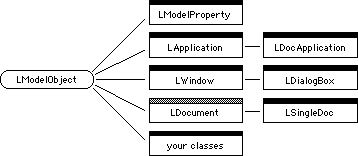
The grey bar indicates that LDocument is an abstract class.
NOTE You can refer to LWindow and LDocument as excellent examples of Apple event handling in PowerPlant. Beware, however, that both classes handle the elements relationship (finding a particular window or document) idiosyncratically. This is because lists of windows are stored in the Mac OS and the list of documents can be stored globally. Most of your classes will have to support the elements relationship differently.
LModelObject has three data members of interest.
Some LModelObject data members:
| Data member |
Stores |
|---|---|
The mModelKind member is a 4-byte code that describes the AEOM class ID of an
object. You typically set this member only when you first create
an object. In advanced situations, you can change the member to
allow one C++ class to support many AEOM classes. The next two
members, mSuperModel and mSubModels, support the AEOM elements relationship. Since every LModelObject
can have a list of other LModelObjects, you can establish a model
object hierarchy. At any level in the hierarchy, the mSuperModel member refers to the immediate container of the given LModelObject,
and the mSubModels member is an LList of its elements.
NOTE The mSubModels LList is optional. To use it, call SetUseSubModelList(true) in your object's constructor. You will not use mSubModels if your object contains no elements or you implement custom storage
of elements. For example, an application might store the elements
in a hash table. In this case mSubModels would be nil. You would have to override some of the member functions
of LModel-Object such as AddSubModel() and GetSubModelBy().
LModelObject has more than 50 member functions. Many are internal to PowerPlant's handling of Apple events. The member functions that you are likely to call or override fall into three categories:
The AEOM specifies a containment hierarchy according to the elements relationship. LModelObject provides several functions for managing this relationship.
Basic LModelObject functions for managing elements:
| Function |
Purpose |
|---|---|
In the recommended LModelObject constructor, you provide both
a pointer to a containing LModelObject and a class ID. In one
step, you create an object of a particular AEOM class in a particular
containing model. Alternatively, you can create an LModelObject
with the default constructor, and later set the AEOM class ID
with SetModelKind(). You can change the containment at any time by calling SetSuperModel() with a new containing LModelObject.
If your object will have elements, you might want to use the mSubModels member to store them. If so, your constructor implementation
should also call SetUseSubModelList(true).
NOTE When you add an element, you cannot directly specify its position
in the list of elements. After you call SetSuperModel(), you can change the position using the MoveItem() function of the mSubModels LList.
| Function |
Purpose |
|---|---|
You might not want to use the mSubModels list to store your elements. For example, you might have a very
large collection of elements that are accessed by name. In this
case, storing your elements in a hash table would provide more
efficient lookup. However, if you do not use the mSubModels list, you have to override the member functions listed above
so that PowerPlant can find your elements.
The AddSubModel() and RemoveSubModel() functions are called by SetSuperModel() and by the recommended constructor. Your overrides should insert
or delete the specified LModelObject in your data structure.
CountSubModels() should return the number of elements of the desired class of
your data structure. It is called when an Apple event asks for
information like the "number of rectangles in window 1." This
function is also called when an Apple event requests the "last
rectangle of window." PowerPlant counts the number in the list
and translates the request into a request for an indexed item.
The GetSubModelByPosition() and GetSubModelByName() member functions should find the desired element in your data
structure. They are called when an Apple event requests something
like "rectangle 4 of window 1" or "rectangle "fred" of window
1." GetPositionOfSubModel() should return the index number of an element in your storage.
In addition to these functions, LModelObject provides many more
functions you can override to support more complex accessors for
your elements. You can allow users to name an object by a unique
identity or by a "whose" clause. You can support comparisons between
objects. You can find the appropriate functions to override in
LModelObject.h.
Properties are the attributes of an object, such as color, line width, location, size, font, and so forth. LModelObject has functions that are, effectively, accessors for properties.
LModelObject functions for handling properties:
| Function |
Purpose |
|---|---|
To support any properties in your LModelObject-based classes,
you override these two functions. Note that in both functions,
the first argument is the property descriptor. Typically, you
store each property in a data member of your class. Your implementation
of both GetAEProperty() and SetAEProperty() will contain a switch statement that maps the property descriptor
to a particular data member.
NOTE PowerPlant translates the "Get Data" and "Set Data" Apple events
into calls to GetAEProperty() and SetAEProperty() with a property ID of pContents. Therefore an Apple event like "set rectangle 4 to {10,0,50,100}
" results in a call to SetAEProperty().
PowerPlant handles Apple events through a central dispatcher.
When an event is received, PowerPlant first identifies the LModel-Object
(the direct object) to which the event applies. The Handle-AppleEvent() member function of this object will be called. HandleAppleEvent() decodes the event ID and dispatches to an appropriate function
to further decode and execute the event. PowerPlant already dispatches
the following Apple events:
If you support other events, you must override Handle-AppleEvent() to dispatch to your functions.
LModelObject functions for handling events:
| Function |
Purpose |
|---|---|
If you allow users to create new elements by an Apple event, you
will have to override HandleCreateElementEvent(). Your implementation should create an LModelObject of the appropriate
class and insert it in the right spot in its container. (Implementation
details for HandleCreateElementEvent() and other member functions are discussed in "Implementing Apple Events in PowerPlant."
GetImportantAEProperties() is called by HandleClone(). HandleClone() works by translating the clone request into a "Create Element"
Apple event. To replicate the properties of the target object,
it calls GetImportantAEProperties() and puts them into the properties field of the "Create Element"
Apple event. If you want cloning to replicate your properties,
you must implement GetImportantAEProperties() to build a Apple event record containing all properties of your
object.
HandleMove() works by cloning the object into the new location, and deleting
it from the old location. As mentioned above, cloning works by
creating a new element. HandleDelete() arranges for the delete operator to be applied to your object.
The LModelObject destructor will remove your object from its container.
HandleCount() calls CountSubModels().
In most cases you do not need to override HandleMove(), HandleClone(), HandleDelete(), or HandleCount(). You would only override these member functions if you can provide
more efficient implementations.
LModelDirector is used internally by PowerPlant. You will usually
not need to call any LModelDirector member functions yourself,
although LModelDiretor::Resolve() may be useful.
In a running PowerPlant application, there is one instance of LModel-Director, created at launch time. This instance installs callback handlers into the Toolbox Apple Event Manager. When your application receives an event, LModelDirector performs the initial decoding of the event, and dispatches to an appropriate LModel-Object class to be handled.
LModelProperty is used internally by PowerPlant to handle properties of classes. You will typically not need to make LModelProperty instances yourself, nor call LModelProperty member functions.
PowerPlant transiently creates LModelProperty instances as they
are needed, to represent an AEOM property in an Apple event. A
property is always contained by an LModelObject instance. LModelProperty
dispatches back to this instance to execute its set or get property
Apple events. Thus, you always handle property-related Apple events
in the GetAEProperty() and SetAEProperty() member functions of your LModelObject-based class.
The UExtractFromAEDesc class decodes Apple event descriptors to C++ data types. It consists entirely of static functions, one per data type.
NOTE UAEGizmos has this functionality as well, in the LAESubDesc::To...() functions.
| Function |
Purpose |
|---|---|
For example, if you want to extract a long integer from an Apple
event descriptor named inDesc, you can call:
SInt32 myInteger;
UExtractFromAEDesc::TheInt32(inDesc, myInteger);
The virtue in using these functions to decode data from an Apple
event is that they will automatically coerce Apple event data
into the desired type. Thus if your application wants an SInt32, but the Apple event supplied an SInt16, your code will still get data. (Incidentally, it is because
of coercion that TheType() and TheEnum() are both provided. Even though they produce the same C++ data
type, they might perform different coercions.)
If coercion fails, these member functions throw an exception. In most cases, this does the right thing for you automatically. The exception will get caught by PowerPlant code in LModelDirector and translated into an error code. The error code will be returned in the Apple event reply. From there, the sending application can deal with the error gracefully. Script Editor, for example, will tell the user in which line of AppleScript the error occurred.
Whereas UExtractFromAEDesc gets a value out of a descriptor, StAEDescriptor gets a descriptor corresponding to a particular parameter out of an Apple event. You can also use StAEDescriptor for constructing Apple event descriptors that are needed temporarily.
StAEDescriptor (in UAppleEventMgr.h) wraps an Apple event descriptor with a stack-based C++ class.
When the local block of code completes, StAEDescriptor will be
destructed and will properly dispose of the Apple event descriptor.
This is necessary because the AppleEvent Manager copies the parameter
from the Apple event into an Apple event descriptor. Programmers
are responsible for disposing of this new descriptor. StAEDescriptor
does this for you automatically. Because it is a stack-based class,
it works even when an exception is thrown.
Some StAEDescriptor functions:
| Function |
Purpose |
|---|---|
Every parameter in an Apple event has a keyword that identifies it. StAEDescriptor finds a descriptor by keyword and makes it available for your use. You can then use a UExtractFromAEDesc function to decode the value of the parameter. For example, if you received an Apple event that had an "index" parameter containing a long integer, you could retrieve the data as follows:
StAEDescriptor indexDesc;
SInt32 mylong;
indexDesc.GetParamDesc(theAppleEvent,keyIndex,
											typeLongInteger);
UExtractFromAEDesc::TheInt32(indexDesc,myLong);
You should use GetParamDesc() for a parameter that is required, and GetOptionalParamDesc() for a parameter that is optional. The only difference is that
the former member function will throw an exception if the required
parameter is not found. Under normal PowerPlant handling, this
exception will cause the Apple event to return an error to its
caller.
As a safety check, after you retrieve all the required and optional
parameters of an event you should call UAppleEventMgr::CheckForMissingParameters(). This function throws an exception if you forgot to retrieve
a parameter from the message.
The StAEDescriptor class also has a second usage. You can use
it to encode C++ data while building an Apple event. StAEDescriptor
has an overloaded set of constructors, each of which encodes a
descriptor from a different class of C++ data type. Moreover,
because StAEDescriptor defines some cast operators, you can use
an StAEDescriptor anywhere that the AppleEvent Manager needs an
Apple event descriptor. For example, to add the long integer myLong to an Apple event you could use code like this:
StAEDescriptor aeLong(myLong);
::AEPutParamDesc(myAppleEvent,keyIndex,aeLong);
This conveniently first constructs the Apple event encoding of
the data in myLong, and then disposes the Apple event descriptor for aeLong after it is added to the event.
 WARNING!
 Classes that have two, incompatible uses are dangerous. Unfortunately StAEDescriptor is just such a class. If you are decoding an Apple event, you must use the no-argument constructor and call either of the functions listed above. If you are encoding an Apple event, you generally use the constructor that takes an argument, and do not call other StAEDescriptor functions.
The UAEDesc (in UAppleEventMgr.h) class encodes more complicated types of Apple event descriptors.
The static member functions in this class simplify the process
of encoding lists and records.
| Function |
Purpose |
|---|---|
The three "Add" functions will create a list or record if necessary, and then add an item. For example, to create a list of the integers from 1 to 10 you could write:
StAEDescriptor myList;
for( long i = 1; i <= 10; ++i)
{
	UAEDesc::AddPtr(myList,i,typeShortInteger,

									&i, sizeof( short ));
}
MakeRange() is used to encode an object descriptor that denotes a set of
objects. An example is "characters 1 through 5 in word 1." MakeInsertionLoc() encodes a description of a place where an object should be created,
cloned, or moved.
 TIP
TIP Once again, refer to the UAEGizmos package if you intend to work with complex descriptors.
The UAppleEventsMgr class contains functions for sending an Apple event to your own application, as well as some other utilities.
Some UAppleEventsMgr functions:
| Function |
Purpose |
|---|---|
The general procedure for sending an Apple event is to:
1. Make a descriptor for the Apple event using StAEDescriptor.
2. Call MakeAppleEvent() to encode the event class and ID into the descriptor.
3. Add parameters to the descriptor using AEPutParamPtr() or AEPutParamDesc(). (You usually want to build the parameters with StAEDescriptor
and UAEDesc.)
5. If appropriate, decode the reply.
WARNING! SendAppleEvent() and SendAppleEventWithReply() are inconsistent. The former disposes the Apple event for you,
the latter does not. The best policy is to create the AEDesc for
your Apple event and its reply using StAEDescriptor. This will
ensure that the descriptors are deallocated exactly once.
In order to build a scriptable application, you must modify two resources. This section has the following topics:
The terminology resource describes the AEOM classes of objects
and events that your application supports. It also enables AppleScript
to translate English-like verbs and nouns into four-letter codes
that your application can easily process. The English-like terms
are called "user terminology" or "user terms" for short. The four-letter
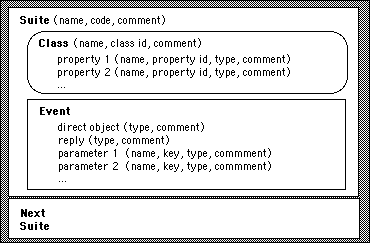
codes are of type DescType, and are stored in a single long integer. Figure 7.2 shows the features of an `aete' resource.
The terminology is organized by suites, with each suite covering a standard kind of functionality. The standard suites are described in the AppleEvent Registry, available on the Apple developer program Reference CD. Standard suites cover text, graphics, and tables, for example. You are free to invent your own suites, but if a standard suite fits your application you should strive to use it.
Within each suite, you describe a set of events and a set of classes.
Each event description gives the user terminology and the event ID for the event, as well as a descriptive comment. Within the event is a list of parameters, again described both with a user term and a code.
Each class description gives the user term, class ID code, and descriptive comment for the class. Within the class description, there is a set of properties. Each property has both a user term and a code, as well as a description.
A class can also have a set of elements. These are described simply by listing the class IDs of the objects that can be contained within this class.
Here are a few tips for editing terminology resources:
1. Mappings from user term to application codes must be one to one. Never have two user terms for the same code or vice versa, even if they are in different suites.
2. AppleScript does not support static type checking of a script (in contrast to C or Pascal). Thus upon checking syntax, AppleScript reports correct syntax for any property with any class, and for any element in any class. Even though your terminology describes a data type for each property and parameter, AppleScript lets the user send a different data type. AppleScript has no way to indicate that certain events only apply to certain classes. Because AppleScript is weakly type checked, your application may report errors at run-time even thought the script was "correct" at compile time.
3. AppleScript caches terminology resources. If you change your terminology, you must quit and re-launch Script Editor or its equivalent if you want to use the new terminology.
The `aedt' resource simply maps two pieces of information to one. The event class and event ID are mapped to a single long integer code. You use the long integer code inside your implementation. If you add any events to any suite, you must supply an entry in an `aedt' resource, or PowerPlant will not dispatch your event.
The file <PP Starter Resource>.rsrc includes both "aete" and "aedt" resources for basic PowerPlant
operations. You can use these resources as a starting point for
your own scriptable application. You can find these files in the
Project Stationery support folder.
The starter `aete' resource can also be found in the file PP Copy & Customize.rsrc. The starter `aedt' resource can also be found in the file PP AppleEvents.rsrc. See the "Resource Notes" chapter of The PowerPlant Book for
more information on these files.
To edit an `aete,' you can use ResEdit, Rez, or the Resorcerer resource editor. The instructions in this chapter youse Resorcerer. A ResEdit template for aete editing is currently available at:
ftp://ftpdev.info.apple.com/Developer_Services/Tool_Chest/Interapplication_Communication/AE_Tools_/ResEdit_'aete'_Editor_1.0b4.sit.hqx
For a Rez version of these resources, see the file PPSuites.r and its siblings.
Apple event implementations can vary widely in sophistication. Beginners should start with the basics to avoid being overwhelmed. The basic steps for any implementation are:
Handle-CreateElementEvent() so users can create new elements. The other core events (e.g.
clone, move, delete) will be handled for you by PowerPlant.
HandleAppleEvent(), so users can perform application-specific actions with your
objects.
After mastering these steps, you may want to read:
Beyond the Basics-a peek at more advanced Apple event techniques
The standard PowerPlant terminology resource includes classes for the application, and its documents and windows. You will probably want to add additional classes that describe the objects within your documents and windows.
The first step involves editing the terminology resource.
1. Add an entry for each new class and assign it an appropriate code. Edit the containing classes (e.g. window) so they list your classes as elements.
In the next two steps you modify your C++ objects that implement each AEOM class.
2. Add LModelObject as a public ancestor of your C++ class.
3. Redefine the constructor so that it takes an LModelObject reference to its container. Pass this pointer to the LModel-Object constructor.
In the third step you add your object to its container when it is constructed. Obviously, you have to change each place you call the constructor too, so you pass in an appropriate container.
In the last two steps, you also have to modify the container.
4. In each container (e.g. a window), call SetUseSubModelList(true) in the constructor to activate PowerPlant's default mechanism
for handling contained elements.
5. In each container, implement HandleCreateElementEvent().
A typical implementation of HandleCreateElementEvent() uses a switch statement to translate between a class ID and operator new.
Typical HandleCreateElementEvent() code:
LModelObject* YourContainer::

												HandleCreateElementEvent(
	DescType inElemClass,
	DescType inInsertPosition,
	LModelObject* inTargetObject,
	const AppleEvent& inAppleEvent,
	AppleEvent& outAEReply)
{
	LModelObject *result = nil;
	switch(inElemClass) {
		case myClassID:
			result = new myClass(this);
			break;
		case myOtherClassID:
			result = new myOtherClass(this);
			break;

		default:
			throw(errAEEventNotHandled);
			break;
	}
	return result;
}
Note that the constructor for each object passes a reference to
the container (i.e. this). Your constructor calls LModelObject's constructor with this
reference, so the new object is added to the container.
After constructing the new object, you might want to adjust its
position in the list. To do this, use the inInsertPosition and inTarget-Object arguments to locate the desired location. Then move the object
there with MoveItem().
You might also want to parse the Apple event for the "with data" and "with properties" parameters. Use these to configure the new object. Finally you probably need to cause your object to display itself in the visual interface.
To enable users to get and set the value of properties for your classes, follow these steps.
1. Edit the `aete' resource, adding property names and codes for each of your AEOM classes. Make sure each property name has a consistent code within the entire terminology, and vice versa.
2. Override GetAEProperty() to encode your C++ data into an Apple event descriptor.
3. Override SetAEProperty() to set your C++ data to the result of decoding an Apple event
descriptor.
Both functions typically have a switch statement that handles
each possible property as a case. Remember that the property with
code pContents should correspond to the central datum in your class. Examine
the implementation of LWindow for examples of how to write these
two functions.
You should be able to get some functionality working using only the core events that PowerPlant already dispatches. The next step is to support standard events. Standard events such as make, delete, copy, move, duplicate, get, and set are common and familiar to scripters.
Eventually, you may need to add an event that is specific to your application. As before, you start by editing resources.
1. Edit the `aete' resource, adding the new event and its parameters to an appropriate suite.
2. Edit the `aedt' resource, mapping the event class and ID into a unique long integer.
3. Override HandleAppleEvent() in those classes that support the event.
A typical implementation of HandleAppleEvent() uses a switch statement to dispatch on the long integer that
represents your event. You typically call a handler function,
and pass it the Apple event. The handler function should extract
the required and optional parameters it needs from the event,
and then execute the appropriate application-specific action.
Examine LModelObject::HandleAppleEvent() as a typical implementation of this function.
NOTE Remember to call the inherited HandleAppleEvent() function in the default case so that standard events will be
handled for you.
After you get classes, properties and events working, there is much you can do to improve your Apple event interface. PowerPlant has hooks for many other features. Some of those features are:
The "laziness" feature of LModelObject can be used in cases where it would require too much space to create a C++ object for every model object. Suppose you have a scientific plotting program. You might not be able to feasibly keep an individual C++ object for every data point (a large array for all the points would be more efficient). In this case, you can create an LModelObject transiently, as needed to interpret a particular Apple event. This type of model object is called a "lazy" object.
To implement a lazy object strategy, you override the object accessor
functions like GetSubModelByPosition() to actually create a new LModelObject to represent the desired
data point. After creating the object, call SetLaziness(true). At the end of the execution of the Apple event, PowerPlant will
automatically de-allocate the lazy object. Examine LModelProperty
as an example of a lazy object.
The "default submodel" and "set tell target" features of LModel-Object
allow you to simplify your scripting vocabulary. You might find
that it takes very long chains of references to identify a particular
object. In some cases, you can reduce this effort by making a
particular object a default submodel of a particular container.
The script author can then leave out the reference to the default
object, and the script will still work. SetTellTarget() allows you to modify how AppleScript records your application,
enabling it to use "tell" directives to make the script more readable.
You may want to use UAEGizmos to encode and decode Apple event
descriptors. UAEGizmos is faster and easier to use than UAEDesc.
UAEGizmos provides C++ wrappers for and relies on the AEGizmos
library. The AEGizmos library is not a Metrowerks product, and
Metrowerks does not support either AEGizmos or the UAEGizmos classes.
However, they are useful for Apple event programming. Read the
AEGizmos documentation. You can find this material in the AEGizmos
folder. The path to this folder is PowerPlant:· In Progress:· AppleEvent Classes.
You might also be able to implement a more efficient way of storing
elements in containers. You could override LModelObject's functions
that use mSubModels.
Further down the line, you might want to support "whose" clauses.
A "whose" clause allows a script author to refer to a whole collection
of objects at once (e.g. every word whose font size is 12). To
implement a whose clause strategy, you override GetSubModelByComplexKey().
You probably will also want to make your program recordable. In a recordable application, every user interface event sends an Apple event that represents the transaction. All changes to your data model thus occur through Apple events.
Recordability should be a primary goal right from the start. Design your application to be recordable. Users can learn how to script your application much more quickly by looking at the script recordings.
LWindow is recordable. You can look at how it translates user
interface events like dragging the window position into Apple
events. LModelObject also has a SendSelfAE() function to make it easier to send an Apple event to yourself.
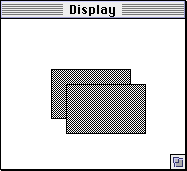
In this exercise you create a scriptable PowerPlant application that draws rectangles in windows and moves them around. To keep things simple, the application focuses entirely on scripting a freshly created window. There is no way to create or modify the objects in the window other than by scripts. The application's window is shown in Figure 7.3.
To make this exercise even easier, the application includes a
Script menu. Scripts that demonstrate the scriptable features of the
application are included for your use, and appear automatically
on the Script menu. The scripts let you create, delete, rotate, change the
line size, and change the fill type of a rectangle within the
window.
As a bonus, the Script menu code is included in the sample project. You can attach any
script to the application simply by placing the script in the
Script Menu Items folder. The application scans this folder at
launch time and adds each script file to the Script menu.
The required code is provided whole and complete, and requires
no work on your part. Feel free to examine it, and use it in your
own projects. The strategy used to implement the Script menu is the same used to implement a Window menu in Chapter 15 of The PowerPlant Book. The menu is an attachment
to the application.
Being example code, there are a couple of things about the code that you may wish to avoid in your own projects.
First, this code assumes the presence of the AppleScriptLib. You might want to import weak for this library, check for AppleScript at runtime, and display a friendly alert if AppleScript is not present.
Second, this code relies on the use of PowerPlant precompiled headers. The prefix to include the precompiled header is set in the C/C++ Language preferences. As a result, the source files do not include many PowerPlant files that would otherwise be required.
Now that we have those little caveats out of the way, let's look at what you do in this exercise.
To implement Apple event support in this code exercise, you will edit the resources and write the code necessary to create the rectangle as an AEOM class. You also give each rectangle a property for its line width and fill. Finally, you add a custom event that rotates the rectangle by 90 degrees.
This exercise has four major sections. These sections mirror the basic tasks you must accomplish when creating a scriptable application. In this code exercise you:
In addition, there is an optional section:
Improve HandleCreateElementEvent()-steps 15-17
You begin the process by editing the `aete' and `aedt' resources to expose the correct Apple event terminology for this application. The outline below describes what your edit should accomplish:
add line width property (step 4)
Edit the `aedt' resource for the rotate event (step 5)
Steps 1-5 require that you use Resorcerer, a commercial resource editor. If you do not own Resorcerer, you have three alternatives.
1. You can skip steps 1-5. Instead, copy the AETest.rsrc file from the solution code and replace the file of the same
name in the start code. This file contains the project-specific
`aete' and `aedt' resources you create in steps 1-5. You can get
an `aete' editor for ResEdit from
2. You can use ResEdit if you add an `aete' editor to ResEdit. You can find such an editor at:
ftp://ftpdev.info.apple.com/Developer_Services/Tool_Chest/Interapplication_Communication/AE_Tools_/ResEdit_%27aete%27_Editor_1.0b4.sit.hqx
3. You can derez the resource file, make the modifications in Rez, then rerez the file.
In steps 1-5, as you edit the `aete' resource you specify the
codes that apply to the new AEOM class, properties, and event.
The file AETestDef.h defines constants for the codes you use for class, property and
event IDs. If you use the values specified in the steps, you won't
have to worry about changing the corresponding definitions in
AETestDef.h, and everything should work fine.
1. Add a shape element to the window class.
The window class already exists in the start code `aete' resource.
Open the `aete' resource in Resorcerer, and then locate the window
class. To simplify navigation, you may wish to turn on the Show Index Popups item in the Resorcerer Custom menu.
If you do, use the index popups to go to the second suite. Go to the end of that suite's events to see that suite's classes. Go to the second class, the window class. Go to the end of the window class's properties. Elements are listed after properties. There are currently no elements allowed in this window. In this step you add an element.
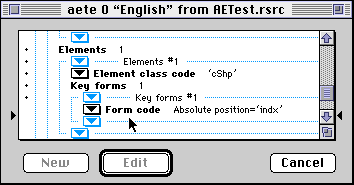
When you locate the right spot, the Resorcerer window should look something like Figure 7.4. Be careful you've got the right spot. You want to add an element to the window class. This window will contain rectangles. The ID code for the AEOM shape class is `cShp.'
To create a new element, drag the insertion point triangle (on
the left side of the window) down to the No Items entry under the Elements category. Then click the New button. An Element Class Code appears with the default value of AEList. There is a popup menu
with other predetermined options. You are creating a custom object,
so the code for that object does not appear on the popup menu.
The Resorcerer `aete' window before changes: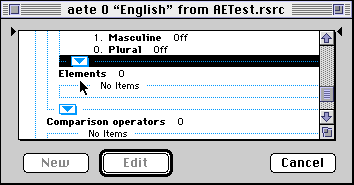
Double click the Element Class Code item to edit its value. In the resulting dialog, set the class
code to `cShp' and close the dialog.
Under the Element Class Code item is a list of Key forms indicating there are none. Move the insertion point triangle
to that location, and create a new key form. When you do, you
get an entry for the Form Code. The default value is "Absolute position." This is just what
you want. There is no need to change this value. When you are
finished, the aete resource looks like Figure 7.5.
You haven't actually created the `cShp' class yet. You do that in Step 3. In this step you have said that objects of the `cShp' class can go inside a window in this application.
2. Create a new suite and add a rotate event.
Scroll to the very end of the `aete' resource, and move the insertion
point triangle to the very end of the file as well. Then click
the New button to create a new suite. This is Suite #5.
You can edit the name of the suite. In the solution code, this is the Shape Suite.
By default, the suite code is `reqd.' You must edit this value.
You are adding a custom suite. Double click the Suite code item. In the resulting dialog set the code to `sShp,' then close
the dialog.
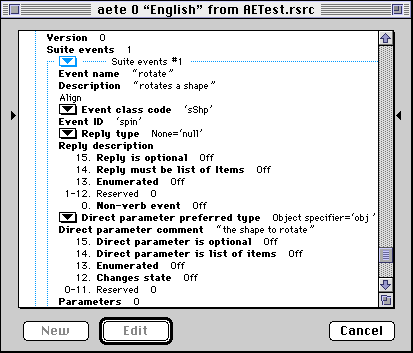
To add a rotate event, move the insertion point to the empty list
of events for this suite. Click the New button. When you do, all the fields and bits of information related
to a single event appear with default values. Set the values to
match those shown in Figure 7.6.
Of special importance are the Event class code and Event ID. You can assign any event class and ID values you like, but remember
the values that you use. We recommend you use the values shown
in Figure 7.6 for compatibility with the solution code and further steps in
this exercise. However, the codes you use are essentially arbitrary.
For the rotate event, the only parameter is the direct object (e.g. the shape you wish to rotate). The type of direct object parameter should be "object specifier."
3. Add a shape class to the new suite.
In this step you create the AEOM class for the shape you add to
the window. Classes are listed after events in the `aete' resource.
Move the insertion point to the empty list of classes, and click
the New button. When you do, all the bits of information associated with
a class appear, with default values.
Edit the class name, ID, and description. The ID must match the code you used as an element in the window class, in this case `cShp.'
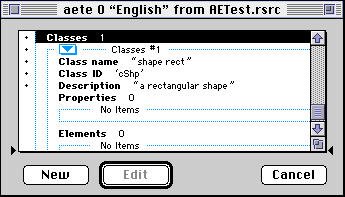
When you are through, the shape class should look like Figure 7.7. The properties and elements are empty. That's the next step.
4. Add properties to the new class.
In this code exercise, you modify the rectangle's line width, and whether or not the shape is filled. The shape class should have two properties: line width and filled. The former should be a short integer, and the latter a boolean.
Move the insertion point to the empty properties list, and click
the New button. When you do, all the information associated with a property
appears in the resource, with default values. Set the values to
match those in Figure 7.8.
Values for line width and fill properties: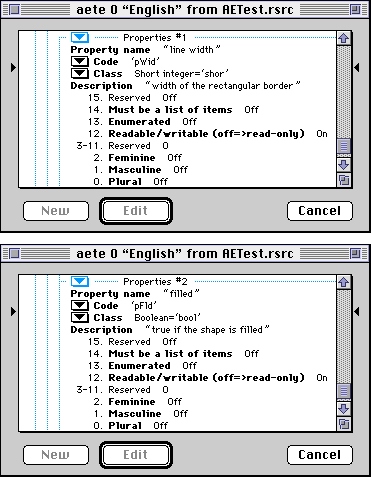
Note particularly the Readable/writable attribute of the property. Make sure this is set to On so that you can write this information.
Repeat the process for the second property, the fill. In this case, all you will specify is whether the rectangle is filled, not what the fill is. All you need for that is a boolean value.
Remember the property ID codes you assigned to each property. You will use these in the code you write.
TIP One advantage of Rez is that you can use a header file to define constants for things like property ID codes, and then include that file in your source code. Then you don't have to remember.
5. Create the `aedt' resource.
In this step you map the event class and ID (from step 2) to a
unique long integer that identifies the event inside your code.
There is no `aedt' resource in the file, so you must create one.
Use the New Resource item on the Resource menu to create a new `aedt' resource. Give it an ID number of
10000.
Then, add a new item to the `aedt' resource. After you create
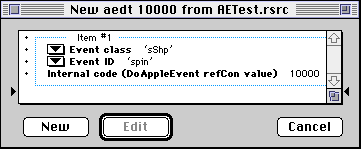
the item, specify the Event class and Event ID (from step 2). Then assign an Internal code number. In this case, use the number 10000 again. Figure 7.9 shows the result.
The Internal Code is the number you use inside your application to identify the
event when you receive it. The file AETestDef.h defines the constant ae_Rotate to be the value 10000.
You have completed editing the resources. Save your work. You
can check your work, if you like, by opening the dictionary in
Script Editor. Use the Script Editor's Open Dictionary command to open the resource file. The information you set in
these steps should appear.
Now you are ready to add the shape class to your implementation of Apple events.
The start code comes with a basic shape class, called CShape-Rect, that has members for a rectangle, a line width, and a filled flag. The start code also comes with a CShapeWind class that inherits from LWindow.
You need to make the CShapeRect into an LModelObject.
6. Modify CShapeRect to inherit from LModelObject.
class declaration CShapeRect.h
In order to support Apple events, an object must inherit from LModel-Object. In the class declaration, use public inheritance so that objects of the CShapeRect class descend from LModelObject.
The required code is listed here. As usual, existing code is in italics.
class CShapeRect : public LModelObject {
The necessary include statement for LModelObject.h has been provided for you.
7. Specify a container for the shape when created.
class declaration CShapeRect.h
When you create an object, you must specify the object's AEOM container. In this case, the container is the window in which the rectangle shape appears.
In the header file, change the prototype for the constructor for CShape-Rect to take a single argument. This argument is a pointer to a CShapeWind (CShapeWind *).
CShapeRect ( CShapeWind *inSuperModel );
In the implementation for the constructor (in the source file),
you must receive the new argument (the CShapeWind pointer). Then
call the LModelObject constructor. Pass the shape window and the
class ID for the shape. The AETestDef.h file defines cShapeRect for the class ID.
CShapeRect::CShapeRect(CShapeWind *inSuperModel) : LModelObject(inSuperModel,cShapeRect),
mFilled(false),mLineWidth(1),mRotateState(0)
Steps 6 and 7 make CShapeRect into an Apple-event-savvy object, and prepare for it to be contained by CShapeWind. Next you need to make CShapeWind aware of CShapeRect.
8. Activate the window's submodel list.
In the CShapeWind constructor, activate its use of the built-in submodel list.
SetUseSubModelList(true); // to hold the shapes
SetModelKind(cWindow); // this object is window
The window will now store a list of its contents (as LModelObjects)
in the mSubModels data member.
9. Create a shape in response to an Apple event.
HandleCreateElementEvent() CShapeWind.cp
The object that receives an Apple event telling it to create an
element is the container. In this case, that's the CShapeWind
object. The class declaration overrides HandleCreateElementEvent(). In this step you respond to the event that directs you to create
a rectangle.
If this function receives the CShapeRect class ID, you should
construct a new CShapeRect. Pass a pointer to the current object
(this), because it is the containing CShapeWind.
switch (inElemClass) { case cShapeRect:
result = new CShapeRect(this);
break;
This code creates a default object at the end of the current list
of elements in the window. In optional steps 15-17, you have the
opportunity to improve HandleCreateElementEvent() so that it utilizes the "with data," "with properties," and "insert
here" parameters of the Apple event.
10. Refresh the screen when contents change.
RemoveSubModel() CShapeWind.cp
When you add or remove a rectangle from the window, you should
refresh the screen. The AddSubModel() and RemoveSubModel() functions
are called by PowerPlant when an element is added or removed from
a container. You must override AddSubModel() and RemoveSubModel(). The existing code calls the inherited version of the function.
PowerPlant adds and removes properties to the mSubModels list during execution of an Apple event. You want to refresh
only when a CShape-Rect is added or removed. You should call Refresh() only if inSubModel->-GetModelKind() returns the CShapeRect class ID. The required code is shown here.
You want to add the identical code to both AddSubModel() and RemoveSubModel(). In both cases, this code appears after the call to the inherited
function.
if (cShapeRect == inSubModel->GetModelKind()) {
Refresh();
Imaging is not a focus of this code exercise, so drawing routines
have been provided for you. CShapeWind::DrawSelf() draws each rectangle in the mSubModels list. It performs a cast from LModel-Object to CShapeRect. This
assumes that there is nothing in the window except a CShapeRect.
To make this typecast safer, you could add a test. You could use
dynamic_cast(), or compare the model->GetModelKind() to the class ID you assigned to CShapeRect. The solution code
does the latter.
Now that you have made CShapeRect into an LModelObject, you are ready to give it some properties. When you edited the `aete' you specified "line width" and "filled" properties. Now you need to get and set the C++ members corresponding to those properties.
11. Get properties from an object.
There are two properties: the line width, and whether the rectangle
is filled. In addition, you may receive a message asking for the
contents of the object (pContents).
The existing code sets up a switch statement, and the default
case calls the inherited GetAEProperty() function. You create a case for each of the three possible property
requests. In each case, call the Toolbox routine AECreateDesc() to create the AEDesc containing the information. Specify the
data type, a pointer to the data, the size of the data, and a
pointer to the outPropertyDesc argument.
The messages received are pContents, pFilled, and pLineWidth. (The latter two are defined in AETestDef.h.) For the contents property, provide the bounds of the rectangle,
as a typeQD-Rectangle. The data members involved are mBounds, mFilled, and mLineWidth.
switch (inProperty) { case pContents:
err = ::AECreateDesc(typeQDRectangle,
&mBounds,sizeof(mBounds),
&outPropertyDesc);
FailOSErr_(err);
break;
case pFilled:
err = ::AECreateDesc(typeBoolean,&mFilled,
sizeof(mFilled),&outPropertyDesc);
FailOSErr_(err);
break;
case pLineWidth:
err = ::AECreateDesc(typeShortInteger,
&mLineWidth,sizeof(mLineWidth),
&outPropertyDesc);
FailOSErr_(err);
12. Set properties for an object.
This step is the converse of the previous step. In response to the same message, you retrieve a value from the AEDesc received as an argument by the function, and set the data member.
The existing code sets up a switch statement, and the default
case calls the inherited SetAEProperty() function. The inherited function simply throws an unknown property
exception.
In this step, you create a case for each of the three possible
property requests. In each case, you call the appropriate PowerPlant
routine in UExtractFromAEDesc to extract information of the correct
data type. The new value is in the parameter inValue. Set the correct data member.
The property messages received are pContents, pFilled, and pLineWidth. For the contents property, set the bounds of the rectangle.
The data members involved are mBounds, mFilled, and mLineWidth.
Finally, because you are changing the rectangle properties, you should refresh the screen after setting the property.
switch (inProperty) { case pContents:
UExtractFromAEDesc::TheRect(inValue,
mBounds);
Refresh();
break;
case pFilled:
UExtractFromAEDesc::TheBoolean(inValue,
mFilled);
Refresh();
break;
case pLineWidth:
UExtractFromAEDesc::TheInt16(inValue,
mLineWidth);
Refresh();
The code for Refresh() is provided for you. In that code, there is a cast to a CShapeWind.
This is safe because the CShapeRect constructor required a reference
to a CShapeWind, which was subsequently stored as mSuperModel in the CShapeRect.
For a complete implementation of properties, you must also override
GetImportantAEProperties(). This should call the inherited version first, to build an AERecord
with the contents property. Then add the line width and filled
properties of your object.
We do not provide the code here to accomplish this task. You can
peek at LModelObject::GetImportantAEProperties() for hints in the comments for that function. Also look at the
solution code to see how it is done. HandleClone() uses this function to determine which properties of your object
should be cloned.
Finally, you need to add an implementation for the rotate event.
13. Identify and handle Apple events.
HandleAppleEvent() CShapeRect.cp
The object receiving the Apple event is the CShapeRect. As a descendant
of LModelObject, it has a HandleAppleEvent() function. This function should identify the event and dispatch
control to the application code that implements the requested
action. In this case, you want to detect the Apple event code
for the rotate event.
Remember that you assigned a long integer to this event in the
`aedt' resource. If you followed the solution code, that value
is 10000. The file AETestDef.h defines ae_Rotate as a constant for that value. The long integer identifying the
nature of the event is received in the inAENumber argument.
Use a switch statement. If you detect a rotate event, call the
Rotate() function. The Rotate() function has been provided for you. For any other event, call
the inherited HandleAppleEvent(). In this way the superclass's (LModel-Object or a descendant)
Apple event handling routines get called.
switch (inAENumber) { case ae_Rotate:
Rotate();
break;
default:
inherited::HandleAppleEvent(inAppleEvent,
outAEReply, outResult, inAENumber);
break;
In a more complicated event, you might also have to retrieve some required and optional parameters.
14. Build and run the application.
At this point, you can run and debug your code. You have fully implemented basic Apple event support.
When the application builds successfully and runs, an empty window
appears. If you look in the File menu, there is only one item, Quit. You don't want to do that just yet.
There is also a Script menu. This menu contains all the sample scripts provided for
you. These scripts implement all the application functionality.
To perform an operation, choose the corresponding script. You
may want to set breakpoints in the code you wrote to see how all
the pieces fit together.
WARNING! Don't choose the delete first rect script unless there is a rectangle in the window. This sample
doesn't handle errors very gracefully, and might crash if you
attempt to remove a non-existent object.
Because the window is empty, choose the make new rect item. A rectangle appears in the window. Choose the rotate item, and the rectangle rotates. Choose the other items, and
watch what happens. You can add several rectangles to the window
if you wish.
What happens if you have several rectangles and you choose rotate? On which rectangle does the script you choose operate? Why?
When you are through exploring, quit the application and read on.
We provided several scripts for you to use. At this point you may want to write your own script that drives the AETest application. For example, use Script Editor or your favorite script authoring environment to write a script that creates three rectangles automatically. Or, set the line width to an arbitrary value. Add your new script or scripts to the Script Menu Items folder. Then launch the application again.
Your script should appear in the Script menu. Choose your new script, and see if the application behaves
properly.
TIP By the way, feel free to examine the Script menu code provided for you, and to use that code in your own projects. It demonstrates how easy it is to attach a menu to an application, and how to build that menu out of the contents of a folder.
As you play with the scripts, either your own or those provided for you, you may notice that you cannot write a script that creates a rectangle according to specification. You get a default rectangle every time. A fully-scriptable application should allow the scripter to create an item with complete specifications. That's what we do in the next section.
You can improve your handling of the create element event to deal
with data, properties, and the "insert here" specifier. The solution
project provides a very thorough implementation of Handle-Create-Element-Event(). If you are feeling brave, try to add three additional features
to your implementation without peeking! You want to create a rectangle
with specified bounds, with specified properties, and in an arbitrary
position in the window contents list.
15. Create a rectangle with specified bounds.
HandleCreateElementEvent() CShapeWind.cp
In this step you modify HandleCreateElementEvent() to decode the "with data" parameter and use it to set the new
CShape-Rect's bounds.
After you successfully create an object, you can then set its
properties. You must retrieve the appropriate property from the
Apple event. The key for this parameter is keyAEData. You can get it using StAEDescriptor::GetOptionalParamDesc(). If you succeed (e.g. your descriptor record's dataHandle field is not empty), call SetAEProperty() to set your new object's content.
(The solution code is in brackets to control the scope of the local StAEDescriptor variables).
if (result) { {
StAEDescriptor data;
data.GetOptionalParamDesc(inAppleEvent,
keyAEData,typeWildCard);
if (data.mDesc.dataHandle) // has a value
{
StAEDescriptor ignore;
result->SetAEProperty( pContents, data,
ignore);
}
16. Create a rectangle with specified properties
HandleCreateElementEvent() CShapeWind.cp
In this step you modify the same function as in Step 15, but this time you decode the "with properties" parameter.
The key for this parameter is keyAEPropData. The parameter is a record that may contain any or all of the
contents, fill, and line width properties. You can count the items
in the record with the Toolbox routine ::AECountItems(). You can then iterate through the record with ::AEGetNthDesc(). Then call your new CShapeRect's SetAEProperty() function with each key and descriptor.
StAEDescriptor props; props.GetOptionalParamDesc(inAppleEvent,
keyAEPropData,typeAERecord);
if (props.mDesc.dataHandle) { // has a value
OSErr err;
long max;
err = ::AECountItems(props,&max);
FailOSErr_(err);
for( long i = 1; i <= max; ++i) {
DescType theKeyword;
StAEDescriptor theValue, ignore;
err = ::AEGetNthDesc( props, i,
typeWildCard, &theKeyword, theValue);
FailOSErr_(err);
result->SetAEProperty( theKeyword,
theValue, ignore);
}
17. Move the shape to the correct position in mSubModels.
HandleCreateElementEvent() CShapeWind.cp
In this step you specify the position of the new rectangle in
the list of existing rectangles. The arguments inInsertPosition and inTargetObject tell you the destination location. The value of inInsertPosition can be kAEBeginning, kAEEnd, kAEBefore, kAEAfter, or kAEReplace. In the latter three cases, inTarget-Object is the CShape-Rect that your new object goes before, goes after,
or replaces.
You can use these arguments to calculate the target position of
the new object in the LList of contents in the window. Remember,
the mSubModels data member is an LList object. You'll need the current position
of the new object. You can use LList::FetchIndexOf(). By default, the initial target position should be the current
position.
You must then calculate the correct target position. Switch on
the value of inInsertPosition. As you know, LList is a one-based array, so position 1 is the
beginning. The constant arrayIndex_Last specifies the last position. In the before, after, or replace
cases, use FetchIndexOf() again to get the position of the inTargetObject. Set the target position appropriately (add 1 to the inTargetObject's position to go after inTargetObject).
Finally, move the object to the correct position in the list.
You do this using LList::MoveItem(). If you are replacing an existing rectangle, don't forget to
delete it.
SInt32 currentPosition = mSubModels->FetchIndexOf(&result),
targetPosition = currentPosition;
switch (inInsertPosition) {
case kAEBeginning:
targetPosition = 1;
break;
case kAEEnd:
targetPosition = arrayIndex_Last;
break;
case kAEBefore:
case kAEReplace:
targetPosition =
mSubModels->FetchIndexOf(&inTargetObject);
break;
case kAEAfter:
targetPosition = 1 +
mSubModels->FetchIndexOf(&inTargetObject);
break;
}
mSubModels->MoveItem( currentPosition,
targetPosition);
if (inInsertPosition == kAEReplace)
{
delete inTargetObject;
If you've done everything correctly, you should be able to write scripts that specify the properties and position of a rectangle when it is created. Go ahead, give it a try. If your scripts do not work correctly, fire up the debugger and trace the execution of your code.
Tracing execution with the debugger is a good idea, even if your code does work. By tracing the Apple event handling process, you'll learn more about how LModelDirector, LModelObject, and LModelProperty work than could be discussed here.
As we mentioned at the beginning of this chapter, Apple events in PowerPlant is a very big subject. This chapter is intended to get you over the initial hump. You now know how to create a basic scriptable application in PowerPlant.
There is plenty of room for further learning and exploration. As you apply these concepts to your own projects, you will learn much more about PowerPlant's handling of Apple events. Whatever direction you choose, good luck, and have fun. PowerPlant should help make your task easier.