NOTE
NOTE
Class Wrangler is a utility program for working with Java Archive (jar) files on the Mac OS. It allows you to add, remove, or extract files, as well as copy files from one zip/Jar file to another. It also disassembles classes and displays methods and data members. Class Wrangler has other useful features as well.
NOTE Class Wrangler is not a general purpose utility for compressed zip files. It will only handle zip archives that are all contained in one file (no disk-spanning files). If the zip archive is compressed, the deflate algorithm must be the one used in JDK 1.1 Jar files. Class Wrangler cannot handle encrypted files.
This chapter explains the Class Wrangler interface, and how you can use it to get your work done. The sections in this chapter are:
Edit Manifest command

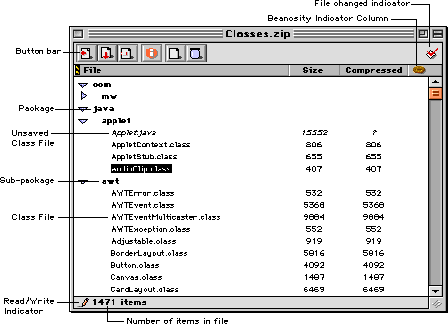
Class Wrangler uses a single window to display each package and class file stored in a zip archive or Jar file, as shown in Figure 9.1.
You can use the button bar to add, extract, delete, and get information on files. Table 9.1 describes each button.
The diamond icon at the top right is empty if the zip archive has not changed since the last time it was saved, and contains a red check mark if the file has been changed.
Each package lists all the files and sub-packages it contains. To show or hide the contents of a package, click the disclosure triangle.
To the right of each file is its size in bytes. If a file is in
italics, it has recently been added to the archive and has not
been saved to disk yet. To save it, choose File > Save.
You can choose Edit > Copy to copy the names of the selected files and packages to the Clipboard.
When you copy a file, its fully qualified name is placed in the
Clipboard. For example, if you copy AudioClip.class, this text
is placed in the Clipboard:
java.applet.AudioClip
If you hold down the Option key while copying a class, an import statement for the selected class is placed in the clipboard:
import java.applet.AudioClip;
If you copy a package, its name, the names of its subpackages,
and the names of its class files are placed in the Clipboard.
If you hold down the Option key while copying, an import statement for the subpackages, and the class files are placed
in the Clipboard.
Typing a full or partial file or package name selects the closest matching item in the Class Wrangler window. This is called "type ahead selection" and allows you to move around the archive quickly when you know the file or package you are looking for.
"Use full package name for type ahead."
This section explores how you can get work done using Class Wrangler. To avoid confusion, these topics refer to class files, zip archives, and Jar files (Java Archive files) consistently. Keep in mind that each is really just a kind of file.
Zip archives and Jar files are used interchangeably. The main difference is a Jar file can have manifest files, whereas Zip archives do not.
The topics in this section are:
There are two ways to open a zip archive:
File > Open and choose the zip archive.
Class Wrangler opens the file and displays its contents in a window.
There are three ways to create a zip archive with Class Wrangler.
To create an empty zip archive, choose File > New. To create a zip archive that contains one class file, choose
File > Open, and select the class file. Class Wrangler displays a new window
that contains that file.
To create a zip archive for several class files, follow these steps:
1. Make sure that Class Wrangler is not running or that there are no open windows in Class Wrangler.
2. Drag and drop the class files onto the Class Wrangler icon.
Class Wrangler creates a window that contains those class files.
NOTE If you drag class files onto the Class Wrangler icon while there is an open archive, the class files are added to the archive displayed in the frontmost Class Wrangler window.
Class Wrangler gives you three ways to add \xde les to an archive.
Package > Add Files or click the Add Files button in the Class Wrangler window. Class Wrangler displays
a dialog box that lets you choose a group of files to add at once.
For more information, see "Using the Add Files Dialog."
If you try to add a class file that is already in the zip archive, Class Wrangler displays an alert asking you whether you want to overwrite the existing file.
After you add class files, their names appear in italics in the
window to show the new files have not been saved to the zip archive
on disk. To save the new files to disk, choose File > Save.
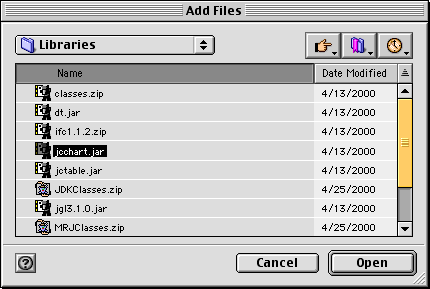
If you use the Add Files command or button, Class Wrangler displays a dialog like the
one shown in Figure 9.2.
The top list is part of a standard file dialog and displays the
contents of a folder. The bottom list contains all the files that
will be added to the zip archive when you click the Done button. To choose a file to add, select it in the top list and
click Add. To add all the files in the top list, click Add All. To remove a file from the bottom list, select it and click Remove. To remove all the files from the bottom list, click Remove All.
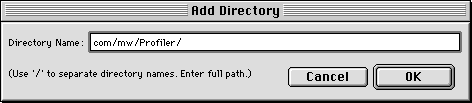
The Package > Add Directory command allows you to add a package to the frontmost archive
as shown in Figure 9.3. You must type the full path name. The directory is created in
the archive.
Class Wrangler gives you two ways to extract class files from a zip archive. The process of extraction does not remove the class file from the zip archive. Instead, new class files are generated in the same directory, which contain the extracted data.
Package > Extract Files or click the Extract Files button in the Class Wrangler window. Class Wrangler displays
a file dialog asking you where to place the files. Select a location
and click OK. Class Wrangler places the class files in that location.
 TIP
TIP If you do not want the folder hierarchy, hold down the Option key while dragging.
When Class Wrangler extracts a file, it places the file in a folder
hierarchy that matches the file's package hierarchy. For example,
if the file is in the hierarchy java.util, Class Wrangler creates the folder java at the location you selected, creates the folder util inside java, and places the file in util.
To delete a class file from a zip archive, select the file and do one of the following:
Package > Delete File
Delete File button in the Class Wrangler window
You can see information on any class file in a zip archive. Just
select the class file and choose Package > Get Info or click the Information button in the Class Wrangler window.
Class Wrangler displays a window of information on the public
class in the class file, including information on its fields,
methods, interfaces, and superclass, as shown in Figure 9.4.
Information windows are associated with an open archive document. If the associated archive document is closed, all of its information windows are closed.
The Class Wrangler Get Information window: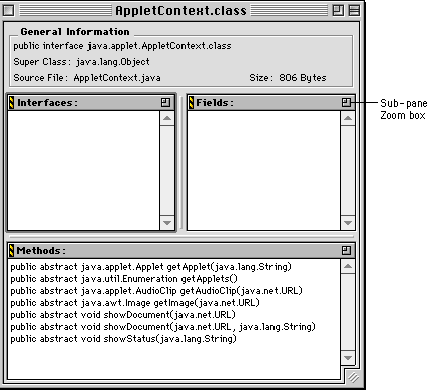
Click the sub-pane zoom box control to expand the pane to fill the entire information window, or shrink the pane to see all sub-panes.
You can move a file from one archive to another. Open both archives in Class Wrangler, and drag the files from one window to another. Class Wrangler copies the files from the source archive into the destination archive. The files are not removed from the source archive.
Class Wrangler also allows you to edit some manifest data for
the currently selected item in the active archive. Choose Package > Edit Manifest to edit the manifest data for the currently selected item.
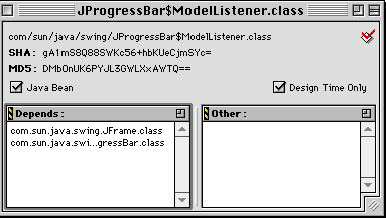
Manifest data is displayed for the item (Figure 9.5) for you to verify. This data reflects the state of the item in memory, not on disk. So the JavaBean item will display the state of that item as it would currently be saved to disk, not as it was originally.
Certain items, such as the name, SHA, and MD5 hash codes, cannot be modified. The Depends list is a list of items. Any text can be dragged to this pane
in order to add it to the list. The Other list holds all manifest tags that are not yet specifically parsed
by Class Wrangler. These could include new tags from Sun or special
user-defined tags.
Sun's documentation for the complete explanation of manifest tags and the manifest file format.
This section discusses how to control the way Class Wrangler works
for you. As with most programs, Class Wrangler has preferences
you can set to control its operation. When you choose Edit > Preferences, Class Wrangler displays a Preferences dialog box as shown in
Figure 9.6.
The Class Wrangler Preferences dialog: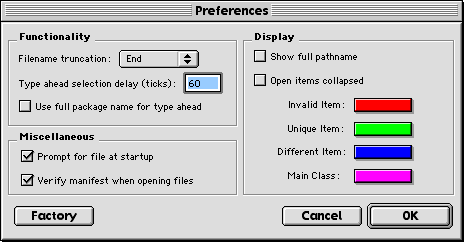
Click the Factory button to restore the settings to program defaults.
The effect of these options is described in the following topics:
The first group of preference settings control how you interact with Class Wrangler.
The Filename truncation pop-up menu operates similar to the same menu in the Java Target panel in the CodeWarrior IDE. On the Mac OS, file names cannot
be greater than 31 characters long. If you extract a class file
that is greater than 31 characters, Class Wrangler uses this setting
to determine where the extra characters will be eliminated from.
Options are: Front, Middle, and End.
If you choose End, Class Wrangler preserves any file name extension in the final
file name.
The amount of time, in ticks, Class Wrangler will wait before selecting the file represented by typing on the keyboard.
Enable this option to force type ahead selection based on the full package name of the class. For example:
The display settings control how Class Wrangler displays a zip/Jar file.
If the Show full pathname option is enabled, Class Wrangler shows the fully qualified name
for every entry in its window, as shown Figure 9.7.
If this option is off, only the name of that entry's package or class file is shown.
If the Open items collapsed option is on in the Preferences dialog box, the program will
always open archives with all hierarchical entries collapsed.
Click the disclosure triangle to display the contents of a package.
The Class Wrangler window with full pathnames: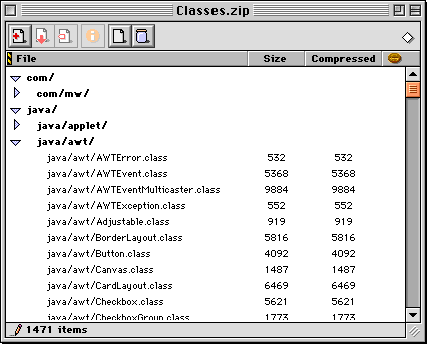
The last two settings tell Class Wrangler what to do at startup and when opening files.
If the Prompt for file at startup option is on, Class Wrangler will ask you to specify a file to
open when you launch the program.
Verifies the manifest information, if present, of a Jar file as Class Wrangler opens the file. Jar files will take longer to open with this option enabled. If a particular entry that has a manifest entry does not verify, Class Wrangler draws it in red.
Class Wrangler allows you to compare two Jar files to determine their differences. You can compare archives on two levels. At the first level, comparison is based on the names and positions of items in the Jar file. The second level compares the Jar files by differences in the contents of each item.
To compare two Jar files, choose File > Compare Files. The Compare Archives dialog, shown in Figure 9.8, is straight forward to use.
Click the Choose button to pick the files you wish to compare. If you want to
compare the files based on differences in the content of each
item, click the Compare Using Contents checkbox. Click Compare to start the process.
NOTE Comparing files requires a lot of RAM. This is especially true if you are comparing large Jar files. It may be necessary to increase the memory partition of Class Wrangler in some cases.
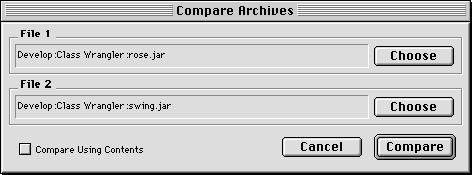
Once the compare process is completed, each archive is displayed in a separate window. Items that are unique to an archive are drawn in green. Items that are in both archives, but are different, are drawn in blue.
TIP You will only see items drawn in blue with the Compare Using Contents option enabled.