This reference chapter discusses the functionality of each menu item in ZoneRanger.
The Apple menu contains one command for ZoneRanger, About ZoneRanger. This command displays copyright and author information about the application.
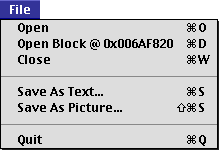
The File menu contains commands to open, close, and save windows, and to quit the application.
Displays the Heap Hierarchy window. In the window, you may open a Graphical and/or a Summary window for selected heap zones.
"Opening a Graphical or Summary Display."
Opens whatever is currently selected. This item text is dynamic and identifies what you are opening. For example, if you select a block in a Graphical window or Block List window, this item becomes Open Block @ address, where address is the address of the block. In this example, if you choose this item ZoneRanger opens a Block window for the block.
Saves the contents of the frontmost window or the currently selected text to a text file.
Saves the contents of a Graphical window to a PICT file. The picture contains the entire contents of the heap zone, and not just the currently visible portion. This command is active only if a Graphical window is frontmost.
Quits the ZoneRanger application.
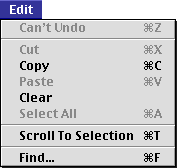
The Edit menu contains commands to perform both standard editing and find operations.
This command is not appropriate for ZoneRanger.
This command functions differently depending on which window is front-most. If a Block Window is front-most, this command copies the visible area of the window to the clipboard. If any other ZoneRanger window is front-most, this command copies the current selection to the clipboard. The Copy command cannot be used with the Histogram Display.
This command is not appropriate for ZoneRanger.
Clears (deselects) the current selection in the active Graphical window.
Performs the standard editing operation. This command is only available in the Block List Window.
Scrolls the selected block into view, if it is not already in view. This command is enabled when you select a block from the heap (in graphical view).
Opens the Find dialog box. This dialog lets you find blocks based on their content, type, or size.
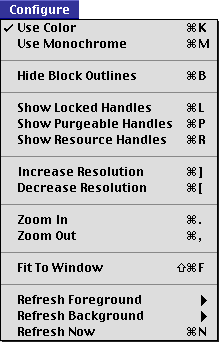
The Configure menu contains commands to configure the frontmost Graphical window, and to set how often ZoneRanger refreshes window contents. Except for the Refresh commands, each of the Configure menu items is enabled only if the frontmost window is a ZoneRanger Graphical window.
Displays the frontmost Graphical window in color.
Displays the frontmost Graphical window in monochrome.
Show Block Outlines sets the frontmost Graphical window to display the boundaries
of each block in the zone. If block outlines are currently being
shown, then this menu item becomes Hide Block Outlines.
"Displaying different types of handles."
In a Graphical window, handles are displayed in a particular color or pattern. The next three items-Show Locked Handles, Show Purgeable Handles, and Show Resource Handles-allow you to highlight one particular type of handle in its own color or pattern. A check mark next to the item indicates which type of handle, if any, is highlighted. Only one of these three items may be active at any time.
"Changing the Graphical windows' colors."
Doubles the resolution of the frontmost Graphical window by halving the number of bytes that each square represents. The highest resolution is 8 bytes per square. This command is available only if the resolution is not already at the maximum.
Halves the resolution of the frontmost Graphical window by doubling the number of bytes that each square represents. The lowest resolution is 1 megabyte per square. This command is available only if the resolution is not already at the minimum.
Increase the size of each grid square in the display. The allowable
zoom factors are 1x1, 4x4, and 8x8 pixel grid squares. The 1x1
pixel zoom factor is not available if you've selected Show Block Outlines, because a one pixel square is not large enough to draw the outline
of the block. The Zoom In command is available only if the zoom factor is not already at
the maximum.
Decrease the size of each grid square in the display. The allowable
zoom factors are 1x1, 4x4, and 8x8 pixel grid squares. The 1x1
pixel zoom factor is not available if you've selected Show Block Outlines, because a one pixel square is not large enough to draw the outline
of the block. The Zoom Out command is available only if the zoom factor is not already at
the minimum.
Changes the resolution in the Graphical window such that the entire heap is displayed within the current size of the window. The Fit To Window command is available only if the resolution is higher than the window can currently display.
The Refresh Foreground and Refresh Background menu items each present a submenu with which you can specify
how often the application will refresh the contents of windows
when the application is in the foreground or background, respectively.
You can choose a value in the range from 1 to 5 seconds, as well
as Always or Never.
The Refresh Foreground hierarchical menu: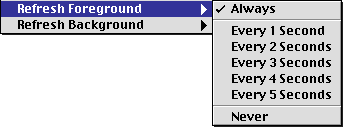
If you choose Always, ZoneRanger refreshes the contents of its windows as often as
possible.
If you choose Never, ZoneRanger still refreshes the contents of its windows. However,
it only does so when actually drawing the particular window-for
example, if you move a foreground window and expose the ZoneRanger
window.
Updates a window immediately. Choose this command if you do not
want to wait for the refresh interval to elapse. This command
is particularly useful if you've set the refresh rate to Never.
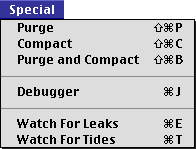
The Special menu contains commands that perform special operations on a heap zone.
Compacts the heap zone by moving unlocked handles toward the bottom of the heap, and merging free blocks together. This command is available only if a Summary or Graphical window is frontmost.
"Compacting and Purging Heaps."
Purges the heap zone by changing unlocked, purgeable handles to free blocks. This command is available only if a Summary or Graphical window is frontmost.
Purges the heap zone and then compacts it. This command is available only if a Summary or Graphical window is frontmost.
Puts you into the installed low-level debugger. If there is no debugger installed or running, the Debugger command is disabled-you don't have to worry about crashing.
To return to ZoneRanger, use the appropriate go command for the
debugger. If you are using MacsBug, type g and press Return. If you are using The Debugger from Jasik Designs,
choose Exit To Program from the Go menu.
"Going To and Returning From a Debugger."
Watch For Tides expands the Summary Display to show your applications high and low memory usage (high tide
and low tide). This command becomes Stop Watching For Tides if you are already in watch mode. When you choose Watch For Tides
with one of the Graphical Windows front-most, ZoneRanger brings the corresponding Summary Display to the front and begins watching for high and low memory usage
in that heap zone.
This command and Watch For Leaks are mutually exclusive. Only one of these commands can be active at a time.
"Finding Memory Requirements."
Watch For Leaks Watch For Leaks expands the Summary Display to show a comparison between blocks at one point in time and
blocks at another. If you are already in watch mode, this item
becomes Stop Watching For Leaks. When you choose Watch For Leaks with one of the Graphical Windows frontmost, ZoneRanger brings the corresponding Summary Display to the front, and begins watching for leaks in that heap zone.
This command and Watch For Tides are mutually exclusive. Only one of these commands can be active at a time.
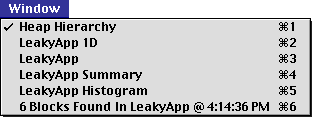
The Window menu contains one menu item for each open window (graphical, summary, block list, and block windows). When you choose a window from this menu, ZoneRanger activates the window. ZoneRanger adds windows to the list in the order in which they were opened. The first nine windows have the command key equivalents 1 through 9 respectively.