[ First ] [ Previous ] [ Next ] [ Last ] [ Manuals ]
Choosing Files To Compare

To open a file comparison window, choose Choose buttons. You may also drag and drop text files into their respective boxes.
Windows
Make sure that the Compare Files radio button, shown in Figure 4.15, is enabled. This allows you to select files by using the Choose buttons.
Text Compare Options
Select the Case Sensitive checkbox to consider the case of letters as part of the comparison operation. To ignore the case of letter, deselect this checkbox.
To ignore extra space and tab characters while comparing text, enable the Ignore Extra Space checkbox. To take space and tab characters into account, disable the checkbox.
See "Folder Compare Options" for information on the folder comparison options.
To show the comparison window after choosing files and setting options, click the Compare button.
Compare Files Setup Dialog Box: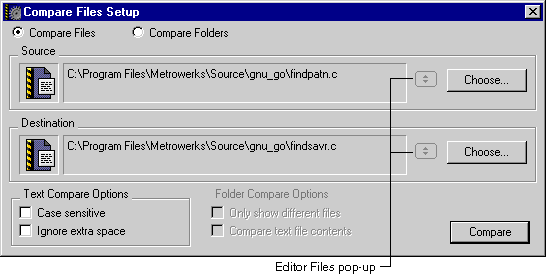
[ First ] [ Previous ] [ Next ] [ Last ] [ Manuals ]
Visit the Metrowerks website at: http://www.metrowerks.com
For assistance contact Metrowerks Technical Support at: cw_support@metrowerks.com
Copyright © 2000, Metrowerks Corp. All rights reserved.
Last updated: August 17, 2000