[ First ] [ Previous ] [ Next ] [ Last ] [ Manuals ]
Choosing Folders To Compare

To open a folder comparison window, choose
Windows
To enable Folder Comparison Options as described in the following section, click the Compare Folders radio button. Clicking this radio button also allows you to select folders by using the Choose buttons in the Compare Files Setup dialog box.
Folder Compare Options
Select Only Show Different Files to only display files that are different in both folders in the Files In Both Folders list of the Compare Folders window (Figure 4.17). By default, this option is disabled, so all files in the source and destination folders are displayed.
Comparisons between files in the source and destination folders are normally based upon the file modification dates and file sizes. This is usually good enough to determine if there are differences between the two files. If there are invisible items in the folders, the comparison will skip over those items.
Compare Folders Setup Dialog Box: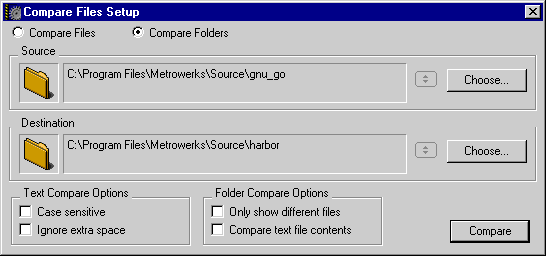
Select Compare Text File Contents to perform a more accurate compare of the files in the two folders. In essence, this performs a Compare Files command on every file in the source and destination folders and checks neither the modification dates nor the file sizes. This option is a lot slower since every file has to be opened, but the comparison information is more accurate.
See "Text Compare Options" for information on the file comparison options.
When you click the Compare button, the IDE displays the Folder Compare Results Window, as shown in Figure 4.17. Source code files, header files, text files, and folders appear in plain face. All other files appear italicized.
The Files In Both Folders list displays all files in both the source and destination folders unless the Only Show Different Files option is enabled. Files that are different in the two folders have a small bullet positioned to the right of their name.
When you click on a file in the Files In Both Folders list, Files Only In Source list, or Files Only In Destination list, specific information about the selected file appears in the Selected Item box at the bottom of the folder comparison window.
 NOTE
NOTE
If you have trouble comparing folders, ensure that their names do not match the criteria specified in the Shielded Folders preference panel. The IDE ignores folders whose names match the shielding criteria. Ignored folders and their contents do not appear in the file comparison window.
Folder Compare Results Window: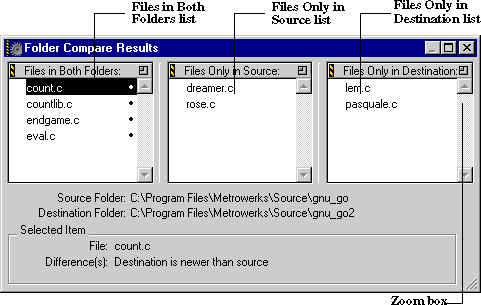
Double-click on a file in the Files In Both Folders list to open a Compare Files window for resolving the differences between the two differing files.
The Files Only In Source list displays all the files that appear only in the source folder while the Files Only In Destination list displays only files that appear within the destination folder.
You can click on a zoom box for any of the three lists to expand them to fill the window. Click again to collapse back to their original size.
[ First ] [ Previous ] [ Next ] [ Last ] [ Manuals ]
Visit the Metrowerks website at: http://www.metrowerks.com
For assistance contact Metrowerks Technical Support at: cw_support@metrowerks.com
Copyright © 2000, Metrowerks Corp. All rights reserved.
Last updated: August 17, 2000