[ First ] [ Previous ] [ Next ] [ Last ] [ Manuals ]
Splitting the Window into Panes

You can split the editor window into panes to view different parts of a file in the same window, as shown in Figure 5.8. This section describes creating, adjusting, and removing multiple panes.
Multiple Panes in an Editor Window: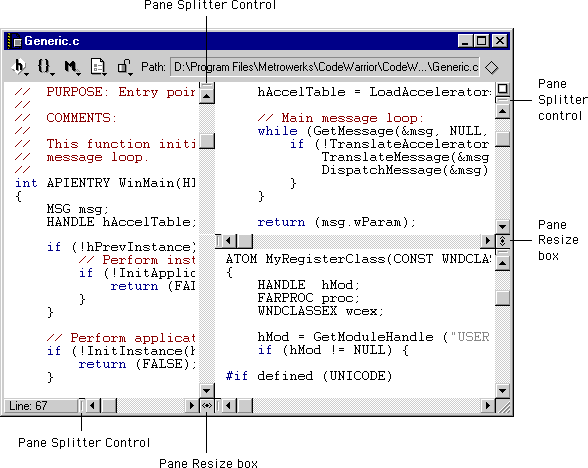
Creating a new pane
 To create a new pane in an editor window, click and drag a Pane Splitter control. Pane Splitter controls appear in each scroll bar of a pane in the editor window, on the top right and bottom left sides.
As you drag a Pane Splitter control, a gray focus line tracks your progress and indicates the new pane position. After you release the control, the editor creates a new pane.
You can also double-click the Pane Splitter control to split a pane into two equal parts.
Resizing a pane
 To change the sizes of the panes in an editor window, click and drag the Pane Resize boxes.
As you drag a resize box, a gray focus line indicates your progress. After you release the resize box, the editor changes the size of the affected panes.
Removing a pane
 To remove a pane from an editor window, click and drag a Pane Resize box all the way to the edge of a window.
As you drag the Pane Resize box, a gray focus line indicates your progress. If you drag the resize box near the edge of the window, the focus line disappears. If you release the resize box at that time, the editor removes the smaller of the two panes from the window.
You can also double-click a Pane Resize box to remove a pane.
[ First ] [ Previous ] [ Next ] [ Last ] [ Manuals ]
Visit the Metrowerks website at: http://www.metrowerks.com
For assistance contact Metrowerks Technical Support at: cw_support@metrowerks.com
Copyright © 2000, Metrowerks Corp. All rights reserved.
Last updated: August 17, 2000