
To add a marker, move the text-insertion point to the location in the text that you wish to mark, then choose Add marker from the Marker Pop-Up Menu. The Add Marker dialog box, shown in Figure 5.9, appears.
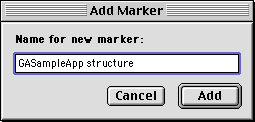
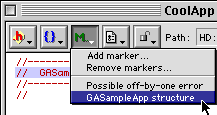
Click Add to confirm the text in the field and add a marker at the text-insertion point. The text that you entered now appears in the Marker Pop-Up Menu, as shown in Figure 5.10.
 TIP
TIP
Add Marker, the selected text appears in the text field of the Add Marker dialog box. This shortcut is handy for quickly adding specific routines or lines as marker text.
#pragma
#pragma mark myMarker
In Pascal, you can use the following directive to create a marker:
{$PRAGMAC MARK myMarker}
When embedded in your file, these examples automatically add myMarker to the Function Pop-Up Menu after you open the file in the editor.
Unlike the markers defined using the Marker Pop-Up Menu, markers defined with #pragma statements appear in the Routine pop-up menu.
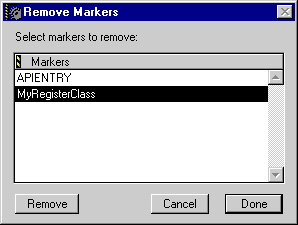
To remove a marker, choose the Remove markers command from the Marker Pop-Up Menu. The Remove markers dialog box shown in Figure 5.11 appears. After you select the marker that you wish to delete, click Remove to permanently remove the marker from the list. To close the Remove Markers dialog box, click Done to confirm your changes or click Cancel to discard your changes.
To jump to a specific marker in your file, choose the marker's name from the Marker Pop-Up Menu. The IDE moves the text-insertion point to the marker's location and scrolls to that location if necessary.