
There are many ways to move around in code with the browser.
Perhaps most powerful and flexible way to navigate code is to use the Browser Contextual Menu. You see this menu when you right-click (Windows) or click and hold (Mac OS, Solaris, and Linux) on any symbol for which there is data in the browser database. This includes class names, routine names, global variables, class data members, and much more. To learn more, refer to "Browser Contextual Menu".
In the Browser Window, simply selecting a class, routine, or data member displays the associated code in the window's Source pane.
The browser fully supports the Go Back and Go Forward commands in the Search Menu. Regardless of the views, windows, or code you have looked at, you can always go back to what you were viewing earlier.
These commands allow you to go backward or forward through a series of changes you made. For example, suppose you use the browser to look at your project and make changes to a file. Then, you switch files and make more changes. You may do this many times. You can use the Go Back command to go back one or more actions you have performed. Even if you did not make any changes to the file, but looked at it (or a specific class or method), you can go back to that action. Similarly, once you have gone back, you can use the Go Forward command to return to where you started.
When you add the Go Back and Go Forward commands to a CodeWarrior toolbar, you can use their associated pop-up menus, as shown in Figure 7.20. Click and hold on the Go Back or Go Forward toolbar icons to display the pop-up menu.
Go Back and Go Forward toolbar buttons: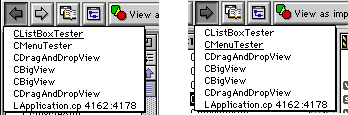
 NOTE
NOTE
Go Back and Go Forward do not undo any actions you performed. They allow for a more flexible method of moving around to specific places you have been in the Browser window.