[ First ] [ Previous ] [ Next ] [ Last ] [ Manuals ]
Browser Contextual Menu

When the browser is active, right-click (Windows) or click and hold (Mac OS, Solaris, and Linux) on any symbol for which there is data in the browser database. When you do, the IDE displays a contextual menu with a variety of items.
The commands displayed in the menu depend on the nature of the symbol you are investigating. Some commands let you open browser windows, while other commands direct you to a location in code.
You can also use the contextual menu to perform common debugging tasks. For example, you can choose commands to set and clear breakpoints in the active editor window.
In effect, every symbol in your code-routine name, class name, data member name, constant, enumeration, template, macro, type definition, and so forth-becomes a hypertext link to other locations in your source code.
For example, if you select class name and use the browser contextual menu, you can open the class declaration, a Browser Window, or a Single-Class Hierarchy Window. If you use the contextual menu for a routine name, you get different choices, as shown in Figure 7.4.
A browser contextual menu for a routine: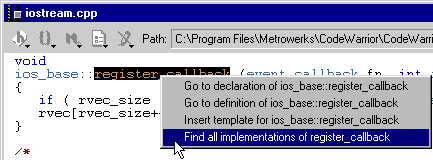
You can even insert a routine template at the location if you wish. See "Text Colors" for more information.
Other menus for other kinds of symbols have similar commands.
 TIP
TIP
To find and enter a browser item for a piece of text you have selected or just entered, invoke the browser contextual menu for that text. The menu offers a list of matching items. Choose one of these items to enter it for you. See "Completing Symbols" for other ways to type browser items.
TIP
The contextual menu features work not only in browser windows, but also in the CodeWarrior source code editor! This is a great reason for always having the browser enabled, even if you do not use the browser windows.
Of particular note in the contextual menu for routine names is the Find all implementations of command. When you choose this command for a routine that has multiple definitions, a Symbol Window opens in the browser.
[ First ] [ Previous ] [ Next ] [ Last ] [ Manuals ]
Visit the Metrowerks website at: http://www.metrowerks.com
For assistance contact Metrowerks Technical Support at: cw_support@metrowerks.com
Copyright © 2000, Metrowerks Corp. All rights reserved.
Last updated: August 17, 2000