[ First ] [ Previous ] [ Next ] [ Last ] [ Manuals ]
Completing Symbols

The IDE has commands to complete your typing for you when you enter the name of an item for which the browser has information. Use the Find symbols with prefix, Find symbols with substring, Get next symbol, and Get previous symbol keyboard commands to find and choose browser items that match the text you have selected or just entered in a source code file. These commands are only available from the keyboard. They are not available in the IDE's menus. See "Customizing Key Bindings" for information about viewing the key bindings for these commands.
To enter the name of a browser item that has the same characters as the text you have selected or just typed, use the Find symbols with substring keyboard command. To enter the name of a browser item that only has the same first characters, use the Find symbols with prefix keyboard command.
After using the Find symbols with substring and Find symbols with prefix commands, use the Get next symbol and Get previous symbol commands to search among the browser symbols that match the text you have selected or just entered.
After you find the browser item you want to enter, press the right arrow key to place the insertion point next to the item and continue typing.
Another way to find and enter a browser item is to select the first few characters of some text and then right-click (Windows) or click and hold (Mac OS, Solaris, and Linux) on the selection. The Browser contextual menu displays a list of matching items, as shown in Figure 7.21. Choose one of these items to automatically replace the selected text. See "Browser Contextual Menu" for more information.
Automatically replacing selected text: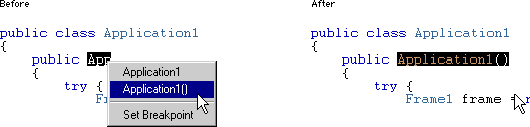
[ First ] [ Previous ] [ Next ] [ Last ] [ Manuals ]
Visit the Metrowerks website at: http://www.metrowerks.com
For assistance contact Metrowerks Technical Support at: cw_support@metrowerks.com
Copyright © 2000, Metrowerks Corp. All rights reserved.
Last updated: August 17, 2000