
The Message window, shown in Figure 10.3, is used to display messages about events that have occurred when compiling, linking, or searching files. There are a number of elements in the window that are useful for accomplishing certain tasks, such as navigating to error locations and scrolling to see all messages for a project.
There are some user interface items in the Message window that are not discussed here. To learn about the Marker Pop-Up Menu, Document Settings Pop-Up Menu, Path Pop-Up Menu (Mac OS), File Path Caption and Line and Column Indicator, refer to "Guided Tour of the Editor Window."
The topics in this section include:
To learn more about seeing error messages in the Message window, refer to "Seeing Errors and Warnings."
The Warning Button in the Message window toggles the view of warning messages on and off
To learn more about seeing error messages in the Message window, refer to "Seeing Errors and Warnings."
The CodeWarrior Message Window: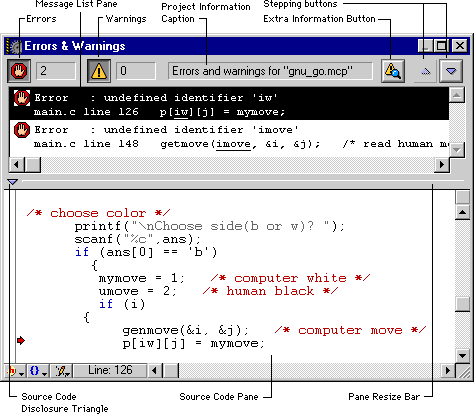
The Stepping Buttons allow you to step up or down through the messages in the window.
To learn more about stepping through messages in the Message window, refer to "Stepping Through Messages."
The Message List Pane displays your messages.
To learn more about seeing messages in the Message window, refer to "Seeing Errors and Warnings."
The Source Code Disclosure Triangle allows you to hide the Source Code Pane of the Message window.
The Source Code Pane of the Message window allows you to view the source code at the location referred to by a message. To learn more about the view in this window, refer to "Seeing Errors and Warnings."
 The Error Button in the Message window toggles the view of error messages on and off. This is useful if you have changed the view of the window to something else and want to get back to viewing the error messages.