[ First ] [ Previous ] [ Next ] [ Last ] [ Manuals ]
Register Windows

A Register window displays register contents and allows you to edit those contents. Different types of Register windows are available for different build targets. This section describes the following Register windows:
General Registers window
The General Registers window (Figure 11.27) displays CPU registers and allows you to edit register contents. To open a General Registers window, choose Window > Registers Windows > General Registers.
 NOTE
NOTE
The appearance of the General Registers window depends on the build target. The build target also determines the commands in the Registers Windows submenu. If a submenu is unavailable, simply choose Register Window to see the window shown in Figure 11.27.
General Registers Window (Windows):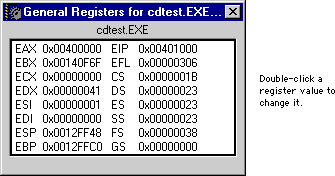
To change a register value, double-click the value or select the register and press Enter/Return. You can then type in a new value.
Mac OS
For PowerPC build targets, the General Registers window is shown in Figure 11.28. You can toggle the bit values of the XER and condition registers between 0 and 1. Select the bit you want to change and press Return or Enter. You can also double-click the bit to toggle its value.
General Registers Window (Mac OS PowerPC):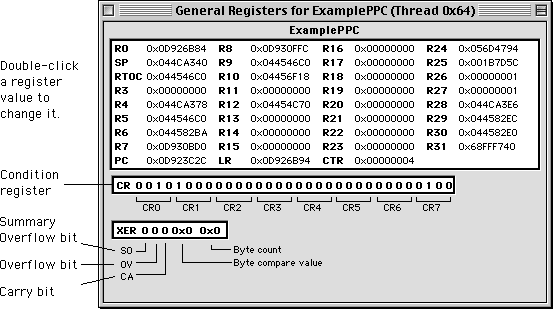
FPU Registers window
The FPU Registers window (Figure 11.29) displays FPU registers and allows you to edit register contents. To open an FPU Registers window, choose Window > Registers Windows > FPU Registers.
NOTE
The appearance of the FPU Registers window depends on the build target. The build target also determines the commands in the Registers Windows submenu. If a submenu is unavailable, simply choose FPU Registers Window to see the window shown in Figure 11.29.
FPU Registers Window (Windows):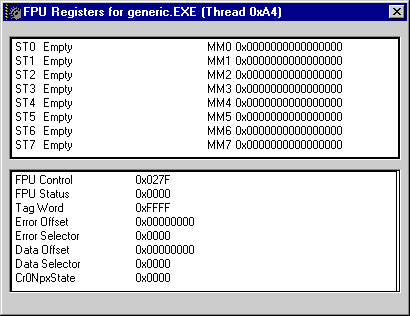
To change a register value, double-click the value or select the register and press Enter/Return. You can then type in a new value.
 WARNING!
Changing the value of a register is a very dangerous thing to do. The changes could corrupt your data and memory, or otherwise cause a crash.
FPU Registers Window (Mac OS):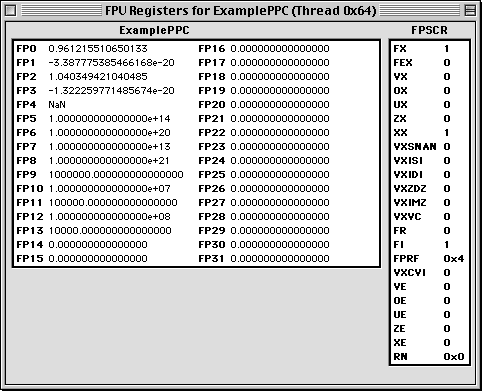
AltiVec Registers window
The AltiVec Registers window (Figure 11.29) displays AltiVec registers and allows you to edit register contents. To open an AltiVec Registers window, choose Window > Registers Windows > AltiVec Registers.
To change a register value, double-click the value or select the value and press Enter/Return. You can then enter a new value.
 TIP
TIP
Use the debugger contextual menu to change the format of the displayed data, as shown in Figure 11.31. This technique is a convenient Data menu alternative.
AltiVec Registers Window: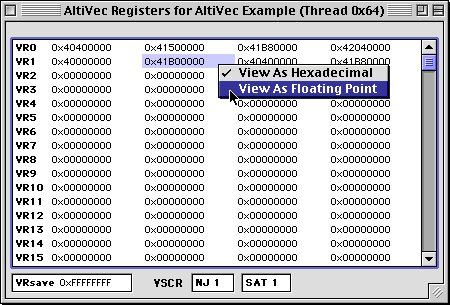
[ First ] [ Previous ] [ Next ] [ Last ] [ Manuals ]
Visit the Metrowerks website at: http://www.metrowerks.com
For assistance contact Metrowerks Technical Support at: cw_support@metrowerks.com
Copyright © 2000, Metrowerks Corp. All rights reserved.
Last updated: August 17, 2000