
The Component Catalog window features a contextual menu that gives you convenient access to several menu commands. The commands displayed in this menu depend on the item you select. A sample contextual menu is shown in Figure 13.12.
To display the Component Catalog contextual menu, use one of the following techniques:
Control-click an item, or click and hold on an item.
The following list describes the most common commands in this contextual menu:
Close-removes the item from the Catalog pane.
View-changes the current view in the Component pane. You can choose List view or Live view.
New Folder-creates a new folder in the current catalog.
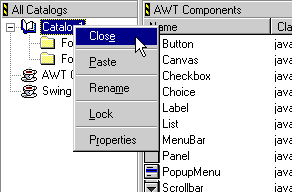
Rename-changes the name of the selected item. After you select this command, type a new name for the item and press Enter/Return.
Lock-locks the selected item. When an item is locked, you cannot change any of its properties (except its "locked" status). However, you can add sub-items to a locked container (such as a folder or catalog), remove sub-items from a locked container, and modify sub-items of a locked container (assuming the items to be modified are not locked). A small lock icon indicates that an item is currently locked.
Unlock-unlocks the selected item.
Properties-displays the properties for the selected item in the Object Inspector.