
The Component pane, shown in Figure 13.8, displays various information about the items in each catalog. The name of the catalog is displayed in the upper-left corner of the pane. You drag components directly from the Component pane into a layout window to create user interface objects.
The Component pane is discussed in the following topics:
The Content View buttons toggle the display of the components in the current catalog:
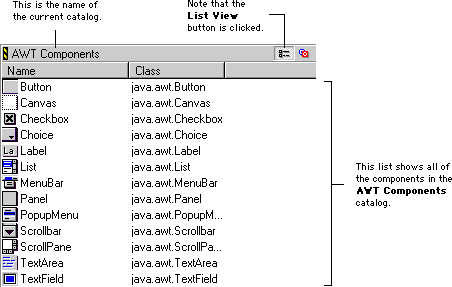
 Click the List View button to display the contents of the Component pane as a list. The List view, shown in Figure 13.9, displays all the components in the current catalog.
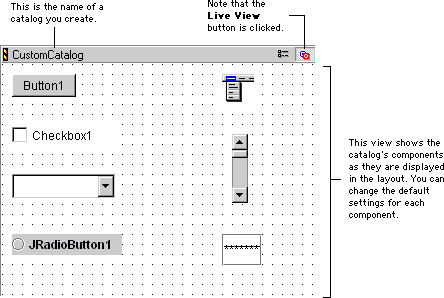
 Click the Live View button to display the contents of the Component pane as live objects. The Live view, shown in Figure 13.10, is only available for component catalogs that you create. Refer to "Creating Component Catalogs" for more information.
 NOTE
NOTE
The List view of the Component pane includes a Component Information Bar, shown in Figure 13.11. This information bar helps you organize the components in the current catalog.
You can sort the component list according to the columns in the Component Information Bar. You can also resize each column in the list. For more information, see "Sorting and resizing component lists".
Component Information Bar:
Table 13.3 details the columns displayed in the Component Information Bar for various catalog types.
The component list, shown in Figure 13.9, displays all components in the current catalog and their associated Component Palette button icons. To place a particular component in your layout, drag it from the component list in the Component Catalog window and drop it into the layout window. As you drag the component inside the layout window, a heavy outline indicates the final position of the component. After you release the outline, the component is placed in the layout window.
Component Information Bar items:|
Catalog Type
|
Column
|
Description
|
|---|---|---|

| ||
For more information about removing objects from your layouts, see "Removing objects". Refer to "Layout editor contextual menu" for more information about contextual menu commands. To learn about the components in the component list, see "RAD Components".
You can sort the components in the List view according to the columns in the Component Information Bar, shown in Figure 13.11.
 To resize the columns in the Component Information Bar, position the cursor between two column titles. The cursor's icon changes to the icon shown at left. Drag and release this cursor to resize the columns.