
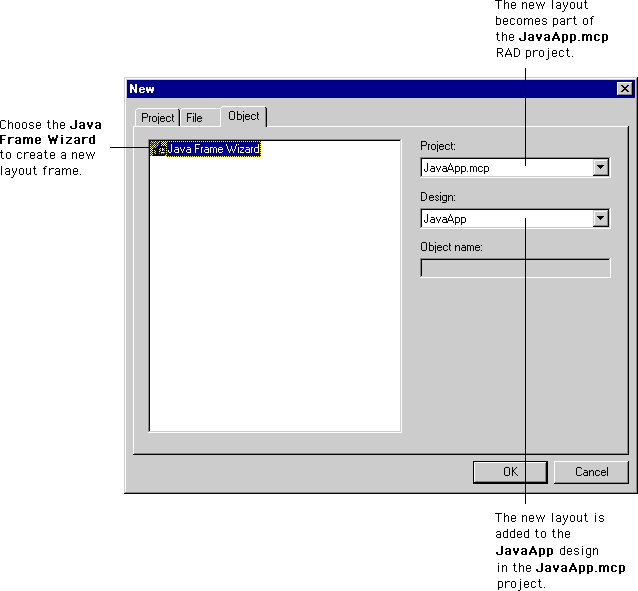
A layout is modified in the following ways:
For more information about the Component Palette, see "Component Palette". To learn more about the Component Catalog window, see "Component Catalog window".
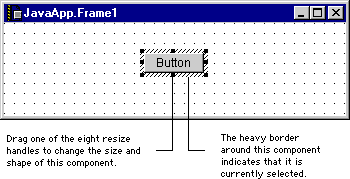
To move an object in a layout, select it in the layout window. A selected object is shown in Figure 13.2. The heavy border around the object indicates that it is currently selected. Drag selected objects to move them to a new positions in the layout window. Alternatively, use the arrow keys on your keyboard to move the selected objects. To resize or reshape an object, drag one of its resize handles in the desired direction. A heavy outline is displayed as you drag the resize handle. This outline represents the final shape of the object when you release the resize handle.
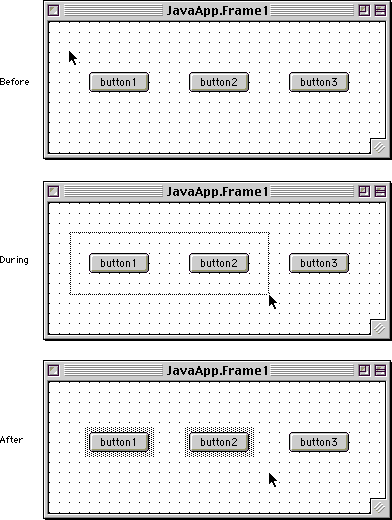
You can select multiple objects in two different ways:
 TIP
TIP
After you place objects in the layout, you can edit the various properties that characterize each object, as well as the events handled by that object. The Object Inspector displays the available properties and events for a selected object. For more information, see "Object Inspector".
To remove objects in a layout, select them and press Delete. Alternatively, select the objects and choose Edit > Delete (Windows menu bar layout) or Edit > Clear (Macintosh menu bar layout). The Layout editor removes the selected objects from the layout.
The Layout editor features a contextual menu that conveniently duplicates the commands in the Layout menu. The available commands in the contextual menu depend on the selected item. A sample contextual menu is shown in Figure 13.4.
Layout editor contextual menu: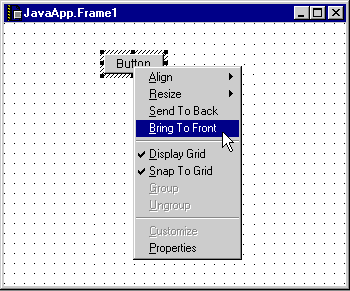
To display the Layout editor contextual menu, use one of the following techniques:
The following list describes some common graphical editing commands in the contextual menu:
Align-displays a submenu from which you can choose different ways to position selected objects.
Resize-displays a submenu from which you can choose different ways to change the size of selected objects.
Send To Back-moves the selected objects so that they are displayed behind all other objects.
Bring To Front-moves the selected objects so that they are displayed in front of all other objects.
Display Grid-when checked, displays the graphical grid in the layout window.
Snap To Grid-when checked, the Layout Editor automatically aligns objects with the graphical grid.
Group-combines selected objects so that they move together as a group.
Ungroup-separates a selected group so you can move each object independently.
Customize-opens a customization utility for the selected component. For example, after selecting a menu component, choosing this command opens the Menu Editor.