[ First ] [ Previous ] [ Next ] [ Last ] [ Manuals ]
New Event Set wizard

The New Event Set Window contains an option to create a New Custom Event Set. When you enable this option and click OK, the New Event Set wizard appears.
The wizard includes the following navigation buttons:
The New Event Set wizard is divided into the following steps:
1. Choose a name and location for the new event set.
2. Specify a base class and a list of implementations.
3. Assign the new event set to the project's build targets.
You progress through these steps in sequence. Each step builds on the information provided in previous steps. When you supply enough information in a particular step, click Next to continue.
To accept all current settings in the wizard and quickly create a new event set, click Finish. The wizard displays a summary of all the current settings for the new event set. You can always click Cancel while viewing the summary to continue modifying settings.
To use the New Event Set wizard, follow these steps:
1. Choose a name and location for the new event set.
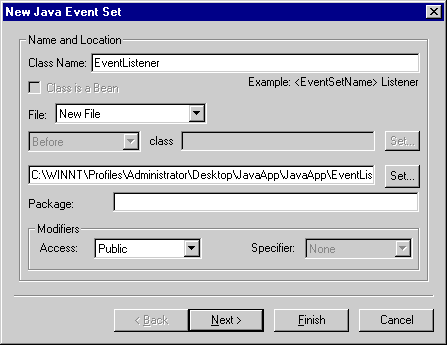
This section of the wizard, shown in Figure 15.9, lets you specify the name and location of the new event set, as well as the modifiers for the set.
This section includes the following parts:
Class Name
File
Package
Modifiers
Class Name
Enter a name for the event set's class in this field. An example is provided below the field. The Class is a Bean checkbox below the field remains disabled. This status indicates that you are not creating a Java bean.
File
This pop-up menu lets you specify the type of event set:
Depending on the option you choose, different fields become enabled below the File pop-up menu. The enabled fields for the New File option are shown in Figure 15.9, and the enabled fields for the Relative to class option are shown in Figure 15.10.
If you choose the New File option, type in the enabled field the path to which you want to save the file. Alternatively, click Set next to the field. A standard Save window opens. Use the window controls to select the location to which you want to save the file and click Save.
Choosing the Relative to class option: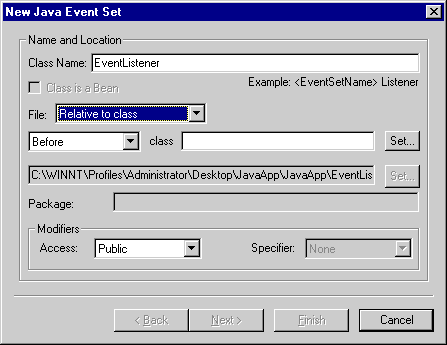
If you choose the Relative to class option, the class field and the pop-up menu beside it become enabled, as shown in Figure 15.10. In the class field, type the name of the class you want to relate to the event set. Alternatively, click Set next to the class field, select a class in the window that opens, and then click Select. Next, use the pop-up menu to place the event set event set Before, After, or Inside the specified class.
Package
If you wish, you can enter in this field a package for the event set. This field is not available if you choose the Relative to class option from the File pop-up menu.
Modifiers
Use the Access and Specifier pop-up menus to choose the access level and method specifier for the new event set. Possible access levels include Public, Protected, and Private. Possible specifiers include None, Abstract, Final, and Static.
2. Specify a base class and a list of implementations.
This section of the wizard, shown in Figure 15.11, lets you specify the base class and implementations for the new event set.
New Event Set wizard - Base Class and Interfaces: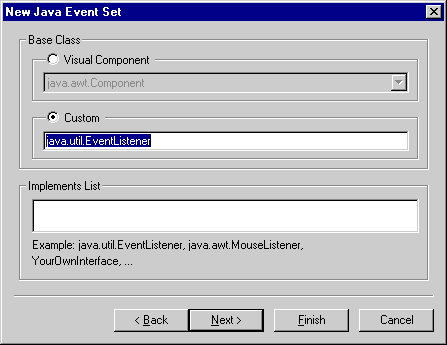
This section includes the following parts:
Base Class
The settings in this part determine the base-class type of the new event set. There are two possibilities:
Implements List
In this part, type a list of interfaces to be implemented by the base class. Example interfaces are provided. Separate multiple interfaces with commas.
3. Assign the new event set to the project's build targets.
This section of the wizard, shown in Figure 15.12, lets you assign the event set to particular build targets within the active project.
To assign the event set to a specific build target, enable the checkbox next to the build target's name in the Add file to targets list. For example, in Figure 15.12, the new event set is assigned to the JavaApp Debug build target, and it is not assigned to JavaApp Release.
New Event Set wizard - Targets: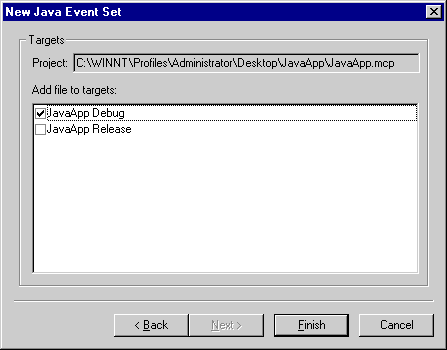
[ First ] [ Previous ] [ Next ] [ Last ] [ Manuals ]
Visit the Metrowerks website at: http://www.metrowerks.com
For assistance contact Metrowerks Technical Support at: cw_support@metrowerks.com
Copyright © 2000, Metrowerks Corp. All rights reserved.
Last updated: August 17, 2000