Now that you have an application set up and ready to run, the next step is to make it responsive. As the user makes menu choices, your application should respond appropriately. That responsiveness comes from the LCommander class.
This chapter has two main sections:
There are several important classes in PowerPlant that inherit from LCommander. Let's start there.
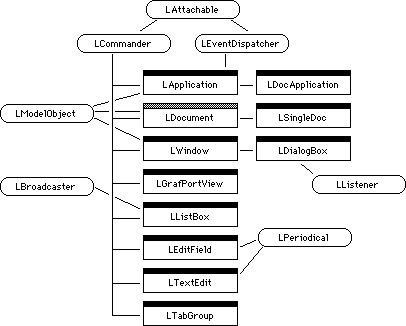
In most of our class hierarchy diagrams, we use LCommander as a mix-in class. This is appropriate, because classes in several different inheritance chains also inherit from LCommander.
Figure 10.1 shows what the class hierarchy looks like with LCommander as the principal base class. This diagram puts LCommander at the center of attention and illustrates all the classes that are also commanders.
Like the distinction between the LView class hierarchy and the application's visual hierarchy, there is a distinction between the LCommander class hierarchy (which simply illustrates inheritance) and the command hierarchy within a running application. We will call the flow of commands within an application the "command chain."
Remember that the subclasses in this diagram belong to various class hierarchies in PowerPlant, and many inherit from other classes besides LCommander, such as LPane or LView.
The LCommander class has functions devoted to:
Every commander-each object that derives directly or indirectly from LCommander-has these features.
In an application, the application object is the topmost commander. The LApplication constructor sets the application object as the top commander. The application object has no supercommander.
Every other commander has one supercommander. The LCommander class
stores a pointer to an LCommander object-the supercommander-in
the mSuperCommander data member. You use member functions to access this data.
Every commander may have an arbitrary number of subcommanders.
The mSubCommanders data member is an LArray object. Table 10.1 contains the LCommander functions for command chain maintenance.
Command chain maintenance functions:
| Function |
Purpose |
|---|---|
GetTopCommander() is a static member function, so you can use LCommander::GetTopCommander() at any time to get a pointer to the application object.
The concept of the default commander deserves special attention. The default commander will be the supercommander for a commander created with a class creator function. PowerPlant uses the default commander when creating objects of various pane classes that are also derived from LCommander. These classes are LEditField, LListBox, LTextEditView, LWindow, LDialogBox, and LGrafPortView. Before creating one of these objects on the fly with a class creator function, you should ensure that the default commander is set appropriately.
In a subclass you may wish to override AttemptQuitSelf(). This function should handle any duties the commander must perform
before quitting. LDocument is the only PowerPlant commander class
that overrides this function. It does so to ensure that the user
has an opportunity to save a changed document before quitting.
We'll discuss saving documents in Chapter 13, "File I/O."
With that exception, the default functions for command chain maintenance are usually sufficient for most commanders. However, you may have noticed that there is no command dispatch mechanism. That's what the concept of the target object is all about.
At any moment there is one and only one target object. The target
object is stored in a static LCommander data member-sTarget. Because it is a static class variable, there is only one instance
of sTarget. When the application receives a command, it dispatches the command
directly to the target commander, bypassing the command chain
completely. Table 10.2 lists the target handling functions.
Some LCommander target handling functions:
| Function |
Purpose |
|---|---|
GetTarget() and SwitchTarget() are both static member functions. You can call them from outside
the class by using the class specifier-LCommander::GetTarget(), and LCommander:: SwitchTarget().
You use SwitchTarget() to make a new object the target object. For example, the LEditField
pane is also a commander. When it receives a click, it calls SwitchTarget(this) to make itself the target.
In some cases, you may not want to allow the target object to relinquish its position unless some conditions are satisfied. For example, you may want to verify a text entry before you allow the user to switch to another field. If AllowTargetSwitch() returns true, a switch is allowed. Otherwise, the target object cannot change.
If you want to take some action when a commander becomes the target object or stops being the target object, override the member functions BeTarget() and DontBeTarget(). For example, you may want to highlight the target object, enable other objects, or perform setup duties when an object becomes a target. Another example is LListBox and its use of LFocusBox.
An application may have multiple branches in the command hierarchy. Only one branch is active or "on duty" at any given moment, and that's the branch that ends at the target. When the target object changes, the new target's chain of command (from the target object back up to the application) returns to duty. The previous target object's chain goes off duty. Figure 10.2 illustrates the duty concept.
The duty property of commanders: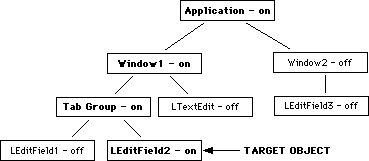
The target is not necessarily the lowest item in the command hierarchy. When a commander becomes the target object, its subcommanders (if any) are not automatically put on duty. Duty flows upward from the target object to the topmost commander. For example, if Window1 in Figure 10.2 were the target object, then all the commanders lower than it in the command hierarchy would be off duty.
If there are multiple command chains, the user can switch chains. In fact, if the application moves to the background all chains go off duty and the target object is set to nil. A background application cannot receive menu commands or keystrokes, so there can be no target object.
What happens when the application becomes active again? For example, look at Figure 10.2. Imagine the application has been suspended. When it resumes, LEditField2 should be restored as the target object.
To make that possible, PowerPlant allows each commander to have one of three states: on duty, off duty, or latent. If a commander is latent, it means that if the chain as a whole were on duty, the particular commander would also be on duty. Figure 10.3 shows the same command hierarchy as in Figure 10.2, but with the application suspended. As a result, certain commanders are now latent rather than on duty.
The duty property while suspended: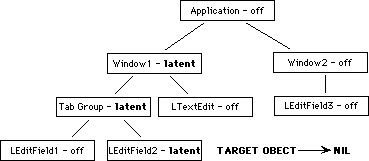
When an application resumes or a chain within the application is activated (for example, by switching windows), PowerPlant searches through the command hierarchy for latent subcommanders and puts them back on duty. The deepest latent subcommander becomes the target object.
Now that you have the duty concept in hand, let's look at the functions each commander has for managing its duty status.
LCommander duty handling functions:
| Function |
Purpose |
|---|---|
When you create a window, and you want one of its commander panes
to be the "default" pane that becomes active when that window
becomes active, use SetLatentSub(). A commander may have no more than one latent subcommander.
If you want something to happen when a commander goes on or off
duty, override the PutOnDuty() and TakeOffDuty() functions. For example, you might want to outline a frame when
on duty, and hide a frame when off duty.
 TIP
TIP Being on duty is not the same as being the target object. The
target object is always on duty. An on-duty commander is not always
the target object. If you want something to happen when a commander
becomes the target object, override BeTarget() and DontBeTarget().
Fundamental to any commander's behavior is its ability to handle commands and keystrokes. A command is a menu selection or command-key equivalent. A keystroke occurs when the user types a key. Whenever one of these two events occurs, control passes to the target commander.
Each commander has three principal functions to handle the command or keystroke, as listed in Table 10.4.
Some LCommander command and key handling functions:
| Function |
Purpose |
|---|---|
You override these three functions regularly in PowerPlant applications. In fact, it is your definition of these functions that is responsible for much of the unique behavior of your own application.
You set up your own menus, your own menu commands, and define
how your application or its component parts respond to each command.
When the user chooses a menu item, the target commander's ObeyCommand() function receives an identifying command number that corresponds
to a menu item. You respond accordingly.
You override the FindCommandStatus() function to enable, disable, and/or mark menu items as appropriate
for your target object.
When the user types a key, the target commander's HandleKeyPress() function receives the event and responds accordingly.
Because the flow of duty is upward in the command hierarchy, the target object gets first crack at responding to commands and keystrokes, and at setting up the menus appropriately. If the target object changes, the new target object can do things differently. We discuss how all this works in the next section on menus.
To make your application work, you will need menus. In this section we discuss:
Let's start with an overview of PowerPlant's menu strategy.
In traditional Macintosh programming, when the user chooses a menu item you dispatch control based on the menu ID and the item number for that particular item and menu. The Macintosh Toolbox routine MenuSelect() returns a number that contains both pieces of information.
As a result, traditional Macintosh menu dispatch code is heavily dependent upon item position. If you change the position of a command in a menu, or you move a command from one menu to another, you must rewrite the routine that dispatches menu choices.
To eliminate this problem, PowerPlant associates each menu item with a unique command number. A PowerPlant application maintains a "map" that says, for example, "The fifth item of the Edit menu has a command number of 14." The map contains a command number for every item of every menu in the application. (Actually, there's an exception to this that we'll discuss in just a bit.)
The "map" is really a series of Mcmd resources, one for each MENU resource in the application.
When the user chooses a menu item, PowerPlant looks up the associated
command number in the Mcmd resource, then sends the command number
to the target commander's ObeyCommand() function. Because you know what each command number represents,
you know the identity of the menu item the user chose.
If you decide to reorganize your application's menus, you do not have to modify your menu parsing and dispatch code. The command number remains unchanged. You must, however, modify your Mcmd resources so the "map" remains consistent with the location of menu items. If you use Constructor to build and modify your MENU resources, it takes care of this for you.
 NOTE
NOTE What's really happening here is that the designers of PowerPlant know that developers change their menus. So PowerPlant moves responsibility for tracking position changes out of code and into a resource. You must still modify something if you reorganize a menu. With PowerPlant you modify the Mcmd resource rather than your source code.
PowerPlant uses three resource types to manage menus:
You can use Constructor to create all three resources.
The MBAR and MENU resources are standard Mac OS resources for defining the contents of the menu bar, and an individual menu respectively. PowerPlant uses them in exactly the same way that any Macintosh program would.
The Mcmd resource is the "map" that tells PowerPlant what command number to associate with each menu item. There is one Mcmd resource for each MENU resource. The resource ID number for the Mcmd resource must be the same as the associated MENU resource. If you use Constructor, it takes care of the Mcmd numbering for you. Figure 10.4 illustrates the relationships between the MBAR, MENU, and Mcmd resources.
Example of Menu-related resources: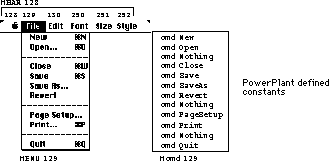
If you use PowerPlant stationery to build a new project, the file
<PP Starter.ppob> contains the MENU and Mcmd resources necessary to support the
standard Apple, File, and Edit menus. The file <PP Starter.rsrc> contains the MBAR resource. You can use these as a starting point
for further development.
"Installing Resource Templates" for information on installing Mcmd resource templates.
Each menu command to which you respond must have a unique number. PowerPlant reserves command numbers -999 to 999 for its own use.
For example, command number 0 (zero) is reserved for a command
that does nothing. The standard menu commands for the Apple, File,
Edit, and font-related menu items are defined in PP_Messages.h. Several of the enumerated constants are listed in Figure 10.4.
When you create an Mcmd resource, you assign a command number to each menu item. You are free to use any unique number as long as it isn't in the reserved range. However, using a systematic approach of some sort when assigning command numbers can help you avoid errors and maintain consistency.
In an Mcmd resource, assign zero as the command number for a separator
bar in the associated menu. When using other PowerPlant-defined
values, refer to PP_Messages.h for the value to use.
Under typical circumstances, you should use positive numbers for your menu commands. PowerPlant has facilities for enabling, disabling, marking, and changing the text for menu items. You cannot use regular PowerPlant techniques to do any of these things if the command has a negative number.
Some negative command numbers have special meaning in PowerPlant, including synthetic commands. We will revisit negative command numbers when we discuss dialogs in Chapter 12.
So far we have overlooked one significant problem with the PowerPlant menu strategy. What do you do for menus whose contents are defined at runtime, such as the Apple menu or the Font menu? You cannot know what items will be in these menus, so you cannot put entries in an Mcmd resource for them.
In a PowerPlant application, you build such a menu at runtime in the traditional way. We will use the standard Apple menu and a hypothetical Font menu as examples in this discussion.
The MBAR resource for the application has the resource ID numbers of all the MENU resources. The MENU resource for the Apple menu has the menu title (the Apple symbol) and the first About item. The MENU resource for a Font menu would have the menu title and no items.
The PowerPlant LMenuBar constructor builds the Apple menu using traditional techniques, as shown in Listing 10.1
MenuHandle macAppleMenuH = ::GetMenuHandle(MENU_Apple);
if (macAppleMenuH != nil) {
  ::AppendResMenu(macAppleMenuH, 'DRVR');
}
The Apple menu has an Mcmd resource that contains an entry for the About item, because that is a standard item in the Apple menu. You cannot have an Mcmd entry for other items in the Apple menu. Similarly, you cannot have entries in an Mcmd resource for items in a font menu.
When the user chooses a menu item that does not have an associated
entry in an Mcmd resource, PowerPlant generates a synthetic command number for that item.
A synthetic command number is a 32-bit number. The high 16 bits
contain the menu ID, the low 16 bits contain the menu item. This
is just like the return value from the traditional MenuSelect() Toolbox function, with one exception. The synthetic command number
is negative.
After creating the synthetic command number, PowerPlant passes that command number to you, just like it would for a regular command number retrieved from an Mcmd resource.
When you receive a menu command, you don't know if it is from
an Mcmd resource. It might be a synthetic command. You call LCommander::IsSyntheticCommand() to determine if the menu command is synthetic or not. If the
command is a synthetic command, the function returns true and
supplies the menu ID and item number for the chosen menu item.
You can then process the command properly, because you have the required information: menu ID and menu item.
For example, Listing 10.2 shows how LApplication::ObeyCommand() responds to synthetic commands from the Apple menu.
Handling synthetic command numbers:
Boolean
LApplication::ObeyCommand(CommandT inCommand, void *ioParam)
{
  ResIDT        menuID;
  SInt16        menuItem;
  // check for synthetic command
  if(IsSyntheticCommand(inCommand, menuID, menuItem))
  {
    if (menuID == MENU_Apple)
    {
      Str255 appleItem;
      ::GetItem(GetMHandle(MENU_Apple), menuItem, appleItem);
      ::OpenDeskAcc(appleItem);
    } else {
      cmdHandled = LCommander::ObeyCommand( inCommand, ioParam)
    }
  } else { // non-synthetic commands
    switch (inCommand) {

      case cmd_About:
        ShowAboutBox();
        break;
  ...
Note that the About Box has a non-synthetic command number. If
the command number is not synthetic, then you simply test for
the command number directly-typically in a switch statement. There is no need to use the menu ID or menu item number
for a regular command. In fact, that data is not readily available.
Now that you understand the strategy and details behind PowerPlant menu management, let's talk about how you accomplish real menu-related tasks.
Adding a menu to your application is simple.
2. Create an Mcmd resource with the same ID number as the associated MENU resource. Enter command numbers for each item in the menu.
3. Modify the MBAR resource by adding the ID number of the new MENU resource to the MBAR resource.
If you use Constructor, this process is even simpler. You simply create a menu bar resource, add the necessary menus, and specify the menu items and command numbers. Constructor creates and manages the resources automatically. If you move menu items around, Constructor keeps the Mcmd resource updated. See the Constructor manual for details of menu editing in Constructor.
 WARNING!
 If you don't use Constructor and you modify the position of menu commands in the MENU resources, you must modify the associated Mcmd resources as well. Failure to do so will cause unpredictable results.
Menus are created as part of the default LApplication::Run() function, which creates the menu bar (and all menus on the menu
bar as specified in the application resources). However, there
are times when you must specify a menu at runtime, and cannot
do so in advance. For example, you have to set the contents of
the Font menu at runtime because you cannot know in advance what
fonts are available on any particular machine.
Use the Initialize() method of your application class to accomplish this work. The
default function in the LApplication class is empty. Override
this function in your own LApplication class to do any additional
menu setup work that's required for your application. The default
LApplication::Run() function calls Initialize() as part of the application setup process, so your function will
be called before you have to start handling events. The code exercise
for this chapter demonstrates the technique. You'll see it used
in some other exercises as well.
Under most circumstances, the default PowerPlant behavior is all you need for menu dispatch. PowerPlant identifies the menu choice, retrieves the associated menu command, and passes the command to the target commander. It is the target object's responsibility to handle the command or not.
The calling chain for this dispatch is as follows. When a click
occurs in the menu, LEventDispatcher::ClickMenuBar() (in the application object) gets the command number. It then
calls the target commander's ProcessCommand() function. The ProcessCommand() function passes the command on to attachments, and then calls
the target commander's ObeyCommand() function.
ObeyCommand() is where command identification and response occurs. It is also
the only function in this entire dispatch series that you are
likely to override.
A typical ObeyCommand() function will test for synthetic commands, if they are used in
your application and are of significance to the particular commander.
For example, a text-related object would be very interested in
a synthetic command from a Font menu. It calls IsSyntheticCommand() to determine if the command is synthetic, and to get the menu
ID and item number. After you identify menu and item, you respond
appropriately. Our hypothetical text commander might change the
font it uses when displaying its contents, for example.
The typical ObeyCommand() function has a switch statement with a case for each command of interest to the object. In response to the
command, you do whatever is appropriate for your application.
Finally, the typical ObeyCommand() function calls its inherited ObeyCommand() function for any commands it does not handle. Otherwise you won't
get the benefit of command testing and response in the base class.
Although we discuss windows in the next chapter, they make a great
example here. LWindow is a commander. If you derive your own window
class from LWindow, your class's ObeyCommand() function should call LWindow::ObeyCommand() for any command it does not handle directly. This way you get
to take advantage of LWindow's code.
LWindow, in turn, inherits directly from LCommander. If LWindow::ObeyCommand() does not handle the command, it calls LCommander::ObeyCommand(). This call gets the supercommander and calls the supercommander's
ProcessCommand() function. This gives the supercommander the opportunity to act
or pass on the command.
This approach means that a commander is not required to handle every possible command. Each commander handles the commands for which it is responsible. If it cannot handle the command, it passes responsibility back up the command chain to a higher commander. This is the code-level implementation of the bottom-up command chain hierarchy we talked about in the chapters on application framework design and PowerPlant design.
If the user issues a quit command, for example, it is likely that
the command would filter up through the command chain all the
way back to the application. Remember, the application is itself
a commander, so it has an ObeyCommand() function. Because quitting is really an application-level chore,
in LApplication::ObeyCommand() you'll find this code:
case cmd_Quit:
  SendAEQuit();
  break;
No other object needs to know how to handle a quit command, the application object takes care of it.
As a Macintosh programmer you know that you must update the appearance of menu items as well as respond to menu choices. Before we discuss how to update menu items, let's talk about when PowerPlant updates menu items, and how to control when a menu updates.
There are two common strategies for updating menus: update before displaying a menu, and update whenever an event occurs that might change the state of a menu. You can think of these approaches as "update before display" and "update as needed."
In the first strategy, you update menus only when the user clicks in the menu bar or types a command key. Before displaying the menu, you update it so the menu's contents reflect the current state of the program. The state of a menu while it is not displayed is really unimportant. The only time it is important that the menu's contents accurately reflect the state of the program is when you actually look at the menu.
The difficulty with this strategy is that one part of a menu is always visible-the menu title in the menu bar. If all of a menu's items are disabled, the menu title should also be dimmed. Assume that as the user works with a program, such a situation arises-that is, the state of the program is such that all of a menu's items would be disabled. The menu title does not reflect that situation, because the menu hasn't been updated. The user clicks in the menu bar, and menus update. The user suddenly finds that a menu that appeared enabled turns out to be disabled! This is bad human interface design.
One solution would be to have a secondary mechanism for updating the menu bar whenever an event occurs that changes a menu's title. To do that reliably, you have to track every event that might cause a change in any menu item's state. If you do that, you will find yourself implementing PowerPlant's menu updating strategy.
PowerPlant takes the second approach to menu updating. PowerPlant keeps menu items current at all times. As a result, the menu bar accurately reflects the state of the application.
PowerPlant maintains a flag that reflects the state of menus. If the flag is set, menus are considered "dirty" and in need of updating. After processing each event, if the flag is set PowerPlant updates menus. Figure 10.5 illustrates the process.
PowerPlant menu updating logic: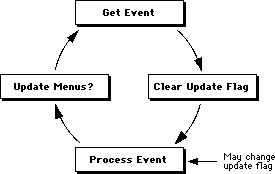
PowerPlant retrieves an event. It clears the menu update flag and processes the event. It is important to note that the event might be a click in the menu bar, in which case a menu is displayed without additional updating. PowerPlant relies on the fact that menus are always current.
When an event occurs that might change a menu (such as a click
in the window content), PowerPlant sets the menu update flag.
After the event is fully processed, if the update flag is set
then PowerPlant updates menus. It calls the target commander's
FindCommandStatus() function to do this. We'll discuss what to do in this function
in just a bit.
The events that cause PowerPlant to update menus are:
Note that a click in the menu bar causes a menu update only after the menu is displayed, the user makes a choice, and the resulting command is fully processed.
An occasion may arise when you want to force a menu update as
a result of some other occurrence. For example, you may want to
enable the Save item in the File menu in a text processor only
when there is text in the window. To force a menu update, call
LCommander::SetUpdateCommandStatus(). Pass true as the only parameter. This call sets the menu update
flag. When control returns to the main event loop, PowerPlant
will update the menus.
When it is time to update menu items, PowerPlant goes through each item in each menu and gets a command number. What happens depends upon the command number. There are five possible results:
We call positive menu commands non-synthetic commands to distinguish them from synthetic commands. These are the most common command numbers for menu items.
The target commander's FindCommandStatus() function will be called once for each menu item that has a positive,
non-zero menu command. Like the ObeyCommand() function, FindCommandStatus() receives the command number that identifies the menu item involved.
In response, your commander determines what the status of that
menu item should be (based on application context), and provides
the necessary information to the caller. FindCommandStatus() has a series of parameters, as listed in Table 10.5.
FindCommandStatus() parameters:
| Data Type |
Name |
Purpose |
|---|---|---|
Each of the output parameters has a default value set before entry
into FindCommandStatus(). By default, a menu item is disabled, unmarked, and the text
remains unchanged.
If you want the item enabled, set outEnabled to true.
If you want a mark to appear before the menu item (like a check
mark, dash, diamond, or blank space to clear a mark), set outUsesMark to true. If you use a mark, you must also specify the mark you
want to use in outMark.
To clear a mark, set outUsesMark to true and outMark to zero. Setting outUsesMark to false does not clear an existing mark.
If you want to modify the menu item text, set outName to the text you want to use. If you do not want to modify the
item text, do not modify this parameter.
Each commander's FindCommandStatus() function handles those menu items for which the commander is
responsible. If the commander's FindCommandStatus() function receives a command it does not recognize, it should
pass the request on to its inherited FindComandStatus() function. This process works just like the ObeyCommand() design.
Call the FindCommandStatus() function inherited from your base class to get the benefit of
the code in the base class. If the base commander from which you
inherited is LCommander, then call LCommander::FindStatus(). This passes the request up to the supercommander.
If the command number is zero, PowerPlant does nothing. The number zero indicates a menu item that is always disabled, like a separator bar item in the menu. There is no need for you to deal with such an item. It is and always remains disabled.
The -1 number is a special command number. When PowerPlant encounters
a command number -1 (cmd_UseMenuItem), it generates a synthetic menu command for this item, and then
calls the target commander's FindCommandStatus() function, just like it does for positive menu commands.
The FindCommandStatus() function should deal with this item in exactly the same way that
it handles non-synthetic items. However, to identify the menu
item you must call IsSyntheticCommand() to get the menu ID and menu item number. Then you can determine
how to update the item based on application context.
PowerPlant does not update items with negative command numbers
(except for the -1 command number). Items with a non-synthetic,
negative command number remain in the same state, typically enabled.
The target commander's FindCommandStatus() function is not called for these items.
However, there is a loophole that allows you to modify menu items with negative command numbers, as you'll see when we discuss updating items with synthetic command numbers.
When PowerPlant searches for a menu item's command number, there may be none at all. If there is no command number, PowerPlant generates a synthetic command number.
PowerPlant does not update these items. The target commander's
FindCommandStatus() function is not called for items with synthetic command numbers.
Clearly this presents a problem. You may need to update a menu item that has a synthetic command. For example, you may want to put a check mark in front of the current font in a Font menu.
PowerPlant provides a mechanism for you to accomplish that task, and other updates of synthetic menu items.
In addition to calling FindCommandStatus() once for each positive menu command, PowerPlant also calls the
target commander's FindCommandStatus() function once for each menu as a whole. Here's how it works.
After calling FindCommandStatus() for each eligible menu item, PowerPlant manufactures a synthetic
command for item zero of each menu-that is, for the menu title.
PowerPlant then calls FindCommandStatus() with this synthetic command number. This gives the target object
an opportunity to do something to the menu as a whole.
Note that this call is made once for each menu, regardless of whether the menu has synthetic commands, so that you can operate on an entire menu. However, this is your only opportunity to modify synthetic menu items.
For example, assume you have a text-processing application with
a Font menu. Assume also that it is menu update time. Your text
target object's FindCommandStatus() function is not called for any item in the Font menu, because they all have synthetic
(negative) command numbers.
However, the text object's FindCommandStatus() function is called once for the Font menu as a whole. The command number
is a synthetic command number for item zero of the menu. Your
FindCommandStatus() function calls IsSyntheticCommand(). This call returns true and provides the menu ID for the Font
menu, and zero for the item number.
At this time you can act on the items in the Font menu. For example, you may enable all of them, disable them, or put a check mark in front of the item for the current font. You do this using standard Macintosh Toolbox calls. The details, of course, are dependent upon your own application.
Finally, you may have noticed that there hasn't been much talk about these two classes. That's because most of their utility is designed for internal PowerPlant use. You won't have to use objects of either class directly very often.
The exception to this rule is when you are dealing with menus like the typical Font menu. In that case, you need to get the Mac OS MenuHandle so that you can perform traditional Mac OS menu-management tasks like putting a check mark in front of the item representing the current font. You also need to work with the Menu Manager if you dynamically alter menus at runtime.
An application has one LMenuBar object. You can always get a pointer
to this object by calling the static function LMenuBar::GetCurrentMenuBar().
You can use LMenuBar to add or remove menus dynamically, although
doing so is not a recommended feature of the human interface.
Use LMenuBar::AddMenu() to add a new menu at runtime. Use LMenuBar::RemoveMenu() to remove a menu at runtime. If the menu has submenus, they are
added or removed as well.
Each menu in a PowerPlant application has an associated LMenu
object. To get a pointer to the menu object of choice, you call
the LMenuBar's FetchMenu() function. You provide the menu ID.
After you have a pointer to the menu object, getting the Macintosh
Toolbox MenuHandle is simple. Call the menu object's GetMacMenuH() function. You now have a Mac OS MenuHandle, and you can do what
you want with the menu.
However, LMenu provides some functions that are more useful in the PowerPlant context than using the Mac OS Menu Manager directly. They are listed in Table 10.6.
| Function |
Purpose |
|---|---|
Finally, the LMenuBar and LMenu combination is another independent PowerPlant design element that you can use independently of the rest of PowerPlant. Simply include the necessary files in your project, and you're on your way. The command dispatch and menu updating mechanisms are an integral part of PowerPlant, and separate from the menu classes.
LCommander objects maintain the chain of command and duty in an application. The application has one target commander that receives all commands and keystrokes directly.
The target object can respond to a command, or pass it up the command chain. The target object also tells PowerPlant the status of menu items during menu updates.
You build menus using MBAR, MENU, and Mcmd resources. PowerPlant
associates a unique command number with each menu item, and uses
that number when handling commands or menu updates. PowerPlant
handles all menu dispatch. You override the ObeyCommand(), FindCommandStatus() and HandleKeyPress() functions in your commanders to implement your application's
behavior.
As usual, now it's time to put all this to work in real code.
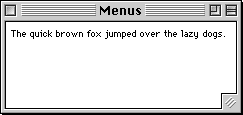
This exercise introduces you to commanders, and to menus. You create a simple application named "Menus." This application displays a simple window, as shown below in Figure 10.6. You can create an arbitrary number of windows.
Each window contains a caption. Unlike the standard LCaption object, however, this caption is dynamic and a commander. It responds to menu commands to change font, size, and style. You cannot change the text in this object using the Menus application. It is a caption, not an editable text item.
Feel free to examine the PPob resource for this window. The CDynamicCaptionCmdr class is a custom class. The class ID is DyCC. In addition to the usual caption information, this item stores the menu resource ID for the font and size menus, and the item numbers of the first and last size items.
Because this exercise concentrates on menus, in this exercise we won't explore the visual interface further. We will explore the menu resources. And then you write the code to identify and respond to commands, and to update menus.
You can use Constructor to examine the menu-related resources.
They are in the file Menus.ppob. You won't modify any of these resources, but you should take
a look at them so you understand what PowerPlant requires for
menus.
Examine the MENU resources. In addition to the standard Apple,
File, and Edit menus, there are Font, Size, and Style menus. Notice
the MENU resource ID numbers for these menus. They are 250, 251,
and 252 respectively. These menus are very common in Macintosh
applications, and the PP_Messages.h file defines these constants:
const MessageT cmd_FontMenu = 250;
const MessageT cmd_SizeMenu = 251;
const MessageT cmd_StyleMenu = 252;
The Font menu has no items. The Size and Style menus have the standard items you typically see in these menus. Close the MENU resources when you're through with them.
Examine the MBAR resource. Notice that it contains an entry for each of the six menus. PowerPlant will build the menu bar containing each of these menus. The combination of MENU and MBAR resources is all that's necessary to make a menu appear in a PowerPlant application. To make that menu work, however, you typically use an Mcmd resource.
Constructor maintains the Mcmd resources automatically based on the command ID you set for each menu item. Figure 10.7 illustrates the relationship between the Size and Style menus and their respective commands.
Menu commands in the Menus app: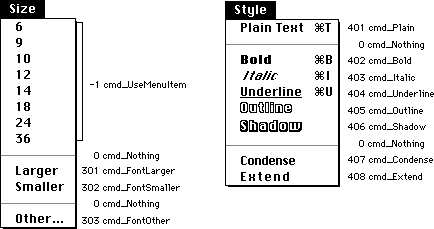
There is one command for each of the 13 items in the Size menu.
The first 8 items have a command number of -1. This is the cmd_UseMenuItem value we discussed earlier in this chapter. The other items in
the Size menu and all the items in the Style menu have positive
or zero command numbers. The corresponding PowerPlant constants
for these standard items are defined in PP_Messages.h.
There are similar standard commands defined in PowerPlant and used in the Apple, File, and Edit menus. Feel free to examine them as well.
Notice that there is no Mcmd resource for the Font menu. PowerPlant generates synthetic commands for these items at runtime.
In this part of the code exercise you write the code to populate
the Font menu, establish a command hierarchy, recognize and respond
to menu commands, and handle menu updating. In the process you
will work with both kinds of commands, synthetic and non-synthetic.
You also see the practical difference between a pure synthetic
command and the cmd_UseMenuItem command.
Before we get started, a little context will help. Let's look at the dynamic caption object and how it is implemented. The code for the dynamic caption object is provided for you.
class declaration CDynamicCaption.h
Take a look at the class declaration for CDynamicCaption. It inherits from LCaption, and therefore has all the features of a regular LCaption object. In addition, the CDynamicCaption object has a text traits record. Most of the public functions of CDynamicCaption are simple accessors for the text traits record or one of its members such as font, size, style, and justification.
The FinishCreateSelf() routine simply sets the mTextTraits member.
The DrawSelf() routine gets the current text traits, sets the port characteristics
to match, and calls UTextDrawing::DrawWithJustification() to draw the contents.
Based on this design, when you respond to a selection that affects
the text traits, all you have to do is modify the text traits
information and refresh the pane. If you look at the Set...() functions among the accessors, you'll see that they do just that.
They set the appropriate text traits field, and call Refresh(). As a result, the caption draws itself with the new settings.
Close the file when you are finished.
NOTE A CDynamicCaption object is never instantiated in this application. CDynamicCaption is used as a base class for CDynamicCaptionCmdr, discussed in the next step.
2. Examine CDynamicCaptionCmdr.
class declaration CDynamicCaptionCmdr.h
Left to itself, the CDynamicCaption object cannot respond to menu commands, because it is not a commander. In a simple application like this, you could design the application object to keep track of the CDynamicCaption object, recognize and respond to each menu command, set the CDynamicCaption object text traits, and so forth.
However, it is usually wiser to distribute responsibility for commands to the objects that respond to the commands. In order to accomplish that design, the object must be a commander.
CDynamicCaptionCmdr solves the problem. It inherits from CDynamicCaption and LCommander. It is a dynamic caption object that can respond to commands. The PPob resource for the window in this application specifies a CDynamicCaptionCmdr object.
The only functions this class overrides are ObeyCommand() and FindCommandStatus(). You will write those functions later in this exercise. Before
you get that far, you must do some setup work.
Close this header file when you are finished.
This application uses two custom pane classes. Although you only instantiate CDynamicCaptionCmdr, you should register both. The CDynamicCaptionCmdr object inherits from CDynamicCaption. PowerPlant will create the CDynamicCaption object as part of the CDynamicCaptionCmdr object.
The existing code sets up debugging and registers PowerPlant classes. Register both custom classes.
// Register required PowerPlant core class.
	RegisterClass_(LWindow);
// Register custom classes.
RegisterClass_( CDynamicCaption );
RegisterClass_( CDynamicCaptionCmdr );
The content of the Font menu depends upon the runtime environment.
You must fill in the items as the application starts up. You perform
final setup work in the application's Initialize() function.
You should get the menu bar object, get the Font menu from it,
get the Mac OS menu handle, and call ::AppendResMenu() to add resources of type FONT.
// Setup the font menu.
LMenuBar *theMenuBar = LMenuBar::GetCurrentMenuBar();
ThrowIfNil_( theMenuBar );
LMenu *theFontMenu = theMenuBar->FetchMenu( rMENU_Font );
ThrowIfNil_( theFontMenu );

::AppendResMenu( theFontMenu->GetMacMenuH(), 'FONT');
Unlike most of the other applications you have built so far, there
is no code to make a window. This application supports multiple
windows. At launch time, if an open-application Apple event is
received, the Startup() function calls ObeyCommand() to create a new window. You write ObeyCommand() in the next step.
One command the application object recognizes is cmd_New. In response you should create a new window. The existing code
identifies the message in a case statement. The defined constant for the PPob resource is rPPob_MenusWindow. Call the LWindow class creator function.
case cmd_New:
{
  // Create the window.
  LWindow *theWindow;
  theWindow = LWindow::CreateWindow(rPPob_MenusWindow, this );
  Assert_( theWindow != nil );
6. Establish the latent command hierarchy.
The command hierarchy for this simple application is (from top to bottom): application, window, caption. When you call the LWindow class creator function, you specify the application object as the commander. When the window activates, you want the caption object to become the target object. Therefore, you must make it the latent subcommander of the window. Then show the window.
To accomplish this task, now that you have the window, get a pointer
to the caption object, and make it the latent subcommander of
the window. This code goes right after the code you wrote in the
previous step, as part of the response to new_Cmd.
  Assert_( theWindow != nil );
// Get the caption.
CDynamicCaptionCmdr *theCaption;
theCaption = dynamic_cast <CDynamicCaptionCmdr *>
       (theWindow->FindPaneByID( kDynamicCaptionCmdr ));
Assert_( theCaption != nil );

// Make it the latent subcommander of window.
theWindow->SetLatentSub( theCaption );

// Show the window.
theWindow->Show();
The last line that shows the window is redundant if the window's visible attribute is set.
Notice that the default case passes unhandled commands on to the inherited ObeyCommand() function.
7. Update the New item in the file menu.
FindCommandStatus() CMenusApp.cp
The application object is responsible for the New item, both to respond to the command and update the menu. This is a non-synthetic menu command. The existing code identifies the case. The New item should always be enabled. Enable the menu item.
case cmd_New:
{
  // Enable the New command.
  outEnabled = true;
}
break;
Save your work and close the file. You have completely implemented
the application object's behavior. The responsibility for other
commands rests with the caption. In the following steps you write
the ObeyCommand() and FindCommandStatus() functions for the caption.
8. Respond to synthetic commands
ObeyCommand() CDynamicCaptionCmdr.cp
The caption may receive synthetic commands from either the Font menu or the Size menu. To complete this step you perform the following tasks.
a. Determine if the command is synthetic.
If the command is synthetic continue. Otherwise, you'll skip to the code that handles non-synthetic commands. You write that code in the next step.
b. Determine if it is a Font menu command.
If it is, continue. If it is not, you'll skip to the code that handles the Size menu. You write that code in substep d in this step.
c. Process the Font menu command.
Get the Font menu object, read the text of the item, and call
SetFont() to update the text traits record. This completes handling of
a Font menu command.
d. Determine if it is a Size menu command.
There are other synthetic commands besides the Font and Size menus. If this command is from the Size menu, continue. If it is not, you skip to the code that handles other synthetic commands. You write that code in substep f in this step.
e. Process the Size menu command.
Get the Size menu object, read the text of the item, convert it
to a number, and call SetSize() to update the text traits record. This completes handling of
a Size menu command.
f. Pass on other synthetic commands.
The caption object is not responsible for any other synthetic
commands. If the command is synthetic, but not a Font or Size
menu command, call the inherited ObeyCommand() function. In this case, that's LCommander::ObeyCommand().
The solution code for this long step is listed here for reference.
SInt16 theMenuItem;
// Is it a synthetic command.
if ( IsSyntheticCommand( inCommand, theMenuID, theMenuItem ) ) {
// Is it a Font menu command.
  if ( theMenuID == mFontMenuID ) {
    // Get the menu object.
    LMenu *theMenu;
    theMenu = LMenuBar::GetCurrentMenuBar()->
								FetchMenu( mFontMenuID );
    Assert_( theMenu != nil );

    // Get the menu item text - name of font.
    Str255 theFontName;
    ::GetMenuItemText( theMenu->GetMacMenuH(), theMenuItem,
                       theFontName );

    // Set the caption font.
    SetFont( theFontName );

  } else if ( theMenuID == mSizeMenuID ) {

    // Get the menu object.
    LMenu *theMenu;
    theMenu = LMenuBar::GetCurrentMenuBar()->
								FetchMenu( mSizeMenuID );
    Assert_( theMenu != nil );

    // Get the menu item text.
    Str255 theMenuText;
    ::GetMenuItemText( theMenu->GetMacMenuH(), theMenuItem,
                       theMenuText );

    // Get the size referred to by menu item.
    SInt32 theSize;
    ::StringToNum( theMenuText, &theSize );

    // Set the caption size.
    SetSize( theSize );

  } else { // Neither Font nor Size menu.

    // Call inherited.
    cmdHandled = LCommander::ObeyCommand( inCommand, ioParam );
	}
}
9. Respond to non-synthetic commands.
ObeyCommand() CDynamicCaptionCmdr.cp
The code in the previous step started with an if statement that called IsSyntheticCommand(). All the code in this step falls inside the else condition to that original if statement. In other words, if the command is synthetic, the code
in the previous step handles it. Otherwise, the code in this step
handles it.
We have given you most of the code in this step. The existing
code sets up the else condition, switches based on the command number, and dispatches
control to a variety of case statements. In this step, you complete two cases: cmd_Plain and the default case.
a. Respond to the Plain menu command.
Call the caption's SetStyle() function. Set the style to the Toolbox constant normal.
case cmd_Plain:
{
  // Set the caption style to normal (plain).
  SetStyle( normal );
}
break;
Existing code handles most other cases.
b. Pass on other menu commands.
The caption object is not responsible for other non-synthetic
commands. Call the inherited ObeyCommand() function. In this case, that's LCommander::ObeyCommand().
default:
{
  // Call inherited.
  cmdHandled = LCommander::ObeyCommand( inCommand, ioParam );
}
break;
You have now completely implemented commands in this application. Your final task is to update menu items. You accomplish that in the next two steps.
10. Update synthetic menu items.
FindCommandStatus() CDynamicCaptionCmdr.cp
Remember that the Font menu has no Mcmd resource. The Size menu
does have an Mcmd resource, and assigns the value -1-cmd_UseMenuItem-to each of the items for setting a particular point size. PowerPlant
behaves differently with respect to menu updating for items with
a -1 command number, as you are about to see first hand in the
code for this step.
Existing code calls IsSyntheticCommand(). Because the Font menu is populated completely by items with
no Mcmd resource, PowerPlant does not call FindCommandStatus() on an item-by-item basis. Instead, PowerPlant calls this function
once for the Font menu title, with an item ID of zero. The existing
code tests to see if the Font menu is involved. If it is, you
should:
a. Enable the Font menu title.
b. Get the name of the font used by the caption.
Use the CDynamicCaptionCmdr GetFont() function.
Get the menu bar object, use it to get the Font menu object.
if ( theMenuID == mFontMenuID ) {
  // Enable the menu title.
  outEnabled = true;

  // Get the name of the font used by caption.
  Str255 theFontName;
  GetFont( theFontName );

  // Get the menu object.
  LMenu *theMenu;
  theMenu = LMenuBar::GetCurrentMenuBar()->
							FetchMenu( mFontMenuID );
  Assert_( theMenu != nil );

  // Get the number of items in the menu.
The existing code uses Toolbox functions to count the number of items in the menu and set the proper mark for each item.
For the Size menu items that have command number -1, PowerPlant
also creates a synthetic menu command. However, the FindCommandStatus() function is called for each item in turn. As a result, you can
handle them individually. FindCommandStatus() is called once for the menu title as well.
The existing code identifies a synthetic command involving the size menu, and switches on the item. You should:
d. Enable the Size menu title.
If the item is the menu title, enable the item.
All other size items are treated identically, so this can be a default case. You should enable the item. Then get the Size menu object. Existing code does the rest of the work.
switch (theMenuItem)
{
  case 0: // Menu title

    // Enable the menu title.
    outEnabled = true;
    break;

  default: // Other size items with -1 command
  {
    // enable the individual item
    outEnabled = true;

    // Get the menu object.
    LMenu *theMenu;
    theMenu = static_cast<LMenu*> (LMenuBar::GetCurrentMenuBar()->
								FetchMenu( mSizeMenuID ));
    ThrowIfNil_( theMenu );

    // Get the menu item text.
Existing code determines the size for the caption text. It uses Toolbox calls to match the size represented by the menu item with the text size. If they match, it sets a check mark. If they do not, the code sets no mark (thus clearing any previous mark).
Notice that the code for the Size menu does not loop. The Font
menu code executes once only-for item zero, the menu title. The
Size menu code executes repeatedly, once for each item with the
-1 command number, and again for item zero-the menu title. In
either case-Font or Size menu-the actual command number received
by FindCommandStatus() is a synthetic command.
f. Pass on other menu commands.
You must pass any command you don't handle to the inherited FindCommandStatus() function. In this case, that's LCommander.
} else { // other synthetic command
  // Call inherited.
  LCommander::FindCommandStatus( inCommand,
    outEnabled, outUsesMark, outMark, outName );
}
You have now completely handled updating menu items for which PowerPlant generates synthetic menu items. Let's do the non-synthetic items.
11. Update non-synthetic menu items.
FindCommandStatus() CDynamicCaptionCmdr.cp
The code in the previous step started with an if statement that called IsSyntheticCommand(). All the code in this step falls inside the else condition to that original if statement. In other words, if the command is synthetic, the code
in the previous step handles it. Otherwise, the code in this step
handles it.
We have given you most of the code in this step. The existing
code sets up the else condition, switches based on the command number, and dispatches
control to a variety of case statements. In this step, you complete two cases: cmd_Plain and the default case.
a. Update the Plain menu item.
Enable the item. The item uses a mark, so set that flag as well.
Then determine if the caption's current style is normal. If it is, use a check mark. If not, use no mark.
case cmd_Plain:
{
  // Enable the item, set the uses mark flag,
  // and get the mark.
  outEnabled = true;
  outUsesMark = true;
  outMark = (GetStyle() == normal) ? checkMark : noMark;
}
break;
Existing code handles most other cases.
b. Pass on other menu commands.
The caption object is not responsible for other non-synthetic
commands. Call the inherited FindCommandStatus() function. In this case, that's from LCommander.
default:
{
  // Call inherited.
  LCommander::FindCommandStatus( inCommand, outEnabled,
                                 outUsesMark, outMark, outName );
}
break;
Of all the cases for which code is provided for you, the one worthy
of note is the case cmd_FontOther. It loops to see if the caption text size matches any of the
size items in the menu. If it does not, it modifies the text of
the Other item to include the actual font size.
You have now completely implemented commands and menu updating. Save your work and close the file.
12. Build and run the application.
This has been a long exercise, but now its time to see the fruits of your labor. Make the project and run it. When you do, a window should appear. See Figure 10.6.
Choose items in the Font, Size, and Style menus and watch how the caption responds. When you look at each
menu, notice the check marks and how the menu updates properly.
This is your code hard at work making sure the menu items are
consistent with the state of the caption. The Other item in the
Size menu is not supported, so it isn't checked even if the caption
uses an "other" size.
Choose the New item in the File menu. A second window should appear, with another caption. Set
its font, size, and style. The settings for this caption are independent
of the caption in the first window. When you look in the menus,
the correct item is checked for the active window and caption.
Very cool.
Now, close both windows. What happens to the Font, Size, and Style menus?
Because there is no caption object to update these menus, they remain disabled (the PowerPlant default). In the design of this little application, that's appropriate behavior.
Continue exploring the command and menu updating process. If you would like to expand on this application, here are some suggestions.
FindCommandStatus() and ObeyCommand() routines so you can watch the flow.
You have reached another milestone on the road to PowerPlant mastery. This exercise has given you practical experience working with all kinds of menu commands in PowerPlant.
We aren't completely through with menus just yet. In the next chapter you learn all about windows in PowerPlant. In the code exercise for that chapter, you'll build a Window menu that lists each open window. You'll do a lot more work with menus in that exercise.