You have a solid handle on how to manipulate the visual interface of a Macintosh application using PowerPlant. You have learned about all the visual elements: panes, views, and controls. You know how they communicate, and how to use them.
You have learned how to create a PowerPlant application, and how to use PowerPlant's debugging and memory management utilities. You know how to set up and manage the command structure in a PowerPlant application, and how PowerPlant handles menus. You have also learned how to manipulate the common interface views in a Mac application, windows and dialogs.
At this point, you can write a complete, self-contained PowerPlant application. However, there are two important features of an application that we have not discussed-file I/O and printing.
In this chapter we introduce you to PowerPlant's document-based strategy for managing persistent data-data that is saved to a file.
PowerPlant's approach to file I/O involves the collaboration of several different classes. As a result, it will help a great deal if, before we go into class-level details, we take a look at the big picture. With that in mind, the topics in this chapter are:
In this section you get an aerial view of how PowerPlant manages documents. After you have the big picture, seeing how the pieces fit together will be a lot easier.
Figure 13.1 illustrates PowerPlant's approach to documents and file I/O. Each major component in the design-and its corresponding PowerPlant class-is shown. The discussion that follows explains all the details.
A document-centered design for file I/O: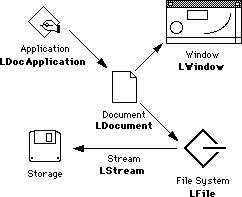
Until now we have ignored a simple fact about how computers work. A computer brings data into RAM for manipulation and display. It stores data "off site" on a hard disk or other storage medium. By "off site" we mean not inside the central processor or associated RAM. This design allows the data to survive while the computer is busy doing other things, or is turned off. In other words, the data becomes persistent.
We refer to an identifiable unit of stored data as a document. Essentially, this is what all of us call a "file" on our hard drives. We're going to use the term "document" in this discussion, to avoid confusion a little later on.
In a real sense, the application program itself is a document. The operating system loads it (or relevant parts of it) into RAM for manipulation and display.
However, we're going to take a somewhat more narrow view of a document. In this discussion, a document is an identifiable unit of stored data used by an application! The document contains whatever information is necessary for the application's purpose. It might be a single byte, or it might be gigabytes of information.
In this approach, the document is fundamental. It is the critical unit used by an application for data management.
Although most applications use documents, some do not. For the rest of this discussion we assume that the applications we speak of are all document-dependent.
An application that uses documents must have document management functions. The application must open a document, close the document, and create a new document. In PowerPlant, this behavior is encapsulated in the LDocApplication class.
In good object-oriented design, the document should be-as much as possible-responsible for itself. Then the application does not need to know the details of the document's internal workings.
Therefore, the document can be thought of as an independent object that collaborates with the application. In PowerPlant, this is the LDocument class, and its descendant, LSingleDoc.
The document is responsible for its own maintenance. Although the application issues commands to open and close a document, it is the document itself that is responsible for writing its contents to storage and reading its contents from storage. The application simply knows it has a document. The document knows what its contents are. This frees the application from the responsibility of knowing anything about the contents of the document.
Because the document is responsible for reading and writing storage, the document must deal with the computer's file system. In PowerPlant, that interaction occurs through an LFile object. There is an important design subtlety here. The LFile object does not represent just the document on disk-what we commonly refer to as a file. The LFile object represents the access path to the document in storage. In a very real sense, the LFile object is the interface to the file system itself.
The document issues the commands, but the LFile object is responsible for the work when it comes time to actually read or write data in storage. There is more than one way to accomplish the task. You can read all the data in a single block. Or you can treat the stored information as a stream and read in the necessary bits and pieces. PowerPlant uses the LStream class to help you access data as a stream, should you choose to do so.
Of course, after you have moved the data out of storage and into RAM, it is quite likely that some person will want to view the data. That's where windows come into play. A window is merely the document's way of displaying the data on a monitor. In this strategy, a window is subservient to a document. The document "owns" the window that displays its data. The window has nothing whatsoever to do with saving contents to storage.
This is really the essence of the LDocument class. It associates files and windows.
Now that you know how the pieces fit together, you might want to take another look at Figure 13.1. Then we can talk about the individual elements in this design.
The application forms the top of the document chain in terms of responsibility. It issues commands that open, close, and create new documents. It is also responsible for issuing the command to print a document, but we talk about that in the next chapter.
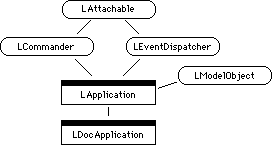
LDocApplication is a simple extension of the PowerPlant LApplication class. Figure 13.2 illustrates its ancestry.
We discussed the principal features of an application in "The Application Object." You can review that information if you need to brush up on the features of an application.
LDocApplication is simply an application with document support. It provides support on three levels:
When you create your own document-related PowerPlant application, you will subclass from LDocApplication. Although not an abstract class, several of the important member functions are empty.
Because it is a commander, LDocApplication has the usual ObeyCommand() and FindCommandStatus() functions.
If you use standard PowerPlant command numbers for the New, Open, and Page Setup items, any class you derive from LDocApplication will handle
these menu items and commands automatically.
In the default LDocApplication implementation, these items are
always enabled. When the user chooses one of these commands from
the File menu, LDocApplication::ObeyCommand() dispatches control to the appropriate function.
LDocApplication has five functions that provide Apple event support for document-related commands. These functions are:
SendAEOpenDoc()
SendAECreateDocument()
DoAEOpenOrPrintDoc()
HandleAppleEvent()
HandleCreateElementEvent()
These are handlers and dispatchers that manage the flow of control
relating to documents. These are complete functions. It is unlikely
that you will override them, with two exceptions. HandleAppleEvent() and HandleCreateElementEvent() are inherited from LModelObject. These two functions are commonly
overridden when implementing scriptability.
Because PowerPlant document commands-even those from within the application itself-go by way of Apple events, these handlers suffice to dispatch all basic document-related actions.
However, these functions do not actually open, create, or print a document. They call implementation routines to do the actual work.
LDocApplication provides these four functions for document management:
However, in LDocApplication, these functions do nothing. You must derive your own application class from LDocApplication, and write code to implement these four functions. We talk about how to do that in "Saving and Opening Files."
Before that, let's look at the other components of the PowerPlant document design pattern.
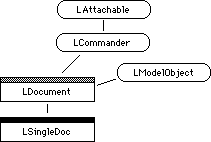
From the PowerPlant perspective, a document is an object that descends from LDocument. LDocument itself cannot be instantiated. Figure 13.3 illustrates the LDocument class hierarchy. LDocument appears with a grey bar because it is an abstract class.
In this section we look at the characteristics and behaviors of both:
As an abstract class, LDocument provides a generic interface for all documents. LDocument has four data members of interest to us.
| Data member |
Stores |
|---|---|
The sDocumentList data member is static, hence a class variable. There is only
one instance of this variable for all document objects.
The various LDocument member functions use these data members in their work. These functions provide support for:
ObeyCommand() and FindCommandStatus().
Being a commander, LDocument has the usual ObeyCommand() and FindCommandStatus() functions.
If you use the standard PowerPlant command numbers for the Close, Save, Save As, Revert, Print, and Print One menu items, any class you derive from LDocument will handle these
menu items and commands automatically.
In the default LDocument implementation, Save As, Print, and Print One are always enabled when there is a document active. The Save menu item is enabled if there is a document active, and the document
has been changed or doesn't yet exist on disk. The Revert item is enabled if the document has changed and already exists
on disk.
When the user chooses one of these commands from the File menu, LDocument::ObeyCommand() dispatches control to the appropriate function in LDocument to
implement the command. We talk about those functions in "Document management" below.
As a commander, LDocument has one more interesting behavior. It
overrides the AttemptQuitSelf() function. This is where PowerPlant checks for any unsaved documents,
and allows the user to save them before quitting. If you want
to use a different alert than the PowerPlant default alert, or
you want to manage this process in some other way, override this
function in your own LDocument subclass.
LDocument is responsible for opening, saving, closing, reverting, and printing a document. Table 13.2 lists the member functions involved in this process.
LDocument document management functions:
| Function |
Purpose |
|---|---|
In LDocument, the functions related to closing a file are complete.
You probably won't need to override them. The AskSaveAs() function is also complete.
The other functions relating to saving, reverting, and printing a document are all empty. You must provide the functionality in your LDocument subclass. We talk about how to do that in "Saving and Opening Files."
Remember, most of the dispatch and command handling functionality is provided by the application framework. All you have to do is provide the final function at the end of the chain that actually implements the required behavior. In the case of closing a document, the framework handles that for you too.
LDocument has two very useful utility functions for document management. Table 13.3 lists them.
| Function |
Purpose |
|---|---|
These are both static functions, so you may call them at any time using the LDocument class specifier. These functions allow you global access to all open documents, or to a specific named document.
There is one other feature of LDocument. It has a descriptor characteristic.
This is analogous to a pane's descriptor. However, the GetDescriptor() accessor is a pure virtual function. How you implement the descriptor
feature in your own document class is up to you. Typically you
would fill in the outDescriptor parameter with the name of the document.
LDocument is an abstract class, and as such cannot be instantiated. However, any class you derive from LDocument will have all of these features. PowerPlant derives one such class, LSingleDoc.
LSingleDoc is a very simple extension of LDocument. Although it is not an abstract class, the important functions for saving, reverting, and printing a document are still empty. You must derive your own class from LSingleDoc to implement real functionality.
The purpose of LSingleDoc is to provide the connection between an LDocument object, a single document on disk, and a single window on screen.
LSingleDoc has two new data members. They are mWindow and mFile. The mWindow data member is, predictably, a pointer to an LWindow object.
The mFile data member is a pointer to an LFile object. You are already
familiar with LWindow. We discuss LFile's characteristics and
behaviors in "What Is a File" below.
There are no accessors for either data member. They are protected, so you can access them directly only from inside the class. You cannot access them from outside an LSingleDoc descendant.
In LSingleDoc, the GetDescriptor() function returns the name of the document. If the document is
associated with a file on disk, it returns the name of the file.
If there is no file, but there is a window (an unsaved new document
for example), it returns the name of the window. If there is neither
a file nor a window, it returns zero.
LSingleDoc provides one other useful feature for you. It overrides
the LCommander AllowSubRemoval() method. An attempt to close a document-related window is really
an attempt to close the document that owns the window. LSingleDoc::AllowSubRemoval() intercepts the command and attempts to close the document. If
successful, the document will close the window as part of the
process of closing itself.
The LFile object is a base class in PowerPlant. That is, it has no ancestor classes. In addition, it is an independent module in PowerPlant with no dependencies on other parts of the framework. You can use LFile independently, if you wish, as a wrapper for the Mac OS File Manager. See Figure 13.4 for an illustration of the LFile class hierarchy.
Remember from our discussion of the PowerPlant file I/O design strategy that the LFile object represents both the document in storage on disk, and the file system itself. This duality is reflected in LFile attributes and LFile behaviors.
LFile has three data members, with accessors for each. These data
members store the Mac OS FSSpec record for the file on disk, the reference number (refNum) for
the data fork of the file, and the refNum for the resource fork
of the file. Table 13.4 lists the accessors.
| Accessor |
Purpose |
|---|---|
In normal use, when you create an LDocument object for an existing file (when opening a file, for example), you create an LFile object and set the specifier to point to the correct file. The LFile object then becomes your path to disk. When you save a new document, you get a new specifier (typically obtained from the standard "put file" dialog). The LFile object takes care of setting the refNum values for the two file forks.
LFile also encapsulates everything you need for file creation, working with the data fork, and opening or closing the resource fork. This is the interface into the File Manager. Table 13.5 lists the functions in LFile.
| Function |
Purpose |
|---|---|
All of these functions are fully realized in LFile. These LFile wrapper functions greatly simplify the process of dealing with the Mac OS File Manager by hiding many of the details.
If you examine the source code for these functions, you'll see that they throw errors whenever necessary. You should catch these errors for any file operations you create, especially when reading and writing data.
There are no functions for reading or writing resources. You must write your own code to read or write data in the resource fork. You can use LFile to open and close the fork as necessary.
Finally, you may have also noticed that LFile reads and writes the data fork in one large chunk. If that data represents information for a variety of structures or objects, you must unflatten the data yourself.
While the one-gulp approach to the data fork works just fine in many cases, sometimes reading the entire data fork at once is neither wise nor possible. For example, large text documents, spreadsheets, databases, or images may overload your application's available memory. You may want to read just part of the data. That's where streams come into play.
A stream is an ordered series of bytes. The stream concept is a very powerful one. When accessing data in a stream, it really doesn't matter where the data is coming from or going to. You have access to the stream, and you either read bytes from the stream or put bytes into the stream. While the ultimate source or destination of the stream is certainly of concern at one level, your data accessors don't need to know the source or destination. This keeps data I/O separate from reading and writing data.
PowerPlant provides general support for streams that you can use in any circumstance, and specific support for streams when accessing data in a file on disk. In this section we are going to concentrate on two classes:
Figure 13.4 illustrates how the PowerPlant stream and file classes are related.
LStream and LFile class hierarchy: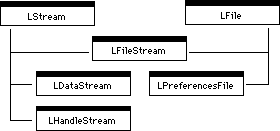
Notice that LStream and its subclasses, like LFile and so many other segments of PowerPlant, form an independent module.
In PowerPlant, LStream is a generic implementation of streams for the Macintosh environment. It is not an abstract class, but it must be subclassed to be useful, as you'll see in a bit as we discuss:
A stream has a length and a marker. The length is the number of
bytes in the stream. The marker is your current position in the
stream-the point where the next byte is read from or written to.
LStream defines accessors to these data members: GetLength(), SetLength(), GetMarker(), and SetMarker().
You can measure from the beginning of the stream, the end of the
stream, or from the position of the marker. PowerPlant defines
an enumerated type, EStreamFrom, with these possible values:
The whole purpose of a stream is to read and write data, so all the functions are centered around that task. Table 13.6 lists the relevant functions.
LStream data accessing functions:
| Function |
Purpose |
|---|---|
There are functions to read or write pointer data, handle data, Pascal style strings, and C strings. Each of these functions is fully realized in LStream, and you aren't likely to override them. Each reads or writes the length of the data first, and then reads or writes the correct amount of data in the stream.
In addition to these typical functions, LStream overloads the << and >> operators to read and write data (as in iostreams). There are overloaded versions of each operator to read or write the following data types:
Most of these functions-including the overloaded operators-rely
on either the ReadData() or WriteData() routines. In LStream, these are empty functions. They read and
write nothing. That's why you must subclass LStream for it to be useful. You can design the subclass
to read or write data to the correct destination, be it a file
system, a serial port, a network connection, and so on.
PowerPlant has three LStream subclasses.
LDataStream is designed for a stream where the data buffer is
a non-relocatable block-a pointer block. LHandleStream is designed for a stream where the data buffer is
a relocatable block-a handle block. Consult the PowerPlant Reference
and the source code for details on these classes. LFileStream is of special interest in a discussion of File I/O.
LFileStream inherits from both LFile and LStream. See Figure 13.4. It has all the LFile behaviors we discussed earlier in this chapter, and overrides none of them.
It overrides and implements the GetBytes() and PutBytes() functions from LStream. LFileStream uses the File Manager calls
FSRead() and FSWrite() to read or write the data. LFileStream also overrides the length
and marker accessors to use the File Manager calls GetEOF(), SetEOF(), GetFPos(), and SetFPos().
This is a perfect example of how to override LStream to customize it for a particular environment-in this case the File Manager.
If you use LFileStream as your document's file object, you can
read or write data of arbitrary length in the data fork of the
file. You can also get it all in one big block if you wish if
you use the ReadDataFork() or WriteDataFork() functions inherited from LFile.
Now that we have had a good look at the pieces, let's see how they all fit together. In this section we discuss typical tasks you must perform as you:
Your first step in creating an application that can save and open
files is to subclass LDocApplication. You override three functions:
MakeNewDocument(), OpenDocument(), and ChooseDocument().
These functions can be very simple. Listing 13.1 contains sample code for all three. The open and new routines
rely on the document constructor to do most of the work. The routine
to choose a document manages the StandardGetFile() dialog.
void CMyApp::OpenDocument(FSSpec *inMacFSSpec)
{
  CMyDoc *theDoc = new CMyDoc(this, inMacFSSpec);
}
LModelObject* CMyApp::MakeNewDocument()
{
  CMyDoc *theDoc = new CMyDoc(this, nil);
  return theDoc;
}
void CMyApp::ChooseDocument()
{
  StandardFileReply macFileReply;
  SFTypeList        typeList;

  UDesktop::Deactivate();
  typeList[0] = 'TEXT';
  ::StandardGetFile(nil, 1, typeList, &macFileReply);
  UDesktop::Activate();
  if (macFileReply.sfGood) {
    SendAEOpenDoc(macFileReply.sfFile);
  }
}
Note the use of UDesktop::Deactivate() and UDEsktop::Activate() around the call to StandardGetFile(). Also, note that the code sends an Apple event to open the document,
to support recordability in a scripting environment.
In your document class, you have a bit more work to do. Precisely what you do and how you do it will depend upon your application. However, the typical tasks are well defined. In this section we examine the tasks you perform when you:
In your document constructor-or in an initializing function called immediately after creating a document-you must set up all the information necessary for the document. Your tasks are:
1. Create a window for the document.
3. If you are opening a document, open the associated file.
You do not create a file object if you are creating a new document. The new document is not yet associated with a file on disk.
Opening a file also involves well-defined tasks. To open a file you:
1. Create and initialize a file object-either LFile, LFileStream, or a file object of your own design.
2. Open the data fork, read the data, and close the data fork. This assumes you use the data fork.
3. Open the resource fork, read resources, and close the resource fork. This assumes you use the resource fork.
4. Install the data content of your window.
5. Set the name of the window to match the file on disk.
The precise implementation of these steps will, of course, depend upon your application. For example, you may need to read resources first and data second. These steps are just a guide to the typical tasks you should keep in mind as you open a file.
Installing your data in the document may be an involved process. You decide your own data storage format. You may want to implement a streaming operation and rebuild objects from the stream. Or you may read the entire data fork at once, and then rebuild your document from the single block of data. Either way, remember that your reading and writing operations should be the exact converse of each other.
Having accomplished these tasks, you're still not quite through. You must save a file as well.
To save a document, you implement the document class's DoAESave() and DoSave() functions. In the PowerPlant architecture, DoAESave() is called when the user is performing a Save As operation. This
occurs when the user is saving a file for the first time, or saving
the file under a new name.
The function receives a file specification and a desired file
type. The file type is usually a constant, fileType_Default. This tells you to save the file in its "natural" file type for
your application. However, the inFileType parameter may have a
user-specified file type (to allow exporting a file in a different
format, for example). A user-specified type might come from a
custom save dialog, or from a script driving the application.
If the file type is a non-default file type, specify the correct
type and creator when saving the file.
To implement DoAESave() your function should:
1. Delete the document's existing file object. This does not delete the original file on disk, just the file object that represents the old file.
2. Create and initialize a new file object for the new file.
3. Create a new file on disk of the correct file type and creator.
4. Open the data and/or resource fork.
5. Save your document's data. In a well factored design, this
usually means calling DoSave().
6. Close the data and/or resource forks.
7. Set the window's name to the name of the new file.
To implement the DoSave() function, you perform these steps.
1. Gather your document's data.
Just what is involved in gathering your data depends upon your application. You may want to use a stream and write data for each object in the document. You may accumulate your data in a single block and write it all at once.
 TIP
TIP Recall that LDocument::AskSaveAs() manages the StandardPutFile() dialog when the user performs a Save As operation. This is the
dialog the user sees when asked to provide a name for the file.
If the user replaces the file, PowerPlant deletes the file on
disk before beginning a new save operation. You may wish to override
this mechanism in your own document class. A more robust mechanism
would be to create a temporary file and save the data to a temporary
file. Only when the save operation is successful should you replace
the existing file with the Toolbox call FSpExchangeFiles().
The final I/O task your document must perform is reverting a file to its most recently saved state. Once again, the precise form this takes depends upon your application, but the steps are clear and simple. The document already has an associated file on disk. To revert the document you should:
1. Open the data fork, read the data, and close the data fork. This assumes you use the data fork.
2. Open the resource fork, read the resources, and close the resource fork. This assumes you use the resource fork.
3. Replace the existing contents of the document with the data.
The order of these tasks is significant. Don't delete the existing contents of your document until you've got the new contents from file. Then, if the operation fails you haven't destroyed the document.
 WARNING!
 When creating a document-based application, don't forget to include
the file PP Document Alerts.rsrc in your project. It contains PowerPlant's default document-related
alerts. See Appendix B, "Resource Notes" for more information on the contents of this file.
Before we conclude this chapter, there is one more common, file-related task to discuss-maintaining a preferences file. Many applications have preference files.
PowerPlant makes creating and maintaining a preferences file as simple as possible with LPreferencesFile.
The constructor builds an FSSpec for a file in the Preferences folder in the System folder. That file has the name you specify. The constructor does not actually create or open the file on disk.
You use the member functions inherited from LFile to manage the file-create, open, read, write, and so forth. There is, however, one more nice feature to LPreferencesFile.
Preferences are often stored as a resource. The only new function
in LPreferencesFile is OpenOrCreateResourceFork(). This function opens or creates the resource fork for the file,
whichever is appropriate. After you have the fork open, you can
use the Resource Manager to write your preferences resource to
the file.
In this chapter you learned how several PowerPlant classes work together to implement a well-designed file I/O system.
LDocApplication is responsible for opening and creating documents-establishing documents in the application. In your application you implement simple functions to create and open a document.
LDocument is responsible for saving and closing documents, as well as reverting and printing-file management with documents. LSingleDoc implements the one document/one file/one window relationship typical of most Macintosh applications.
In your document class you write the routines to read the data from a file on disk into a document, and write data back out to disk. In the process you take advantage of LFile and LFileStream. These classes give you simple alternatives for reading and writing data to a Macintosh file.
In this exercise you write an application named "Documents." The Documents window contains an editable text pane, so you can type text into the window. You did as much in the very first chapter in this book when you wrote PPEdit.
What's new here is that you can also open any text file (smaller than the 32K TextEdit limit), and save your work to a text file.
The interface is not the center of attention in this exercise,
but it is important. The PPob resource is provided for you. Take
a moment to open the Documents.ppob project file with Constructor. Examine the PPob resource for
the Documents window.
The window contains a scrolling view that contains a TxtV object. This is a custom object derived from LTextEditView.
The code for the CTextView class (class ID TxtV) is provided for
you. Its added features include a "dirty" flag and an override
of UserChangedText(). CTextView::UserChangedText() sets the dirty flag and the menu update flag. As a result, the
application responds appropriately when the user changes the contents
of the window.
For example, the Save item is enabled only if the document has
been modified. The Revert item is enabled only if the document
has a specified file and has been modified. This functionality
is part of LDocument::FindCommandStatus().
Other than that, there is nothing unusual in this window. You can close the PPob and quit Constructor.
Now it's time to write some code.
Not surprisingly, in the steps in this exercise you are going to accomplish the tasks outlined in this chapter for associating a window with a file. You create a document that keeps track of a window and a file, and move the data between them as appropriate.
Because this is a document-related application, notice that the
project file includes the PP Document Alerts.rsrc file. If this file was not present, things would not go exactly
as we planned.
You're going to work at this from the top down. That is, you start at the application level and implement the application functions necessary to support documents. Then you implement a document class derived from LSingleDoc. Let's get to it.
1. Examine the application class.
class declaration CDocumentsApp.h
Notice that this class inherits from LDocApplication, giving it all the default features of that class. It overrides five functions:
The FindCommandStatus() and StartUp() functions are provided for you. The FindCommandStatus() function disables the Page Setup item in the File menu, because this application doesn't support printing. We do
printing in the next chapter. The Startup() function calls ObeyCommand() to create a new document.
You write the remaining functions in the next three steps. These are empty functions in LDocApplication.
OpenDocument() CDocumentsApp.cp
PowerPlant calls this function to open a new document. This may
be in response to an open-document Apple event, or after the user
chooses a document using the StandardGetFile dialog. The function receives a pointer to a valid FSSpec record containing the file specification.
In response, create a new document object. You must provide the document's supercommander and the file specification. You can do this with one line of code.
// Create a new document using the file spec.
new CTextDocument( this, inMacFSSpec );
MakeNewDocument() CDocumentsApp.cp
PowerPlant calls this function when the user attempts to create a new document not connected to a specific file. The function receives no parameters, and returns a pointer to an LModelObject. The PowerPlant document classes inherit from LModelObject.
In response, create a new document object, and return a pointer
to the object. You can use the same document constructor and pass
nil for the file specification, if you design the constructor
to handle both conditions (either a valid FSSpec pointer or nil). You'll do that in a subsequent step.
// Make a new empty document.
return new CTextDocument( this, nil );
ChooseDocument() CDocumentsApp.cp
PowerPlant calls this function when the user chooses the Open item in the File menu. In response, you should display and manage the StandardGetFile dialog. To accomplish this task you should:
b. Allow the user to choose a document.
Declare an SFTypeList variable, and set its contents to look for files of type TEXT.
Also declare a StandardFileReply variable. Then call StandardGetFile().
d. Tell the application to open the file.
If the reply from StandardGetFile() is good, send the application an Apple event to open the document.
The application object has a SendAEOpenDoc() function for just this purpose.
// Deactivate the desktop.
::UDesktop::Deactivate();
// Browse for a document.
SFTypeList theTypeList = {'TEXT'};
StandardFileReply theReply;
::StandardGetFile( nil, 1, theTypeList, &theReply);

// Activate the desktop.
::UDesktop::Activate();

// Send an apple event to open the file.
if ( theReply.sfGood )
  SendAEOpenDoc( theReply.sfFile );
You can save your work and close the file. That's all that's necessary at the application level to implement support for documents in PowerPlant.
However, the code you just wrote-as well as the rest of PowerPlant-relies on the existence of a fully-realized document class. You're going to implement a document class in the remaining steps in this exercise.
5. Examine the document class.
class declaration CTextDocument.h
When you look at the class declaration for this class, you see that CTextDocument inherits from LSingleDoc. This class implements the typical one-document-one-window model.
As a descendant of LSingleDoc, CTextDocument has data members
mWindow for the window object, and mFile for the file object. It also has a new data member, mView. This stores a pointer to the text view in the window so you
can access the view directly.
The code for FindCommandStatus() is provided for you. It simply disables printing commands because
this application does not support printing. The new function NameNewDoc() provides a properly-numbered "Untitled" title for new documents.
The code is provided for you.
You write every other function in this class in the following steps. They are:
CTextDocument() OpenFile() DoAESave() DoSave() DoRevert() IsModified()
CTextDocument() CTextDocument.cp
This is the document constructor. This function receives a pointer
to the supercommander, and a pointer to an FSSpec record. The second parameter may be nil.
This function has several tasks to accomplish. The existing code calls the LSingleDoc constructor with the supercommander parameter. In the body of this function, you should:
The constant for the PPob resource ID is rPPob_TextWindow. Store the resulting pointer in the mWindow data member.
b. Make the text view the latent subcommander.
The constant for the text view ID is kTextView. Get the pane, and store the pointer to the object in mTextView. Then make the text view the latent subcommander of the window
object.
c. Name the window or open the file.
If inFileSpec is nil, call NameNewDoc(). If it is not nil, call OpenFile(). You write OpenFile() in the next step.
Use the window's Show() function.
// Create window for our document.
mWindow = LWindow::CreateWindow( rPPob_TextWindow, this );
Assert_( mWindow != nil );
// Make text view target when window activated.
mTextView = dynamic_cast<CTextView *>
             (mWindow->FindPaneByID( kTextView ));
Assert_( mTextView != nil );
mWindow->SetLatentSub( mTextView );

// Set name of window or open file.
if ( inFileSpec == nil ) {

  NameNewDoc();

} else {

  OpenFile( *inFileSpec );
}

// Make the window visible.
mWindow->Show();
In this function you have created a window and set the file (if
necessary) for the document. These are the two primary features
of a document in PowerPlant. However, the file-related tasks have
been delegated to the OpenFile() function. That's next.
Opening a file is a process fraught with the possibility of error,
so the code that attempts to open a file is written inside a Try_ block. The Try_ and Catch_ statements are provided for you. The code you write goes inside
the Try_ block.
This is a fairly complex step, but PowerPlant provides most of the functionality for you as part of the LFile and LTextEditView classes. The tasks you must accomplish are:
This doesn't create a file on disk, just the LFile object. Store
the pointer to the object in the document's mFile data member.
b. Open the data fork of the file.
c. Read the entire contents of the file and close it.
Again, use LFile member functions. Get the data in a Handle. Declare a local Handle variable to store the handle. Don't forget to close the fork
when you're done.
TIP Actually, you might want to leave the file open to prevent the user from deleting the file in the Finder. If you do, make sure you close the file when the user closes the window.
d. Put the data in the text view and mark it as clean.
You have a pointer to the text view in the mTextView data member. Use an LTextEditView member function to set the
contents of the CTextView object.
Also, because this is now a pristine view unchanged from the state
of the file, set the text view's dirty flag to false. Use the
text view's SetDirty() member function.
Use the Toolbox call DisposeHandle() to dispose of the local Handle. LTextEditView makes its own copy of the data.
f. Set the window title to match the file name.
You have a pointer to the window object in mWindow. The name of the file is in the inFileSpec.name field.
g. Set the flag that says this document has a file.
Set the document's mIsSpecified data member.
Try_ {
// Create a new file object.
mFile = new LFile( inFileSpec );
// Open the data fork.
mFile->OpenDataFork( fsRdWrPerm );

// Read the entire file and close the file.
Handle theTextH = mFile->ReadDataFork();
mFile->CloseDataFork();

// Put the contents in the text view
// and clear the dirty flag.
mTextView->SetTextHandle( theTextH );
mTextView->SetDirty( false );

// Dispose of the text.
::DisposeHandle( theTextH );

// Set window title to the name of the file
mWindow->SetDescriptor( inFileSpec.name );

// Flag that document has an associated file.
mIsSpecified = true;

} catch( LException& inErr ) {
Most of the details of the Mac OS File Manager have been hidden from you by PowerPlant. This is one of the advantages of an application framework.
You can now create and open a document fully and completely. You're making great progress. The next steps implement the ability to save a document.
8. Implement "Save As" functionality.
When the user chooses the Save As item in the File menu, or attempts to save a document that has no associated file
on disk, control passes to this function. The function receives
a file specification and a desired file type.
Again, there are several tasks you must accomplish.
a. Delete the existing file object.
This is the object pointed to by mFile. This does not delete any file on disk. You're just setting up
a new file.
This doesn't create a file on disk, just the LFile object. Store
the pointer to the object in the document's mFile data member.
In this case, the default type is 'TEXT'. The inFileType parameter might be a user-specified type from a custom save dialog,
if you support saving files in various formats.
Set a local OSType variable to 'TEXT'. If inFileType is not fileType_Default, set the OSType variable to inFileType.
Use an LFile member function. You must specify a file creator. You can use 'ttxt' if you wish, the creator for TeachText.
e. Write the data to the file.
Call DoSave(). You write this function in the next step.
f. Set the window title to match the file name.
You have a pointer to the window object in mWindow. The name of the file is in the inFileSpec.name field.
g. Set the flag that says this document has a file.
Set the document's mIsSpecified data member to true.
// Delete the existing file object.
delete mFile;
// Make a new file object.
mFile = new LFile( inFileSpec );

// Get the proper file type.
OSType theFileType = 'TEXT';
if ( inFileType != fileType_Default )
  theFileType = inFileType;

// Make new file on disk.
mFile->CreateNewDataFile( 'ttxt', theFileType );

// Write out the data.
DoSave();

// Change window title to reflect the new name.
mWindow->SetDescriptor( inFileSpec.name );

// Document now has a specified file.
mIsSpecified = true;
DoAESave() handles all the details for specifying a file and setting the
window title. It relies on DoSave() to do the actual work of saving a file.
This function requires that a file already exist on disk. It's
purpose is to write the data to disk. This is a very straightforward
process. You can rely on the fact that the mFile data member connects you to a real file on disk.
Use an LFile member function. Use the Toolbox constant fsRdWrPerm for read/write permission.
b. Get the data from the text view.
Declare a local Handle variable to receive the data. You have a pointer to the text
view in mTextView. Use an LTextEditView member function to get the data.
You can use the StHandleLocker utility class to take care of this
for you. Simply declare a local variable of that class. Specify
the Handle you want to lock.
d. Write the data to the file.
Use an LFile member function to write the data referred to by
the local Handle variable.
Once again, use an LFile member function. If you have decided to keep the file open while the document is open, you can skip this step.
Call the text view's SetDirty() function. Pass false as a parameter. Now that you have saved the file, the state of
the document and the file are identical.
// Open the data fork.
mFile->OpenDataFork( fsRdWrPerm );
// Get the text from the text view.
Handle theTextH = mTextView->GetTextHandle();

// Lock the text handle.
StHandleLocker theLock( theTextH );

// Write the text to the file.
mFile->WriteDataFork( *theTextH, ::GetHandleSize( theTextH ) );

// Close the data fork.
mFile->CloseDataFork();

// Saving makes doc un-dirty.
mTextView->SetDirty( false );
You can now completely save a document. You're almost done. There are two tasks remaining: reverting a document, and letting PowerPlant know whether the document has been modified or not.
The ability to revert a document to its previously-saved state is a user-friendly feature that should be supported in all applications that save documents. Implementing this functionality is simple. You have already performed all of the necessary tasks in other functions. There is nothing new here. You must open the file, read the data, and replace the data in the document.
a. Open the data fork of the file.
b. Read the entire contents of the file and close it.
Again, use LFile member functions. Get the data in a Handle. Declare a local Handle variable to store the handle. Don't forget to close the fork
when you're done, unless your following the strategy of leaving
the file open while the document is open.
c. Put the data in the text view.
You have a pointer to the text view in the mTextView data member. Use an LTextEditView member function to set the
contents of the CTextView object.
Also, because this is now a pristine view unchanged from the state
of the file, set the text view's dirty flag to false. Use the
text view's SetDirty() member function.
Use the Toolbox call DisposeHandle() to dispose of the local Handle. LTextEditView makes its own copy of the data.
You're changing the contents of the view, so mark the view for
updating. Call the view's Refresh() method.
// Open the data fork.
mFile->OpenDataFork( fsRdWrPerm );
// Read the file contents and close the file.
Handle theTextH = mFile->ReadDataFork();
mFile->CloseDataFork();

// Put the contents in the text view and clear the dirty flag.
mTextView->SetTextHandle( theTextH );
mTextView->SetDirty( false );

// Dispose of the text.
::DisposeHandle( theTextH );

// Refresh the text view.
mTextView->Refresh();
11. Determine if the document has been modified.
From time to time PowerPlant needs to know whether a document has been modified. For example, at menu updating time, the document's modified state controls whether the Save item is enabled.
This function is very simple. Simply ask the text view if it is
dirty. Store the result in mIsModified and return the result.
// Document changed if the text view is dirty.
mIsModified = mTextView->IsDirty();
return mIsModified;
12. Build and run the application.
When the application launches, an empty text window should appear.
You can type some text into the window, then choose the Save item in the File menu. Notice that because there is no file associated with this
document, you'll see the StandardPutFile dialog. Specify a name and save the file. Then close the window.
Now choose Open from the File menu. The StandardGetFile dialog appears. Locate your file, and open it. There's your text,
in all its glory. You can open other text documents as well. Give
it a shot.
Make a few changes, then choose Revert from the File menu. PowerPlant displays an alert asking you to confirm the
operation. Click OK, and your document reverts to the previously-saved
condition.
Finally, observe the items in the File menu after you save a document, and again after you change the
document. When the file is clean, the Save item is disabled. When
the file is dirty, the Save item is enabled. Make a new window,
and examine the Revert item. You cannot revert the document, it
has no file.
Continue exploring until you have satisfied yourself that the application now can open, close, save, and revert documents fully and completely. When you have finished, you can quit the application.
If you'd like to continue exploring this topic, there is a lot of room for experimentation. For example, add some other objects to the window that require you to save data. Collect and save that data. Restore the objects to the correct state when opening the file.
Have a good time exploring, but don't get lost! There are only two more chapters to go. Next we talk about printing. After that comes the frosting on the cake.