This chapter explains how to use the CodeWarrior IDE to create libraries, both static and shared, that enable you to extend the functionality of your applications.
CodeWarrior can be used to create two basic library types. These types include static libraries and shared libraries.
You do not need to add MSL (Metrowerks Standard Libraries) source
code or Mac OS Toolbox libraries to your library project. As long
as you declare the Toolbox or MSL routines that you use as external
using the extern keyword, CodeWarrior will link your library without any error.
However, when you add this library to a project that creates an
application or code resource, you must also add the required Toolbox
libraries or MSL library or you will get link errors. In order
to learn about which libraries to include in your project, refer
to the appropriate topic in this chapter.
Visit Apple's Developer Technical web site to directly access Apple's Technical Documentation site for Mac OS 8 and 9, visit:
http://developer.apple.com/techpubs/
To learn more about the memory management role in the Macintosh runtime model, refer to the these URLS:
/techpubs/macos8/OSSvcs/MemoryManager memorymanager.html
/techpubs/mac/runtimehtml/RTArch-2.html
/techpubs/macos8/RuntimeSvcs/CodeFragmentManager/codefragmentmanager.html
extern keyword, there are a number of books available that cover the
C language, such as C++ Primer Plus by Stephen Prata and Thinking in C++ by Bruce Eckel.
A static library, sometimes just called a library, contains functions that applications, code resources, and other libraries can use. It does not execute on the computer's processor by itself. To use a library, the library must be included somehow in the build process of the program that is using it. The library must be linked with the application so that it becomes part of the code within the application.
 NOTE
NOTE A shared or "dynamic" library is like a static library except that you don't have to link it into your main program's code to use it. Once you put a copy of a shared library on your system, any number of programs can use it. Refer to "Shared Library Projects" for more information.
CodeWarrior lets you create four types of shared libraries including:
A 68K A4-based library is used primarily for 68K code resources. It references global data from the A4 register, instead of the A5 register. It is typically used for programs that should not disturb an A5 run-time environment. This typically arises when using standalone code, like code resources, because there is no A5 World set up for standalone code modules.
A 68K A5-based application library is used primarily for linking with 68K applications. It references global data from the A5 register of the 68K processor. The A5 register is typically used to reference global variables from, with a construct typically called an A5 World.
A CFM68K library is used for CFM68K applications and CFM68K static libraries.
A PowerPC library can be used for any PowerPC Mac OS program.
As with any CodeWarrior projects, there is a set of steps you should follow to get a new project up and running quickly. The following instructions provide a high-level overview of creating static library projects.
Select File > New to create a new project, then provide the new project with a Project name and Location, click OK.
2. Choose the stationery appropriate for the project.
Its easy to get started with an static library project if you start with pre-defined stationery. To learn more about the various static library stationery and what they include, see Static Library Stationery.
3. Configure project's build target options.
While you could just accept the default project settings that accompany the project stationery, you should review them to verify they will work for your project. If not, change them to best suit your project goals. Choose Edit > targetName Settings to open the Target Setting window. Refer to the following sections for details:
If you chose a stationery project to start your project, all the standard libraries required for that project type were already included. However, if your project requires additional functionality not found in the standard libraries, for example, special math routines for extensive calculations, you will have to add the required libraries to your project. Use Project > Add Files... to locate and select the required library files.
See the appropriate topic below for information on choosing which libraries to add:
CFM68K Libraries PowerPC Libraries
5. Code, build, debug, and sell one million copies.
That's it! You've successfully created a static library.
Other than the Empty Project stationery (which does not include libraries), there are no pre-built
stationery projects included to create static libraries. However,
see the CodeWarrior Examples folder for some sample library projects.
If you find yourself often creating library projects, you can create custom stationery to use for any future library projects. See the IDE User Guide: Working with Projects chapter for information on creating custom stationery.
This section provides information on setting the appropriate target settings for your static library project. The topics include:
For guidelines on how to change target options, see "Application Project Target Options".
To write 68K static library, use Table 4.1 as a target settings guide.
| In Target Settings window... |
Set the following options... |
|---|---|
|
|
Select the type of static library to create: A4 relative data A5 relative data CFM68K library PalmOS library |
|
You should choose either A4 relative data or A5 relative data, depending on whether you want to have your data referenced from the 68K A4 or A5 register.
If the library is for use with code resources, turn on the A4-Relative Data option. The library will reference its global data from the A4 register.
If the library is for use with applications, turn on the A5-Relative Data option. The library will then reference its global data from the A5 register.
 WARNING!
 If you have written inline assembly code, using the asm keyword, that references data from A4 or A5, you will need to
modify your code.
The CFM68K Library radio button is explained in the section titled "Shared Library Projects."
The PalmOS library is explained in the Palm OS documentation (not available with this CodeWarrior product).
To write PPC static library, use Table 4.2 as a target settings guide.
| In Target Settings window... |
Set the following options... |
|---|---|
|
|
|
|
Table 4.3 details the libraries you need to include in your project in order to create a static library.
Special files for static libraries:
| If the library |
For PPC add... |
For CFM68K add... |
|---|---|---|
A shared library contains routines that applications, code resources, and other libraries can use. It does not run by itself. Unlike a static library, it isn't necessary to compile the shared library directly in your programs. Shared libraries are dynamically loaded into applications at runtime by the Mac OS.
There are a few things to you need to know when creating a shared library. In particular, you need to know if the shared library requires its own copy of the C++ runtime data structures, especially the exception handling code, or whether it will share it with other fragments in the same application. In a multi-fragment application, you want only one copy of the C++ runtime data structures and support routines, but a stand-alone shared library will need to have its own copy.
If you want to write a shared library that can be used by any
application, you need to make sure all exceptions thrown in the
shared library are caught by the shared library. You should also
arrange for the library's own static initialization and termination.
This kind of shared library is called a monolithic or stand-alone shared library. You must link with a runtime library that will
give the shared library its own copy of all the C++ runtime data
structures.
If you are writing a large application, you may want to break
it up into smaller applications and one or more shared libraries
for organizational purposes. This is a multi-fragment application. In this case, you would need to have the C++ runtime
code in its own shared library that is linked to the other shared
libraries. The application project should link against all shared
libraries. The code from each shared library will behave the same
as if it had all been statically linked into your application.
Exceptions can be thrown freely from one shared library to anther
and the destructors for static variables in the shared libraries
get called at the proper times (as the application is exiting
and before stdio is cleaned up).
For information on how to choose libraries for a shared library project, refer to "Shared Library Project Libraries."
There are two types of shared libraries you can create with CodeWarrior, CFM68K and PowerPC.
CFM68K shared libraries are only used with CFM68K applications.
You can not use these with classic 68K or PowerPC programs. Applications
using a CFM68K shared library must be built as a CFM68K application,
will only run on a 68K Macintosh (not a PowerPC-based Macintosh),
and require the CFM-68K Runtime Enabler extension to be installed.
PowerPC shared libraries are used with a PowerPC Macintosh. You cannot use these with 68K or CFM68K applications.
A drop-in shared library is distinguished from a normal shared library in that it may be loaded and unloaded several times by the application. An example of a drop-in shared library would be a Photoshop plug-in.
A normal shared library (one that is linked with your program) is loaded implicitly by the Mac OS when your application starts up. A Drop-In shared library is found and loaded by your program explicitly.
As with any CodeWarrior projects, there is a set of steps you should follow to get a new project up and running quickly. The following instructions provide a high-level overview of creating shared library projects.
Select File > New to create a new project, then provide the new project with a Project name and Location, click OK.
2. Choose the stationery appropriate for the project.
Its easy to get started with an shared library project if you start with pre-defined stationery. To learn more about the various shared library stationery and what they include, see Shared Library Stationery.
3. Configure project's build target options.
While you could just accept the default project settings that accompany the project stationery, you should review them to verify they will work for your project. If not, change them to best suit your project goals. Choose Edit > targetName Settings to open the Target Setting window. Refer to the following sections for details:
If you chose a stationery project to start your project, all the standard libraries required for that project type were already included. However, if your project requires additional functionality not found in the standard libraries, for example, special math routines for extensive calculations, you will have to add the required libraries to your project. Use Project > Add Files... to locate and select the required library files.
See the appropriate topic below for information on choosing which libraries to add:
CFM68K Library Target Options PPC Shared Library Target Options
5. Export the shared library symbols.
For your library to be usable, you must export the symbols you want other applications to link against. For details on several methods of exporting library symbols see "Exporting Library Symbols".
6. Code, build, debug, and sell one million copies.
That's it! You've successfully created a shared library.
Follow these steps to create a Fat shared library for use with CFM68K and PowerPC applications.
1. Create two projects, one for CFM68K and one for PowerPC.
To learn how to create these two projects, refer to "Creating Shared Libraries" for instructions.
2. Add the CFM68K output binary to the PowerPC project.
Drag and drop the CFM68K library and drop it onto the Files view of the PPC project window.
3. Set the Merge Into Output options.
To merge the contents of the CFM68K library into the PPC library, follow these steps:
a. Select the CFM68K binary in the project window.
b. Choose Window > Project Inspector.
c. Enable the Merge Into Output option.
4. Rebuild your PowerPC project.
Rebuild your project and verify that your PPC library output file now contains 68K code. To verify, use a resource editor like ResEdit or Resorcerer to confirm the presence of CFM68K and PPC member in the "cfrg" resources in the resource fork of the library.
NOTE A Fat shared library doesn't run natively on Mac OS X, but only in the Classic environment.
There are no pre-built stationery projects included with the CodeWarrior product to create shared libraries. However, see the CodeWarrior Examples folder for some sample shared library projects.
If you find yourself often creating library projects, you can create custom stationery to use for any future library projects. See the IDE User Guide: Working with Projects chapter for information on creating custom stationery.
This section provides information on setting the appropriate target settings for your shared library project. The topics include:
For guidelines on how to change target options, see "Application Project Target Options".
To write CFM68K shared library, use Table 4.4 as a target settings guide.
CFM68K shared library options:
| In Target Settings window... |
Set the following options... |
|---|---|
|
|
|
|
WARNING! To use a CFM68K shared library on a 68K computer, the CFM-68K Runtime Enabler system extension must be installed on machines running Mac OS
7.6.1 or older systems.
To write PPC shared library, use Table 4.5 as a target settings guide.
| In Target Settings window... |
Set the following options... |
|---|---|
|
|
|
|
Table 4.6 details the libraries you need to include in your project in order to create a shared library.
Special files for shared libraries:
| If the library |
For PPC add... |
For CFM68K add... |
|---|---|---|
In addition, depending on the kind of shared library you are writing,
you may need to add the libraries shown in Table 4.7. For example, if you are using a Monolithic application, you
will need to include MSL RuntimePPC.Lib.Note that if you are working with AltiVec code, there are special
versions of MSL AppRuntime, MSL DropInRuntime, and MSL ShLibRuntime that you can use.
NOTE Monolithic means that the runtime libraries are statically linked into projects that create shared libraries or application and drop-ins. Multi-fragment shared libraries, applications and drop-ins are so called because they all share a single runtime library that is a shared library itself.
| Creating... |
Include... |
|---|---|
When you create a shared library, you must specify which symbols to export; that is, specify which symbols can be used by other applications and libraries that will need to link against your shared library.
CodeWarrior gives you several ways to export symbols:
This method allows you to export symbols to a file that has a
.exp extension. This .exp file has the same name as your project. For example, if your
project named is MyShLib.mcp, the .exp file would be named MyShLib.mcp.exp.
NOTE We suggest renaming the .exp file before adding it back into the project.
Using the .exp file option is a three step process. First you create the .exp file. You then edit the file to remove any symbols you don't
want. Third, you add the .exp file back into your project and compile again.
1. Select the proper project settings.
In the PPC PEF or CFM68K panel, select the Export Symbols > Use .exp option.
2. Delete any .exp file that is already in your project's folder.
CodeWarrior will not create a new export file if one already exists in your project's folder.
Choose Project > Make to have CodeWarrior create an export file, which lists the names
of all the global variables and routines in every one of your
project's files. This file's name is your project's file name
with .exp appended.
4. Examine the export file with the editor.
Choose the File > Open to open the .exp file. Listing 4.1 shows a sample .exp file.
FindDominantDevice__8UWindowsFRC4Rect		# UWindows::FindDominantDevice(const Rect &)
GetWindowStructureRect__8UWindowsFP8GrafPort		# UWindows::GetWindowStructureRect(GrafPort *)
GetWindowContentRect__8UWindowsFP8GrafPort		# UWindows::GetWindowContentRect(GrafPort *)
# __sinit
# __local_destructor_chain
# __global_destructor_chain
# __dc_arr
# __del_arr
# __new_arr
# __init_arr
# __copy
# __destroy_global_chain
# __destroy_local_chain
# __destroy_local_objects_to
# __destroy_local_objects
# __reregister_local_object
# __preregister_local_object
# __register_local_object
# __register_global_object
# __ptmf_cast
5. Comment out any symbol you don't want to export.
To comment out a symbol, put a # at the beginning of the line that contains it.
6. Comment out any CodeWarrior runtime symbol.
CodeWarrior runtime symbols begin with two underscores (__).
If you do not comment these symbols, CodeWarrior may generate linker errors when you use this library in other projects.
7. Add the .exp file and recompile
Add the .exp file back into your project. Assign it to the proper target if
you have more than one and recompile.
This method allows you to export symbols using a #pragma.
1. Select the proper project settings.
In the PPC PEF or CFM68K settings panel, select the Export Symbols > Use #pragma option.
2. In your source files, turn on the export pragma for all the routines you want to export.
When the export pragma is on, CodeWarrior exports any function
your declare or define. For example, this code exports DrawBear(), DrawCat(), DrawLizard(), and DrawAlligator(), but DrawMammal() and DrawReptile() are internal.
#pragma export on OSErr DrawBear(void);
OSErr DrawCat(void);
OSErr DrawLizard(void);
OSErr DrawAlligator(void);
#pragma export off
OSErr DrawMammal(void);
OSErr DrawReptile(void);
This method allows you to export all symbols using both #pragmas and .exp files.
This method allows you to export all symbols in a shared library.
In the PPC PEF or CFM68K panel, choose the Export Symbols > All Globals option. When you build you project, all the global symbols in
your project are exported.
This method disables the exporting of symbols in a shared library.
In the PPC PEF or CFM68K panel, choose the Export Symbols >None option. When you build your project, none of the global symbols
in your project are exported.
The topic sbelow cover some library options and settings you should be aware of when creating library projects. They include:
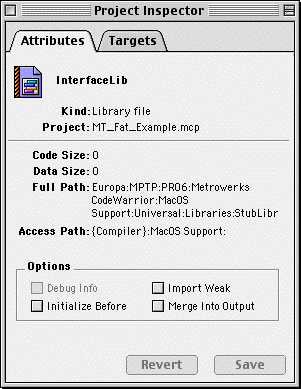
There are a few special linker options you can use in your project. These options are only accessible from the Project Inspector window of the IDE as shown in Figure 4.1.
These options are only available for library files in the project, and are disabled for text files in the project.
The topics in this section are:
The Import Weak option tells the operating system to ignore unresolved symbols at load time. Use this option for features not always present on all machines (like QuickTime on older Macintosh computers). For more information on shared libraries, refer to "Shared Library Projects."
The Initialize Before option indicates which PEF container (shared library or application) gets initialized first. By default, imported PEF containers are initialized before the PEF containers that import them. Use this option for mutually-dependent PEF containers, to specify which gets initialized first.
Use Merge Into Output to put a copy of a shared library into your project's output file. For instance, if you have created your own custom shared library, you can merge it into the application's data fork, guaranteeing that the system finds the custom shared library.
This option may be useful for creating FAT shared libraries as well, when you want to include both CFM68K and PowerPC code.
 TIP
TIP When you merge a changed library into your application, you are copying all the code fragments in that library. If the library contains both 68K and PowerPC code fragments, your application's data file gets them all, which is desirable for FAT libraries, but in other cases may increase size unnecessarily.
Often, when creating a shared library, you will encounter warning messages from the Mac OS Linker such as those in Listing 4.2. These warnings are a product of the CodeWarrior runtime architecture and can be safely ignored. Enable the 68K Linker panel or PPC Linker panel's Disable All Warnings option to stop these warning messages from appearing.
Link Warning : ignored `__register_global_object' (descriptor) in
	MSL RuntimePPC++.DLL
Previously defined in MSL DropInRuntime.Lib
Link Warning : ignored `__destroy_global_chain' (descriptor) in
	MSL RuntimePPC++.DLL
Previously defined in MSL DropInRuntime.Lib

Link Warning : ignored `__global_destructor_chain' (data) in
	MSL RuntimePPC++.DLL
Previously defined in MSL DropInRuntime.Lib