This chapter discusses each of the settings panels that affect code generation for 68K and PowerPC development. By modifying the project settings for the individual items within a panel, you control the compiler, linker, and other aspects of code generation.
Each build target in a CodeWarrior project has its own individual settings. These settings control a variety of features such as compiler options, linker output, error and warning messages, and so forth. You modify these settings through the Target Settings window. This interface is fully explained in the IDE User Guide.
In brief, you control compiler and linker behavior for a particular
build target by modifying settings in the appropriate panels in
the Target Settings window. To open any settings panel, choose Edit > targetName Settings, where targetName is the current build target in the project.
Or, go to the Target view of the Project window and double-click the build target
of interest.
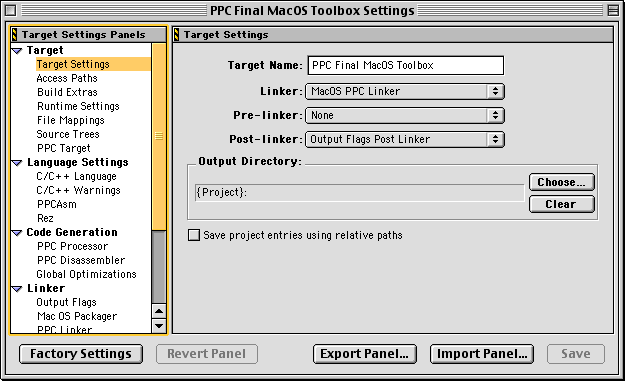
When you do, the Target Settings window appears, as shown in Figure 8.1.
Select the panel by clicking on a panel name in the hierarchical list. When you do, the selected panel appears. You can then modify the settings to suit your needs.
The following controls are used by every panel displayed in the target Settings window. They are:
 TIP
TIP Use project stationery when you create a new project. The stationery has all settings in all panels set to reasonable or default values. You can create your own stationery file with your preferred settings. Modify a new project to suit your needs, then save it in the stationery folder. See the IDE User Guide for details.
Settings panels of more general interest are discussed in other CodeWarrior manuals. Table 8.1 lists several panels and where you can find information about them. The majority of panel information is located in the Inside CodeWarrior: IDE User Guide, but others are documented in the Inside CodeWarrior: C Compilers Reference.
Where to find information on other settings panels:
| Panel |
Manual |
|---|---|
The following panels appear for every Mac OS project:
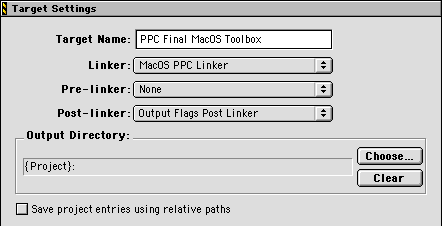
The Target Settings panel, shown in Figure 8.2, is perhaps the most important panel in CodeWarrior. This is the panel where you pick your build target. When you select a linker in the Target Settings panel, you specify the target operating system and CPU. The other panels listed in the Settings window will change to reflect your choice.
Because the linker choice affects the visibility of other related panels, you must set your target first before you specify other target-specific options like compiler and linker settings. If you don't, the changes in other panels may be lost when you change your linker settings.
 NOTE
NOTE The Target Settings panel is not the same as the PPC Target panel. You specify the build target in the Target Settings panel. You set other target-specific options in the PPC Target panel.
The items in the Target Settings panel are:
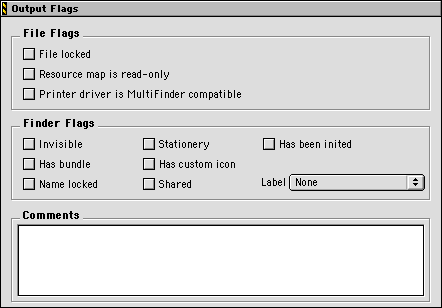
The Output Flags post-linker settings panel, shown in Figure 8.3, allows you to set various properties on the final executable file generated when you make a project.
The items in the Output Flags panel are:
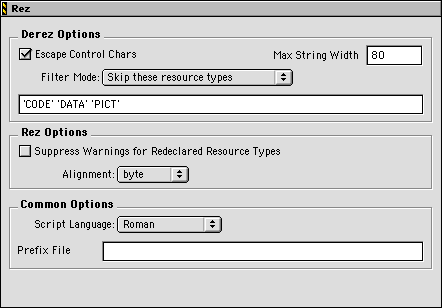
The Rez settings panel, shown in Figure 8.4, allows you to control how rez compiles a source file, and how derez decompiles a resource file.
The items in the Rez panel are:
The following Mac OS specific target setting panels are used when creating PowerPC projects. They include:
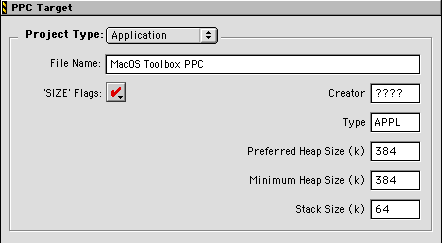
The PPC Target panel, shown in Figure 8.5, is where you set the name of your final output file.The settings you specify in this panel depend on the type of project you are creating.
The options in this panel change depending on the item chosen
in the Project Type pop-up menu. These topics discuss the options that appear for
each item you choose in the pop-up menu:
When Project Type >Application is chosen as shown in Figure 8.5, the IDE generates a Mac OS PPC application.
The items in the PPC Target panel are:
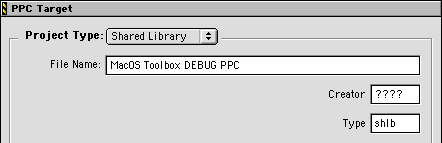
When Project Type > Shared Library is chosen as shown in Figure 8.6, the IDE generates a Mac OS PPC shared library.
The items in the PPC Shared Library panel are:
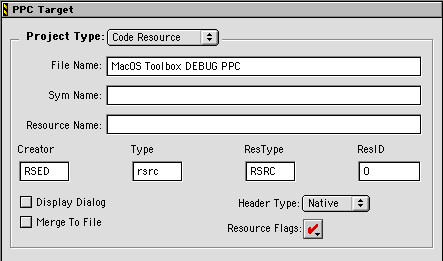
When Project Type > Code Resource is chosen as shown in Figure 8.7, the IDE generates a Mac OS PPC code resource.
The items in the PPC Code Resource panel are:
When Project Type > Library is chosen as shown in Figure 8.8, the IDE generates a Mac OS PPC library.
The items in the PPC Library panel are:
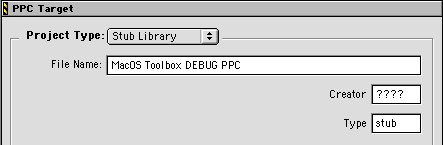
When Project Type > Stub Library is chosen as shown in Figure 8.9, the IDE generates a Mac OS PPC stub library.
A stub library is a special kind of PEF library that has no code or data sections. A program links against stubs because the real routines are located in non-linkable containers like ROM or memory. Previously stub libraries could only be created with MPW.
The items in the PPC Target panel are:
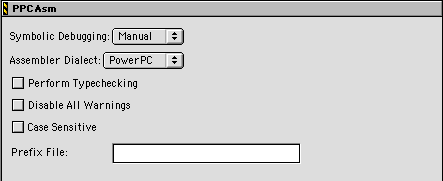
The PPC Asm settings panel, shown in Figure 8.10, allows you to configure assembler options.
The items in the PPCAsm panel are:
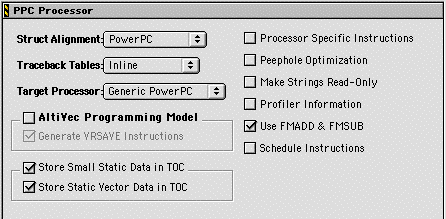
The PPC Processor panel, shown in Figure 8.11, is where you control settings related to code generation for the PowerPC platform.
The items in the PPC Processor panel are:
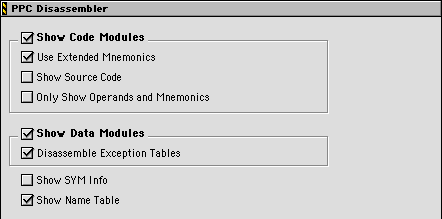
The PowerPC Disassembler panel, shown in Figure 8.12, is where you control the information displayed when you choose
the Disassemble command from the IDE's Project menu.
See the "Compiling and Linking" chapter of the IDE User Guide for general information about the Disassemble command.
The items in the PPC Disassembler panel are:
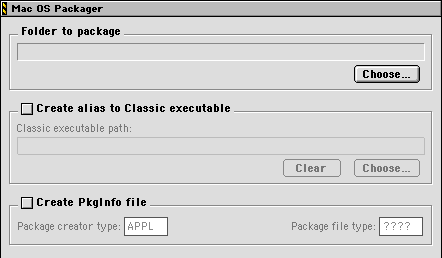
The Mac OS Packager post-linker panel, shown in Figure 8.13, is used to create application packages that are compatible with Classic Mac OS and Mac OS X according to the latest application package specification from Apple.
The items in the Mac OS Packager panel are:
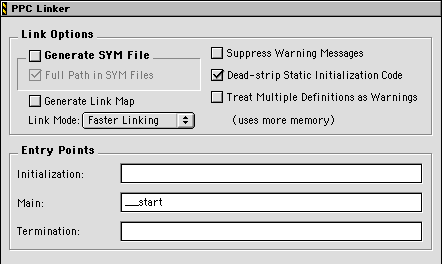
The PPC Linker panel, shown in Figure 8.14, is where you control settings related to linking your object code into final form, be it executable, library, or other type of code.
These items in the PPC Linker panel are:
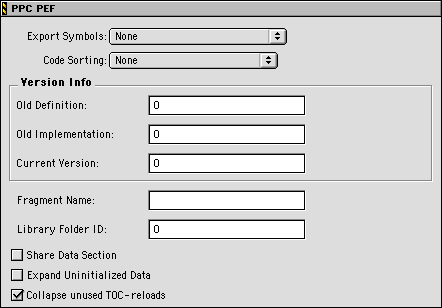
The PPC PEF panel, shown in Figure 8.15, is where you control settings related to linking your object code into a code fragment.
These items in the PPC PEF panel are:
The following Mac OS specific target setting panels are used when creating 68K and CFM68K projects. They include:
The 68K Target panel, shown in Figure 8.16, is where you set the name of your final output file. The settings you specify in this panel depend on the type of project you are creating.
The options in this panel change depending on the item chosen
in the Project Type pop-up menu. These topics discuss the options that appear for
each item you choose in the pop-up menu:
NOTE Some items you see in the 68K Target panel are not described in this chapter because they don't apply to 68K software development.
When Project Type > Application is chosen as shown in Figure 8.16, the IDE generates a Mac OS 68K application.
The 68K Target panel for applications: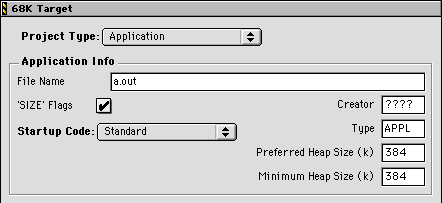
The items in the 68K Target panel for applications are:
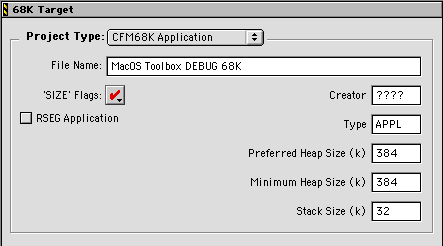
When Project Type > CFM68K Application is chosen as shown in Figure 8.17, the IDE generates a CFM68K application.
The items in the CFM68K Application panel for libraries are:
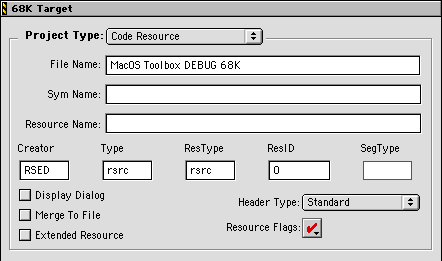
When Project Type > Code Resource is chosen as shown in Figure 8.18, the IDE generates a 68K code resource.
The items in the 68K Code Resource panel are:
When Project Type > Library is chosen as shown in Figure 8.19, the IDE generates a 68K static library.
68K Target panel for a static library: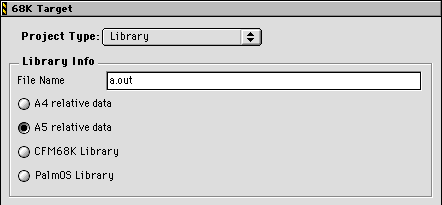
The items in the 68K Target panel for libraries are:
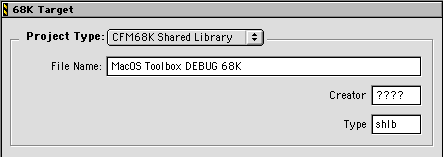
When Project Type > CFM68K Shared Library is chosen as shown in Figure 8.20, the IDE generates a CFM68K shared library.
The items in the CFM68K Shared Library panel are:
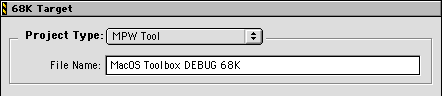
When Project Type > MPW Tool is chosen as shown in Figure 8.21, the IDE generates a 68K MPW Tool.
The only item in the 68K MPW Tool panel is:
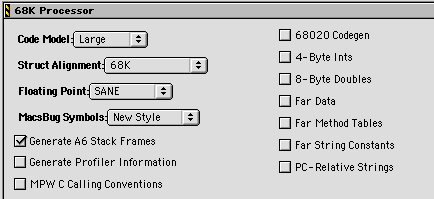
The 68K Processor panel, shown in Figure 8.22, is where you control settings related to code generation for the 68K platform.
The items in the 68K Processor panel are:
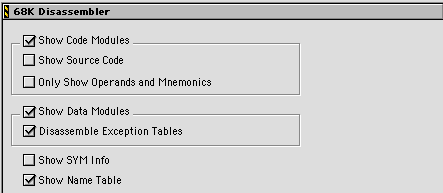
The 68K Disassembler panel, shown in Figure 8.23, is where you control the information displayed when you choose
the Disassemble command from the IDE's Project menu.
See the "Compiling and Linking" chapter of the IDE User Guide for general information about the Disassemble command.
The items in the 68K Disassembler panel are:
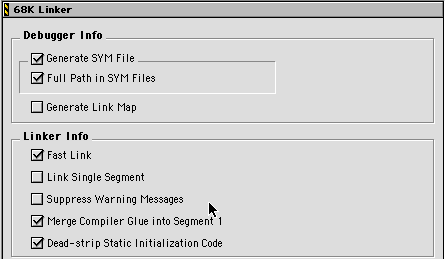
The 68K Linker panel, shown in Figure 8.24, is where you control settings related to linking your object code into final form, be it executable, library, or other type of code.
These items in the 68K Linker panel are:
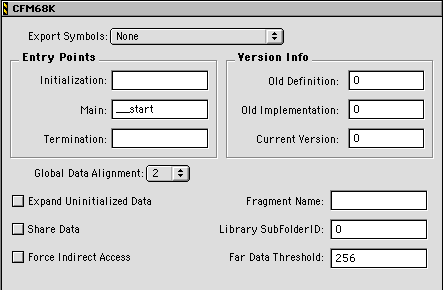
The CFM68K panel, shown in Figure 8.25, present options for controlling the generation of a CFM68K fragment. For complete details about configuration and developing a CFM68K fragment, visit Apple's Developer website.
These items in the CFM68K panel are:
The following Mac OS specific target setting panels are used when creating Fat projects. The only panel in this category is:
The Mac OS Merge panel, shown in Figure 8.26, presents options for controlling the merging 68K and Power PC executable code into a single application, library, or code resource which can execute natively on either 68K or Power PC Mac OS computers.
The Mac OS Merge target settings panel: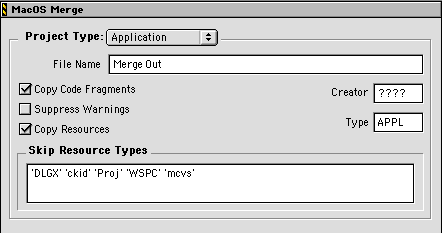
The Mac OS Merge target settings panel, shown in Figure 8.26, has the following options:
This section provides an alphabetical listing of all target setting options used by 68K and PowerPC projects.
Specifies the size of the C/C++ int data type. When selected, values of type int are 4 bytes (32
bits). When deselected, values of type int are 2 bytes (16 bits).
Panels::
#pragma::
Specifies the use of instructions available only on MC68020, MC68030, and MC68040 processors, including integer multiplication, integer division, and bit-field operations. When selected these extra instructions are generated by the compiler. When deselected, the instructions generated by the compiler are compatible with MC68000, MC68020, MC68030, and MC68040 processors.
Panels::
#pragma::
Specifies the size of floating point numbers. When selected, the C/C++ double data type is 8 bytes (64 bits). When deselected, the C/C++ double data type is 10 bytes (80 bits) or 12 bytes (96 bits), depending on the settings of other options. See Table 8.2 and Table 8.6 for the size of floating point data types.
You can choose the size of floating-point numbers with the 8-Byte
Doubles option. In 68K C/C++, this affects variables declared
as type double. In general, turn this option off since 8-byte (or 64-bit) floating-point
numbers are less efficient than others. However, if you are porting
code that relies on 8-byte floating-point numbers, turn this option
on.
You can also choose to create code that is optimized for machines
with a 68040 processor or a 68881 floating point unit. If you
turn on the 68881 Codegen option in the 68K Processor panel, the compiler uses floating-point operations and types
that are designed specifically for those chips. If you create
code with the 68881 Codegen option on and try to run it on a machine
that does not have a 68040 or 68881, the code will crash. Turn
on the 68881 Codegen option only if you're sure the code will
be used only on machines that contain a 68040 or 68881, the code
contains lots of floating-point operations, and it must be as
fast as possible.
Table 8.2 describes how to choose the size of 68K C/C++ floating-point types with the options 8-Byte Doubles and 68881 Codegen.
68K C and C++ Floating Point Types:
| For this type |
If |
Its size is |
And its range is |
|---|---|---|---|
Panels::
#pragma::
Use A4 relative data to specify that the library's instructions should use the 68K processor's A4 register to refer to global data. Mac OS code resource projects should make sure this option is selected.
Panels::
#pragma::
Use A5 relative data to specify that the library's instructions should use the 68K processor's A5 register to refer to global data. Mac OS code resource projects should make sure this option is selected.
Panels::
#pragma::
The Alignment pop-up menu is currently not supported.
Panels::
#pragma::
This option forces the use of the AltiVec model when generating code. This code will only run on AltiVec-enabled processors.
Panels::
#pragma::
#pragma altivec_model [on | off]
The Assembler Dialect pop-up menu allows you to choose the processor architecture for which your assembly language is targeted. There are three options listed in the menu. Choose PowerPC for Mac OS code generation.
 WARNING!
 If you choose an option other than PowerPC from the Assembler Dialect pop-up menu, your code will not run correctly on Mac OS system.
#pragma::
When selected, the Case Sensitive option determines whether assembler labels are case sensitive or not.
Panels::
#pragma::
Specifies that the IDE should generate a Mac OS CFM68K library.
Panels::
#pragma::
Selects how data and instructions are accessed in the object code generated by the compiler. Table 8.3 describes the items in this pop-up menu.
| If you choose... |
the code uses this addressing |
|---|---|
Panels::
#pragma::
#pragma smart_code

		#pragma near_code

		#pragma far_code
Code sorting can be used when producing a shared library or an application. Code sorting affects the order that the PowerPC linker puts symbols into the PEF code fragment. This option allows you to optimize the symbol order so that symbols that reference each other often are close to each other, thereby improving cache performance. Table 8.4 describes each option.
| Option |
Meaning |
|---|---|
.arr file, which contains a list of symbol names in a syntax identical
to the .exp file (see "Exporting Library Symbols"). The linker looks for a .arr file in the project, but if there isn't one in the project, then
it looks for one named [projectname].arr in the project directory. If the option is on and the linker
can not find a .arr file, then it creates one for you with the symbol names in the
default order. This option can be used with optimizers such as
MrPlus.
|
Panels::
#pragma::
Removes the unused no operation following a branch-and-link (BL) instruction if the BL doesn't go through glue code. This saves 4-bytes of space per BL. This actually turns out to be fairly significant for C++ applications, which make lots of calls.
Panels::
#pragma::
The single edit item lets you set the comment field that shows up when you Get Info on a file in the Finder.
Panels::
#pragma::
Enable this option to copy CFM68K code fragments from the source files into the merged file. When disabled, copying of CFM68K code fragments does not occur.
Panels::
#pragma::
Enable Copy Resources to copy all resources into the target binary file. When disabled, no resources will be copied.
Panels::
#pragma::
The Create alias to Classic executable switch and path selection box creates an alias to a Classic Mac OS executable contained in the package. This alias enables packages to work correctly on Mac OS 9, and provides an icon for users to double-click on and run the Classic Mac OS is executable on earlier versions of Mac OS that don't support application packages.
Panels::
#pragma::
The Create PkgInfo file switch creates a Mac OS X PkgInfo file. A PkgInfo file specifies the file type and creator code that the Mac OS X Finder will use to display the package. The PkgInfo file is not used on Classic Mac OS.
Panels::
#pragma::
The Creator field specifies which application opens your resource file. By
default, CodeWarrior sets this field to 'RSED', which is the Creator for the ResEdit visual resource editor
application.
The Finder identifies your application by its Creator code, a unique four-character sequence. Enter the code without
single quotes. For example, type SSrt instead of 'SSrt'.
Your application's Creator code must not conflict with any other applications.
NOTE To be sure your Creator code is unique, register it with Apple
Computer, Inc., at Macintosh Developer Technical Support. You
should be able to find out more information about this topic on
the World-Wide Web at http://devworld.apple.com
PPC Target panel, 68K Target panel
#pragma::
Specifies the version of this fragment.
Panels::
#pragma::
Use the Dead-strip Static Initialization Code option to remove unreferenced runtime initialization and object constructor instructions for all the static and global objects in a file.
For example, suppose that a project contains the files A.cp, B.cp, and C.cp. The main() function in A.cp calls functions in B.cp but not in C.cp, and C.cp has some global variables of types which have constructors. The
compiler generates code called a static initializer which calls
the constructors for the variables in C.cp.
If this option is on, the linker recognizes that no references
are made to any of C.cp's variables, so the linker does not link the variables or the
static initializers for them into the program.
If this option is off, the linker leaves the variables and the static initializer code in, and it may end up linking in variables and functions that the program never uses.
In general, leave this option on to produce smaller and faster code. However, if your program expects the static initializers to be executed for their side-effects, turn this option off.
Panels::
PPC Linker panel, 68K Linker panel
#pragma::
When selected, the Disable All Warnings checkbox turns off warnings. You will only see errors.
Panels::
#pragma::
The Disassemble Exception Tables checkbox determines whether the disassembler outputs any C++
exception tables for the module that was disassembled.
Panels::
PPC Disassembler panel, 68K Disassembler panel
#pragma::
Shows a dialog box prompting you for a file to store the code
resource in. If this item is selected, the file entered in File
Name is ignored. If Merge To File is enabled, the code resource will be added to file you've selected.
If Merge To File is disabled, the IDE deletes the file, if one is present, and
then creates a new file before adding the code resource.
Panels::
#pragma::
When selected, the Escape Control Chars checkbox allows control characters to be printed.
Panels::
#pragma::
Specifies whether or not to expand uninitialized data structures to their full size in the PEF container. If this option is selected, uninitialized objects are stored in uncompressed format in the PEF container. If this option is deselected, uninitialized objects are expanded to their full size at runtime only.
Panels::
#pragma::
Specifies where to look for a list of symbols to export from the code fragment. Table 8.5 lists the options in this pop-up menu.
| Choosing this option |
Tells the linker to |
|---|---|
Panels::
#pragma::
You must enable the Extended Resource option if your code resource executable is larger than 32K bytes or you've chosen the Code Model > Large in the 68K Processor panel. It ensures that the code resource uses the proper addressing mode in its instructions when accessing data and instructions.
Panels::
68K Target: Code Resource pane
#pragma::
Specifies how global data is stored and referred to. When on, global data is stored in far data space and is limited in size to available memory only. When off, global data is stored in near data space and limited to 64K bytes.
Panels::
#pragma::
Specifies how the fragment accesses non-static objects. When selected, the fragment's non-static objects are treated as if they were from another fragment, making it possible to refer to objects without having them present at compile time.
Panels::
#pragma::
Specifies how C++ virtual function dispatch tables (vTables) are stored and referred to. When on, method tables are stored in far data space which is limited in size to available memory. When off, method tables are stored in near data space which is limited to 64K bytes.
If you use virtual functions in a C++ project, the linker needs to store virtual function dispatch tables (or vTables) with the global data. VTables are used to locate an object instance's virtual method implementation at runtime.
Panels::
#pragma::
Use the Far String Constants option to specify how character string constants are stored and referred to. If the Far String Constants option is enabled, the linker stores all string constants with the rest of the global data in near space. If this option is disabled, the linker stores all string constants in far space.
Panels::
#pragma::
#pragma far_strings [ off | on ]
Use Fast Link to speed up linking your project. The trade-off for fast linking is that you use more memory, so several speed levels can be chosen. This option is usually significant only for large projects.
Panels::
#pragma::
The items in the File Flags section pertain either to the output file itself, or items in the output file's resource map. The File Flags include:
#pragma::
The File locked file flag option controls whether or not the file is "locked." A locked file cannot be changed or easily thrown away.
Panels::
#pragma::
See "File Flags" for more information.
Enter the name of the application, library, or code resource file generated by the IDE during Make or Run.
Panels::
PPC Target panel, 68K Target panel
#pragma::
The Filter Mode edit field allows you to specify the resource types to be derezed or the resource types not to be derezed, depending on which option is selected from the Filter Mode pop-up menu. You may enter any four-character type in this field. Types must be surrounded by single quotes (') and separated by commas (,). There are two options in the pop-up menu:
#pragma::
The Finder Flags pertain to characteristics specific to the Finder. The Finder Flags include:
#pragma::
Specifies which floating point library to support and what kind of instructions to generate when compiling floating point expressions.
Table 8.6 describes the items in this pop-up menu.
| If you choose... |
The compiler generates these instructions... |
|---|---|
Panels::
#pragma::
Use the Folder to package path selection box to select a folder to make into a package.
Panels::
#pragma::
Specifies the size, in bytes, of data items that will be stored in far data space. Items that are this size or greater will be stored in far data space. Otherwise, items are stored in near data space.
Panels::
#pragma::
Specifies the name of the PowerPC code fragment. Leave this field blank if you want the code fragment name to be the same as the current target's output name. See "PPC Target panel" for information on specifying the output name.
Panels::
#pragma::
Puts the full pathname of the source file in the SYM file. We recommend enabling this option, but note that it slightly increases the size of your SYM file. If this option is disabled, the debugger might prompt you to locate a source file because it can't find it in the same folder as the SYM file.
Panels::
PPC Linker panel, 68K Linker panel
#pragma::
Specifies that each stack frame should set up and restore the A6 register. Many debuggers, including the IDE debugger, Jasik's The Debugger, and SourceBug, require A6 stack frames, which let debuggers trace through the call stack and find each routine. If you are not planning to use a debugger, turn this option off to generate faster code.
These are the instructions that the compiler generates for each function, if this option is on:
LINK #nn,A6 . . . .
UNLK A6
Panels::
#pragma::
Use the Generate Link Map checkbox to control whether the linker generates a link map.
When disabled, the linker doesn't generate a link map.
The IDE uses the name of the target executable, with a `.xMAP' extension for PPC and `.MAP' for 68K link map files. The file is put in the same folder as
the CodeWarrior project file.
The link map shows which file provided the definition for every object and function in the output file. It also displays the address given to each object and function, a memory map of where each section will reside in memory, and the value of each linker generated symbol. Although the linker aggressively strips unused code and data when the relocatable file is compiled with the CodeWarrior compiler, it never dead strips assembler relocatables or relocatables built with other compilers. If a relocatable wasn't built with the CodeWarrior C/C++ compiler, the link map lists all of the unused but unstripped symbols. You can use that information to remove the symbols from the source and rebuild the relocatable in order to make your final process image smaller.
Panels::
PPC Linker panel, 68K Linker panel
#pragma::
Use the Generate Profiler Information option to enable project profiling. When enabled, special object code is inserted into your application that collects timing information for the profiler.
When you're ready to create the finished version of your application, turn this option off to eliminate the profiler code. When you use the IDE debugger, turn this option off since the profiler code conflicts with the debugger.
Panels::
#pragma::
Refer to the CodeWarrior Profiler User Guide for information on using the profiler.
Creates a SYM file the next time it builds your project. To determine which source files CodeWarrior includes in the SYM file, use the Debug Info markers in the Project window. To learn how to set these markers, refer to the IDE User Guide.
Panels::
PPC Linker panel, 68K Linker panel
#pragma::
This checkbox forces the generation of AltiVec VRSAVE assembly instructions. Unless youknow that your code will be
the only AltiVec code running in the entire system (extremely
unlikely), you should leave generation of VRSAVE instructions enabled.
Other parts of Mac OS, as well as other application programs,
often use AltiVec instructions, and that the system interprets
the VRSAVE bits as receommended in the Motorola AltiVec Programming Environments Manual. Specifically, bits in VRSAVE indicate which AltiVec registers are in use. When this option
is enabled, CodeWarrior maintains the bits properly to ensure
that AltiVec registers in use by your application will be properly
saved and restored.
Pragmas are discussed in the C Compiler Reference, as well as in the section "Pragmas."
Panels::
#pragma::
#pragma altivec_vrsave [on | off]
Specifies the byte boundary that data structures are aligned to.
Panels::
#pragma::
This setting specifies whether or not the bundle resource has been recorded by the desktop database. If this flag is set, the information already inside the desktop database is used by the Finder to display icons. If this flag is clear, the desktop database is updated with the information inside of the bundle resource, and then the flag is set.
Panels::
#pragma::
See "Finder Flags" for more information.
This setting specifies if the output file has a bundle ('BNDL') resource associated with it. If this flag is clear, the Finder will show a generic icon based on the file type. When set, the Finder uses the application's bundle resource to display its icon and the icons associated files having a matching creator type.
Panels::
#pragma::
See "Finder Flags" for more information.
This setting specifies whether or not the file has a custom icon.
When setting this flag, be sure to have an icon list ('ICN#' and/or 'ics#') resource with resource ID -16455 in the output file.
Panels::
#pragma::
See "Finder Flags" for more information.
Specifies the type of code resource header to place at the beginning of the code resource.
Panels::
#pragma::
Specifies the symbol name of the routine to call when the CFM68K fragment (shared library) or a PPC fragment is loaded into memory. CFM68K and PPC calls this routine before referring to any other items in the container. Typically, the initialization routine prepares and sets up objects and services that the fragment will use when its main routine is called.
Panels::
PPC Linker panel, CFM68K panel
#pragma::
Use the Invisible option to set the output file to be hidden from view within the Finder.
Panels::
#pragma::
See "Finder Flags" for more information.
This setting specifies which Finder label is assigned to the output file.
Panels::
#pragma::
See "Finder Flags" for more information.
Sets the resource ID of the alias resource that specifies where to search for libraries referred to by this code fragment.
Panels::
#pragma::
Sets the resource ID of the alias resource that specifies where to search for libraries referred to by this code fragment.
Panels::
#pragma::
Controls how much memory the IDE uses to improve linking performance. The options include:
Faster Linking gives the best linking performance, but requires a larger memory
partition and more temporary memory. When using this option you
may need to increase the IDE's memory partition, and possibly
quit other applications.
Normal Linking gives moderate performance and uses less memory than the Faster
Linking option.
Slower Linking gives the slowest performance but uses the least amount of memory
of all linking modes. Panels::
#pragma::
When selected, the linker ignores all #pragma segment directives and the groups in the project window's Segments view, and puts all your code into one segment. When deselected,
a multi-segment code resource is generated.
Panels::
#pragma::
Choose a linker from the items listed in the Linker pop-up menu. For PowerPC, use Mac OS PPC Linker.
You may also choose the MacOS Merge option from the menu if you wish to create a Fat application. See for information about the MacOS Merge panel. See "Creating Fat Applications" for information about creating Fat applications.
Panels::
#pragma::
Use MacsBug Symbols to specify how the compiler outputs debugging symbols into the symbolics files. The choices include:
#pragma::
Specifies the symbol name of the routine that is the fragment's main entry point.
Panels::
PPC Linker panel, CFM68K panel
#pragma::
Determines where to store character string constants. If this
option is off, the compiler stores string constants in the data
section (class RW, Read/Write). If this option is on, the compiler stores string
constants in the code section (class RO, Read-only).
Variables that are not initialized to the address of another object
at runtime are always placed in the code section, including C/C++
variables declared with the const storage-class modifier.
Panels::
#pragma::
The Max String Width edit field allows you to specify the maximum string width of the derez output. You must specify a width between two and 120. If you enter a number outside this range, derez will give you a warning and use the default value of 80.
Panels::
#pragma::
Places compiler initialization instructions and inline C/C++ functions that can't be called inline into the first code segment.
Panels::
#pragma::
Specifies that the code resource should be added to the file indicates by File Name or selected in the file dialog box when Display Dialog is selected. If selected, the code resource is added to the file. If deselected, the IDE deletes the file's contents (or creates the file if it doesn't already exist) before adding the code resource.
Panels::
#pragma::
Use Minimum Heap Size to specify the minimum amount of RAM your application requires to operate, in KBytes. This value is displayed in the Finder's Get Info dialog. Currently, 384K is the default value for the Minimum Heap Size field.
Panels::
PPC Target panel, 68K Target panel
#pragma::
NOTE The Minimum Heap Size setting is ignored under Mac OS X.
Specifies that object code should conform to MPW (Macintosh Programmer's Workshop) C calling conventions. When you turn on the MPW C Calling Convention option, the compiler does the following in order to ensure compatibility with MPW C's calling conventions:
long int. For example, the compiler converts this declaration: int MPWfunc ( char a, short b, int c, long d, char *e );
long MPWfunc( long a, long b, long c, long d, char *e );
Passes all floating-point arguments as a long double. For example, the compiler converts this declaration:
void MPWfunc( float a, double b, long double c );
void MPWfunc( long double a, long double b, long double c );
Returns any pointer value in D0 (even if the #pragma pointers_in_D0 is off). Returns any 1-byte, 2-byte, or 4-byte structure in D0. If the 68881 Codegen option is on, returns any floating-point value in FP0.
NOTE The MPW C Calling Conventions option is available only with the 68K compilers.
#pragma::
Use Name locked to set the Finder Flags that prevent others from changing the name of the file output by CodeWarrior in the Finder.
Panels::
#pragma::
See "Finder Flags" for more information.
Specifies the oldest acceptable version for a fragment which is called by this fragment.
Panels::
#pragma::
Specifies the oldest acceptable version number for a fragment which refers to an item in this fragment.
Panels::
#pragma::
Specifies when disassembling whether or not to show corresponding hexadecimal values along with operands and mnemonics. When selected, only mnemonics and their operands are listed. When deselected, hexadecimal values are listed too.
TIP To make it easier to use a disassembly listing for assembly language source code, select this item. With no hexadecimal values listed, disassembly data is easier to edit for use in assembly language source code.
#pragma::
This is the directory where your final linked output file will be placed. The default location is the directory that contains your project file. Click the Choose button to specify another directory.
Panels::
#pragma::
The four character creator type used by Mac OS X Finder to display the package.
Panels::
#pragma::
See "Create PkgInfo file" and "Creator" for more information.
The four character file type used by Mac OS X Finder to display the package.
Panels::
#pragma::
See "Create PkgInfo file" and "Type" for more information.
Specifies that the IDE should generate a library for Palm OS.
Panels::
#pragma::
Stores the string constants used in a local scope in the code segment and addresses these strings with PC-relative instructions. If this option is off, the linker stores all string constants in the global data segment. Regardless of how this option is set, the compiler stores string constants used in the global scope in the global data segment. For example:
int x = f("Hello"); // "Hello" is in the // global data segment
int bar()
{
return f("World"); // "World" is in the
} // local code segment
NOTE Strings in C++ initialization code are always allocated in the global data segment.
If your program uses a large number of string constants, they could overflow the 64K usually reserved for global data. Turn on this option to save space in the global data space.
Panels::
#pragma::
The Peephole Optimization checkbox controls whether the compiler performs "peephole" optimizations, which are small local optimizations that eliminate some compare instructions and improve branch sequences.
Panels::
#pragma::
#pragma peephole [on | off (default)]
Use Perform Typechecking to validate that PowerPC register types are correct. It also performs other tests to validate that the operands to an instruction are correct. Perform Typechecking should always be on.
Panels::
#pragma::
Some targets have post-linkers that perform additional work (such as object code format conversion) on the final executable. The CodeWarrior IDE currently includes the following post-linkers:
#pragma::
The recommended amount of RAM that your Mac OS application wants, in KBytes. In the Finder's Get Info dialog, this is the number in the Suggested Size field and the default value for the Preferred Size field.
Panels::
PPC Target panel, 68K Target panel
#pragma::
NOTE The Preferred Heap Size setting is ignored under Mac OS X.
The Prefix File edit field allows you to specify the file to be read in by the
compiler before it processes the source file or the resource file
in the case of derez. For C/C++, this file is effectively #included in all project files. The prefix file is where Derez gets the
resource type definitions that it uses to decompile the resources.
Panels::
#pragma::
Some targets have pre-linkers that perform work on object code before it is linked. There is no pre-linker for 68K development.
Panels::
#pragma::
This setting controls a flag inside the resource map that controls the way system resources are loaded. When the flag is set, any items marked to load in the system heap are loaded in the application heap instead.
WARNING! Do not make any changes to the resource map when this bit is set. You should rarely, if ever, have to set this flag.
#pragma::
See "File Flags" for more information.
This checkbox allows you to force the generation of instructions for a specific processor.
Panels::
#pragma::
Determines if special object code should be generated to collect information for a code profiler. If this option is enabled, the compiler generates instructions that collect data during runtime for the MW Profiler. If this option is disabled, the compiler doesn't generate extra instructions.
Panels::
#pragma::
See the Profiler User Guide for more information on using MW Profiler.
Determines what kind of software program to create. The choices in this pop-up menu for the PPC Target panel and 68K Target panel are:
Application-creates a Mac OS PowerPC or 68K application.
Shared Library-creates a PowerPC PEF shared library.
Code Resource-creates a PowerPC code resource.
Static Library-creates a CodeWarrior library to use in other projects.
The following options appear in the Mac OS Merge panel with slightly different meanings:
Application - creates a Mac OS FAT application. Shared Library - creates a 68K FAT shared library. Resource File - creates a PowerPC FAT resource file. Panels::
PPC Target panel, 68K Target panel, Mac OS Merge
#pragma::
Use the Resource Flags option to set the Resource Manager flags assigned to the resource created by your project. the Table 8.8 describes what each resource attribute flag does.
| Turn this attribute on |
To |
|---|---|
For more information on resource flags, refer to the Inside Macintosh: More Macintosh Toolbox:Resource Manager at Apple's developer web site. The URL is:
http://developer.apple.com/techpubs/mac/MoreToolbox/MoreToolbox-2.html
#pragma::
This setting controls a flag inside the resource map. When the
resource map is read-only, any changes made to resources (via
AddResource or ChangeResource) are only kept in memory. No resource changes will be written
out to disk.
Panels::
#pragma::
See "File Flags" for more information.
Specifies the code resource's name in the resource file created by Make or Run.
NOTE If you're creating a multi-segment resource, the linker only names the main resource, not its segments.
PPC Target: Code Resource pane, 68K Target: Code Resource pane
#pragma::
Identifies what kind of resource you're creating. For example,
'XCMD' is for a HyperCard XCMD, 'WDEF' is for a window definition, and 'MDEF' is for a menu definition. Enter the code without single quotes.
For example, type WDEF instead of 'WDEF'. When creating a code resource, the proper values for the ResType
field depend on the kind of code resource you're creating.
Panels::
PPC Target: Code Resource pane, 68K Target: Code Resource pane
#pragma::
The resource ID number, along with the resource type, uniquely identifies the resource to the system software. In general, the number may be between 128 and 32,767, but some code resources have unique ResID ranges that you must use to ensure it is recognized by the system.
Panels::
PPC Target: Code Resource pane, 68K Target: Code Resource pane
#pragma::
Consult Inside Macintosh:Toolbox Essentials for more information on choosing a resource ID.
Enable RSEG Application to identify and enable a CFM68K application. The 'rseg'0 resource is the resource loaded and retained by the Code Fragment
Manager and is the fragment referenced from the 'cfrg'0 resource. The 'rseg'0 resource does not contain the executable fragment, but only
a small data structure which specifies the location of the actual
executable fragment as well as some additional information about
the fragment.
Panels::
68K Target panel:68K Target: CFM68K Application pane
#pragma::
To add two or more files with the same name to a project, select this option. When this option is off, each project entry must have a unique name.
When this option is selected, the IDE includes information about
the path used to access the file as well as the file name when
it stores information about the file. When searching for a file,
the IDE combines Access Path settings with the path settings it includes for each project
entry.
When this option is off, the IDE only records information about each project entry's file name. When searching for a file, the IDE only uses Access Paths.
Panels::
#pragma::
Determines if the compiler should rearrange instructions to take
advantage of a specific processor's architecture. If a processor
is selected in the Instruction Scheduling pop-up menu, scheduling of instructions is optimized for that
specific processor. If Off is selected, the compiler doesn't use the Instruction Scheduling
optimization.
NOTE Enabling instruction scheduling can make source-level debugging more difficult (because the source code may not correspond exactly to the underlying instructions being run.) It is sometimes helpful to turn this option off when debugging, and then turn it on once you have finished the bulk of your debugging.
#pragma::
The Script Language pop-up controls which script system Rez uses when it compiles multi-byte characters. For example, if you have the Japanese Language Kit installed and your strings contain Kanji characters, then you would need to change the script language from Roman to Japanese.
Panels::
#pragma::
Use SegType to define the four character resource type assigned to 68K multi-segment resources besides the main segment. The resource type for the main segment is defined by the ResType.
Panels::
68K Target: Code Resource pane
#pragma::
Specifies whether or not the fragment's data is instantiated once. If selected, all processes that refer to the fragment use a single instantiation of the fragment's data. If deselected, a new instantiation of the fragment's data is created for each process that refers to the fragment.
Panels::
#pragma::
Specifies whether or not the fragment's data is instantiated once. If selected, all processes that refer to the fragment use a single instantiation of the fragment's data. If deselected, a new instantiation of the fragment's data is created for each process that refers to the fragment.
Panels::
#pragma::
This flag specifies that the output application can be launched by multiple users simultaneously when it resides on a network server.
Panels::
#pragma::
See "Finder Flags" for more information.
The Show Code Modules checkbox determines whether the disassembler outputs the PEF
code sections for the module being disassembled.
If the Show Code Modules checkbox is selected, the Use Extended Mnemonics and Only Show Operands and Mnemonics checkboxes appear.
Panels::
PPC Disassembler panel, 68K Disassembler panel
#pragma::
The Show Data Modules checkbox determines whether the disassembler outputs any PEF
data sections for the module being disassembled.
If the Show Data Modules checkbox is selected, the Disassemble Exception Tables checkbox appears.
Panels::
PPC Disassembler panel, 68K Disassembler panel
#pragma::
The Show Name Table checkbox tells the disassembler to list the symbols in the object code.
Panels::
PPC Disassembler panel, 68K Disassembler panel
#pragma::
The Show Source Code checkbox determines whether the disassembler lists the source
code that corresponds to the disassembled instructions.
Panels::
PPC Disassembler panel, 68K Disassembler panel
#pragma::
The Show SYM Info checkbox tells the disassembler to include symbol information
in the disassembled output.
Panels::
PPC Disassembler panel, 68K Disassembler panel
#pragma::
Specifies the contents of the 'SIZE' generated and included in the application. See Table 8.9 for information on the items in this pop-up menu.
This option appears if Application is selected from the Project Type pop-up menu.
| Turn this option on |
If your application |
|---|---|
Panels::
PPC Target panel, 68K Target panel
#pragma::
A list of resource types separated by spaces that should be skipped when copying resources from one file to another during a merge operation. Enter your own types as required to customize which resources should not be copied.
Panels::
#pragma::
An application's stack contains local variables, return addresses, and temporary information. If your application uses a lot of stack space (for example, it makes extensive use of recursive functions, or uses large arrays local to a routine), you may need to change the default size of the stack.
In a PPC application, you can set the size in the Stack Size field. The default size is 64K.
In a 68K application, you must set the stack size within your
application's code by calling the function SetApplLimit(). For more information, see Chapter 1, "Introduction to Memory Management," in Inside Macintosh: Memory.
Panels::
PPC Target panel, 68K Target: CFM68K Application pane
#pragma::
By default, CodeWarrior adds code to your program that runs at startup to initialize static variables and handle other housekeeping tasks. The Startup Code pop-up menu lets you choose the startup code that CodeWarrior adds at link time. The Startup Code options are shown in Table 8.10.
| This option |
Adds |
|---|---|
Panels::
#pragma::
This setting specifies whether or not the file is stationery.
Panels::
#pragma::
See "Finder Flags" for more information.
This checkbox determines where to store static variables. When this option is on, the compiler makes object code smaller and faster by storing static variables that are 4 bytes or smaller directly in the code fragment's TOC (Table Of Contents). When this option is off, the compiler allocates memory normally for all static data, and stores pointers to the data in the TOC. When turned off, this is called default or automatic pooling.
Panels::
#pragma::
If you store static vector data in the TOC, the savings is one less memory read when you load the vector value. Using this feature wastes a lot of TOC space. The default setting is off. This tells the compiler to pool vector constants like strings, so they never end up being stored directly in the TOC.
Panels::
#pragma::
Specifies how records and structures are arranged in memory. Table 8.11 describes the options in this pop-up menu.
Panels::
#pragma::
When enabled, Suppress Warnings ignores all duplicate resource types found when merging the source files with the destination file. If disabled, it issues a warning for every duplicate resource it finds during the merge operation.
Panels::
#pragma::
When selected, the Suppress Warnings for Redeclared Resource Types checkbox will not allow warnings to be shown for redeclared resource types.
Panels::
#pragma::
The Suppress Warning Messages checkbox controls whether the linker displays warnings. When this setting is on, the linker displays warnings in the CodeWarrior message window. When this setting is off, the linker does not display warnings.
Panels::
PPC Linker panel, 68K Linker panel
#pragma::
Specifies the name of the file in which the code resource's SYM information, debugging information, will be placed.
Panels::
#pragma::
The Symbolic Debugging pop-up menu allows you to choose how the assembler debug information is generated. There are two options in this menu:
#pragma::
Use the Target Name text field to set or change the name of a target. When you use the Targets view in the Project window, you will see the name that you have set.
The name you set here is not the name of your final output file. It is the name you assign to the target for your personal use. The name of the final output file is set in the "PPC Target panel" panel.
Panels::
#pragma::
The Target Processor pop-up menu selects which processor you are targeting. Choose Generic if the processor you are working with is not listed on this menu, or you want to generate code that runs on any PowerPC processor. You can also choose the AltiVec processor.
This menu determines if the compiler should rearrange instructions to take advantage of a specific processor's architecture. If a processor is selected in the Target Processor pop-up menu, scheduling of instructions is optimized for that specific processor.
Panels::
#pragma::
Specifies the symbol name of the routine that CFM68K and PPC will call when the fragment's data instantiation is released. Typically, the termination routine deallocates and releases the objects and services that were prepared by the initialization routine.
Panels::
PPC Linker panel, CFM68K panel
#pragma::
Determines if extra data for debugging should be generated. If
this option is on, the compiler generates an AIX-format traceback
table for each routine, and places these tables in the executable
code. Both CodeWarrior and Apple debuggers support these traceback
tables. This option corresponds to #pragma traceback. There are three options in this menu:
#pragma::
Specifies if the linker should warn about items that have the same name. If this option is on, the linker issues a warning if more than one item in the object code has the same name. If this option is off, the linker issues an error.
Panels::
#pragma::
A Mac OS application's Type code specifies the type of application created. Some common application types include:
APPL' - normal Mac OS application (default).
appe' - Mac OS faceless background application.
appd' - Mac OS desk accessory application (replaces 'DRVR' file type).
appc' - Mac OS Control Panel application (replaces 'cdev' file type).
Other types of projects have different Type codes. For example, a code resource might have the Type 'INIT' or 'PRER', and a shared library might have the type 'shlb'. To find the proper values for your code resource, check the
documentation that describes how to create it. For example, if
you are creating a Photoshop plug-in, check the Adobe Photoshop
SDK documentation that tells how to write the plug-ins.
Enter the code without single quotes. For example, type APPL instead of 'APPL'.
Panels::
PPC Target panel, 68K Target panel
#pragma::
For more information, see Apple's Developer website at: http://developer.apple.com/techpubs/.
The Use Extended Mnemonics checkbox determines whether the disassembler lists the extended
mnemonics for each instruction for the module that was disassembled.
Panels::
#pragma::
Determines whether or not the compiler uses special instructions
to speed up floating-point computations. If this option is on,
the compiler uses special floating-point instructions, including
FMADD, FMSUB, and FNMAD to speed up floating-point computations. Keep in mind that some
kinds of computations give unexpected results when this option
is on. When this option is off, as shown in Listing 8.1, Y and Z have the same value.
Using FMADD and FMSUB instructions:
register double A, B, C, D, Y, Z;
register double T1, T2;
A = C = 2.0e23;
B = D = 3.0e23;
Y = (A * B) - (C * D);
printf("Y = %f\n", Y);
/* Output: 2126770058756096187563369299968.000000 *)

T1 = (A * B);
T2 = (C * D);
Z = T1 - T2;
printf("Z = %f\n", Z);
/* Output: 0.000000 *)
#pragma::