This chapter offers guidelines on moving your programming projects
from the Classic Mac OS application programming interface to the
new "Carbon" API. Carbon is Apple Computer's name for a set of application
programming interfaces and libraries designed to help you make
the transition from previous versions of the Macintosh Operating
System ("Classic Mac OS") to the forthcoming Mac OS X programming
model. Applications built with Carbon will run successfully under
both Mac OS 8/9 (versions 8.1 and later)with CarbonLib installed and Mac OS X.
This chapter only discusses unique issues and problems that you might encounter when converting your Mac OS projects to the Carbon API. For general information about Mac OS X and the Carbon application programming interface, visit the Apple Developers' Web site at
<http://developer.apple.com/techpubs/>
This site offers a variety of Apple documentation on Mac OS X and Carbon. In particular, the document Carbon Porting Guide contains much useful information on converting existing applications from Classic Mac OS to the Carbon interface.
Certain Apple support software must be installed on your system in order to build Carbon applications. This section describes how to set up your system for Carbon development.
CarbonLib is a compatibility library provided by Apple to allow Carbon applications to run under Classic Mac OS (that is, under system
versions prior to OS X). Carbon projects intended to run on Mac
OS 8 or 9 must be linked against CarbonLib. If backward compatibility is not an issue (that is, if your
project is intended to run only on Mac OS X and not on OS 8 or
9), then you do not need CarbonLib.
Currently, two versions of CarbonLib are available from Apple. The CodeWarrior for Mac OS, Professional Edition, Tools CD contains a copy of CarbonLib 1.0.4, which is compatible with Mac OS version 8.1 or later, but does
not support some of the more advanced features of Carbon (such
as the Carbon event model). If compatibility back to OS 8.1 is
important to you and you do not need these advanced features,
you can simply use the preinstalled version of CarbonLib without further modification.
If you are willing to sacrifice some degree of backward compatibility,
you may wish to build your project with CarbonLib 1.1 instead of 1.0.4. This version of CarbonLib supports a larger subset of the Carbon API (including Carbon
events), but cannot run on Mac OS versions earlier than 8.6. If
you are a member of Apple Developer Connection (ADC), you can
obtain the CarbonLib 1.1 Software Development Kit (SDK) from the Apple Developers' Web site at
<http://developer.apple.com/macosx/carbon/>
Code written to the Carbon interface requires the correct version of Apple's Universal Interface
header files in order to compile. The CodeWarrior for Mac OS, Professional Edition, Release 6 installer installs Universal Interfaces 3.3.1 (required by CarbonLib 1.0.4) in the folder {Compiler}:MacOS Support:Universal where {Compiler} is the folder containing the CodeWarrior IDE.
If you are using CarbonLib 1.1, you will need to replace these with the Universal Interfaces 3.4, which you will find inside the Carbon Support folder in the CarbonLib 1.1 SDK.
SillyBallsCarbon running on Mac OS X: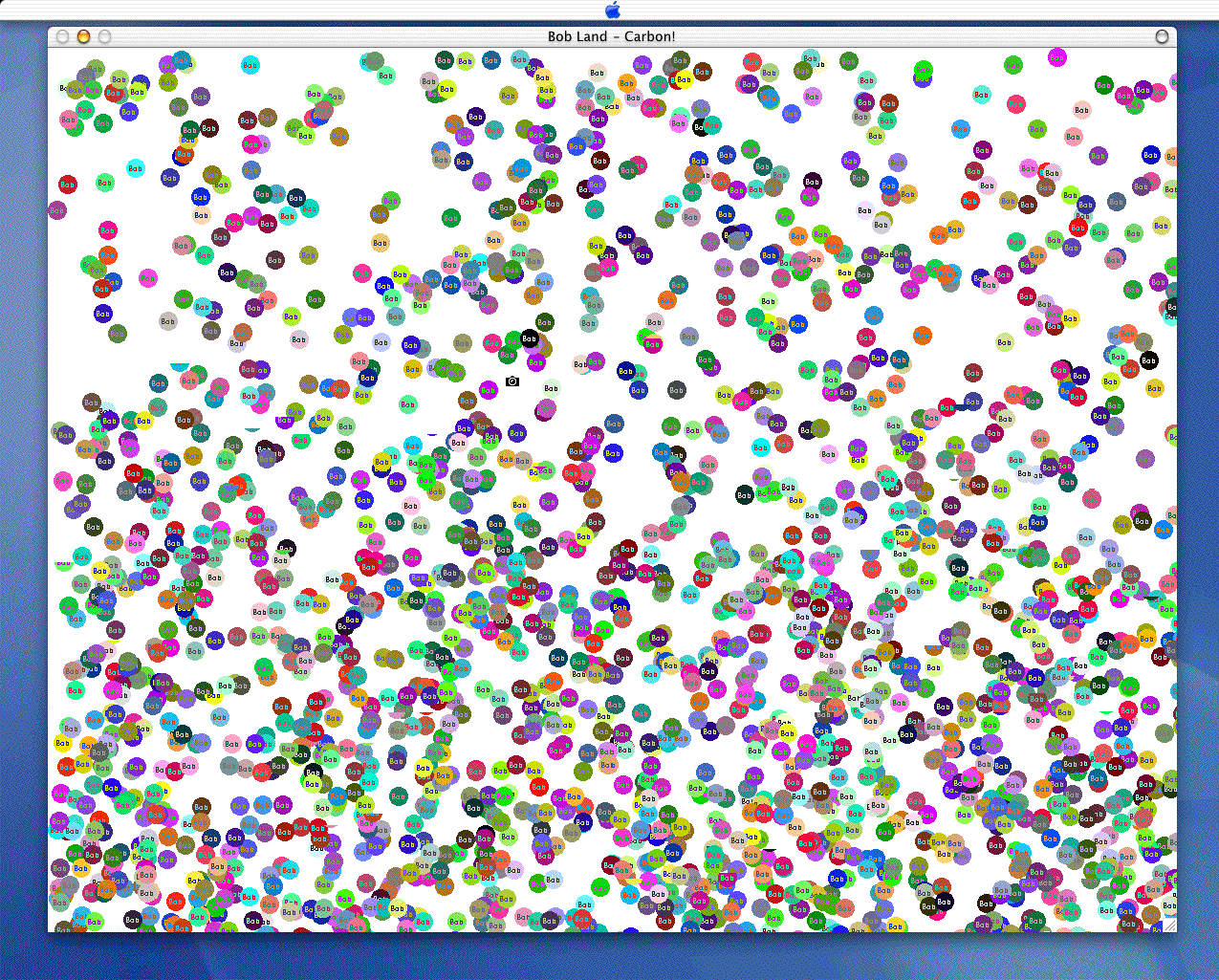
The following instructions walk you through the conversion of
the SillyBalls.mcp example provided as part of the CodeWarrior Examples from a Mac OS application project to a Carbon project. You will
want to convert your Mac OS projects to be Carbon ready to take
advantage of the many new features present in Mac OS X.
Te entire project, from starting project to solution are available
in the SillyBallsCarbon Tutorial folder. This folder contains the following subfolders:
SillyBalls-start - contains the initial Mac OS SillyBalls project ready for conversion
to Carbon ready.
SillyBallsCarbon-solution - contains the final Carbon ready SillyBallsCarbon project.
Fat_SillyBalls.report - contains the Carbon Dater report returned by Apple, and based
upon the FAT SillyBalls application program.
 NOTE
NOTE The actual SillyBalls project on CodeWarrior for Mac OS, Professional Edition, Release 5 did not include PPC and Fat targets. We have taken the liberty of adding them to the SillyBallsCarbon project for this tutorial to avoid unnecessary steps
Use the following guidelines to add a Carbon target to any application project that you want to update.
1. Duplicate the SillyBalls.mcp project.
Use the Finder to create a copy of the entire SillyBalls-start folder (Figure 7.2). Rename the new folder SillyBallsCarbon and the project file SillyBallsCarbon.mcp.
2. Open the SillyBallsCarbon.mcp project file.
Choose File > Open, locate and select the SillyBallsCarbon.mcp project file, click Open.
3. Build a fat SillyBallsCarbon application.
Select the build target Fat SillyBalls, then choose Project > Make. This will build a fat version of the SillyBallsCarbon application which we'll use in the next step for Carbon testing.
4. Carbon date your application (optional).
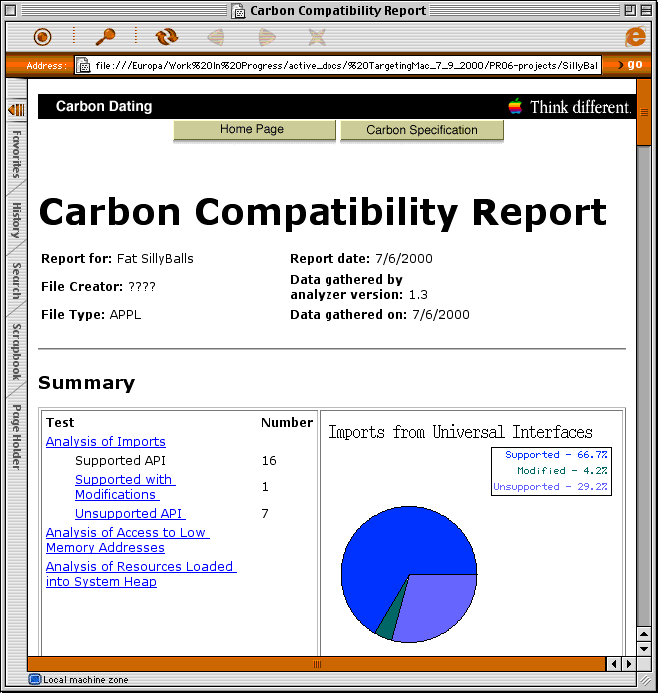
Carbon date your fat application using Apple's Carbon Dater software. Carbon Dater will build a report of all the Mac OS toolbox routines used in your application. You take this report and send it off to Apple, who compares it to their Carbon API database, and return to you a complete report on your application's Carbon compatibility (Figure 7.3). This can be a real time saver as it highlights potential problems in your project's source code. Note that this step is optional. You don't have to do it, but it sure may save you time later on, so we highly recommend it.
We've already done this for SillyBallsCarbon. To see the results, open the Fat_SillyBalls.report folder inside the SillyBallsCarbon Tutorial folder and look at the Fat_SillyBalls.html report.
With our Carbon report ready at hand, its time to start updating
the SillyBallsCarbon.mcp project.
SillyBalls as Classic Mac OS project: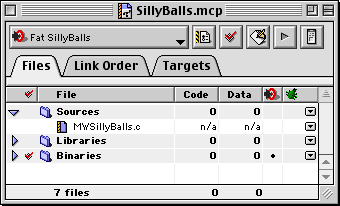
5. Add a new Carbon build target.
With the Target view visible in the project window, choose Project > Add Target. Give it an exciting name like Carbon SillyBalls. Be sure to clone the Carbon target using the project's PPC target, then click OK.
Switch to the Link Order view in the project window and see "Carbon Application Libraries" to determine which libraries to add to the project. For this example, the only library to add is:
Use Project > Add Files or simply drag-and-drop the libraries to the Link Order view. At the Add Files dialog, select only the Carbon SillyBalls target.
7. Remove unneeded PPC libraries from Carbon target.
While still in the Link Order view, delete these PPC libraries from the Carbon target:
8. Add a Carbon.r resource file.
Drag the Carbon.r file from any stationery project into the SillyBallsCarbon project (Figure 7.4). This will create the `carb' resource in the final application that tells Mac OS X that it
is running a Carbon application. If your application is missing
this resource, Mac OS X will treat it like a Classic Mac OS application,
restricting it from taking advantage of any new Mac OS X features.
SillyBallsCarbon as Carbon project: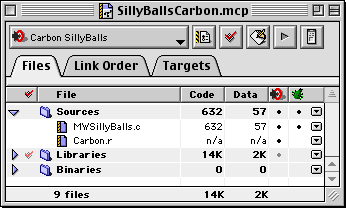
9. Enter Carbon prefix filename to target.
Choose Edit > Carbon SillyBalls Settings, then click C and C++ Language in the Target Settings Panels list. Type the Prefix File name MacHeadersCarbon.h, then click Save.
Choose Edit > Carbon SillyBalls Settings, then click PPC Target in the Target Settings Panels list. Enter a new Target Name for the compiled application, and click Save. We used, what else, Carbon SillyBalls.
11. Update code to Carbon APIs.
Now comes the real work of updating your code to use the Carbon APIs. This is where the Carbon Dater report comes in handy.
For details of the changes made to SillyBallsCarbon.mcp project, see Carbon Source Changes in SillyBallsCarbon.
12. Build, debug, and enjoy your new Carbon application.
Once all the code updating is finished, SillyBallsCarbon should run just fine. Follow these guidelines and you can quickly
get your on projects up and running under Carbon. Note that your
mileage may vary depending upon the size and complexity of your
source code.
This section describes the source code changes made to the SillyBalls.c source file as well as some of the methodology used to find and
fix them.
NOTE You can see all of these changes quite well if you use the CodeWarrior
IDE's Compare Files feature to compare the original SillyBalls.c file with the Carbon ready version. See the IDE User Guide for details.
The first lines to look at concern the Toolbox Manager initialization routines that have become the standard mantra of Mac OS software developers. These lines normally look like this:
  InitGraf(&qd.thePort);
	InitFonts();
	InitWindows();
	InitMenus();
	TEInit();
	InitDialogs(nil);
	InitCursor();
However, Carbon doesn't require initialization of the majority
of Mac OS Managers. Here, we can use the TARGET_API_MAC _CARBON
macro to #if out the unneeded code as shown below:
	#if TARGET_API_MAC_CARBON
		//MW no init required for the managers below in Carbon
	#else
		InitGraf(&qd.thePort);
		InitFonts();
		InitWindows();
		InitMenus();
		TEInit();
		InitDialogs(nil);
	#endif
	InitCursor();
The next call in Initialize() where a problem existed was with this line:
GetDateTime((unsigned long*) &qd.randSeed)
Carbon uses the routine SetQDGlobalsRandomSeed() to set the QuickDraw seed value. When combined with the TARGET_API_ MAC_CARBON macro, the change looks like this:
#if TARGET_API_MAC_CARBON
	GetDateTime( &theDateTime );
	SetQDGlobalsRandomSeed( theDateTime ); /* carbon accessor */
#else
	GetDateTime((unsigned long*) &qd.randSeed);
#endif
The next lines in Initialize() that need changing have to do with creating the application window.
Those lines look like this:
	windRect = qd.screenBits.bounds;
	InsetRect(&windRect, 50, 50);
	mainPtr = NewCWindow(nil, &windRect, "\pBob Land - Carbon",

						true, documentProc, (WindowPtr) -1, false, 0);
In Carbon the qd variable no longer exists as a global pointer to different screen
properties and values. Instead, use the new Carbon accessor routine
GetQDGlobalsScreenBits() to return just the value we want, in
this case, the variable theScreenBits. With that done, the new code looks like this:
	#if TARGET_API_MAC_CARBON
		GetQDGlobalsScreenBits( &theScreenBits ); /*carbon accessor*/
		windRect = theScreenBits.bounds;
	#else
		windRect = qd.screenBits.bounds;
	#endif
	InsetRect(&windRect, 50, 50);
	mainPtr = NewCWindow(nil, &windRect, "\pBob Land", true,

						documentProc, (WindowPtr) -1, false, 0);
Finnally, we need to replace the SetPort() routine with the routine SetPortWindowPort(). The original looked like this:
SetPort(mainPtr); /* set window to current graf port */
The Classic Mac OS NewCWindow() routine returned mainPtr variable as a WindowPtr, then input to SetPort(). Under Carbon, the window's data structure
is opaque, so NewCWindow() now returns mainPtr as a WindowRef value which SetPort() can't use. Therefore, we looked around
the Carbon Window Manager documentation until we found SetPortWindowPort(), which does accept a WindowRef as its argument. Thus, the replacement source now looks like this:
#if TARGET_API_MAC_CARBON
	SetPortWindowPort( mainPtr );	 /* carbon accessor */
#else
	SetPort(mainPtr);				/* set window to current graf port */
#endif
To all intents and purposes, SillyBallsCarbon was ready to test. We could build and run the application on
Mac OS 9, now the real test, running it on Mac OS X.
Finally, it was time for a test run of SillyBallsCarbon application on Mac OS X. After transferring the application it
was discovered that while the window appeared, nothing was drawn
inside. Back to the drawing board.
After some additional searching, it was discovered that Mac OS
X uses double-buffering for all draw operations and that the normal
updates to our window would take place during any null events.
Since SillyBallsCarbon did not use events, the window buffer never updated the window.
What we needed to do was explicitly flush the buffer to the screen
from inside the DrawBall() routine using the following Carbon accessor routine:
#if TARGET_API_MAC_CARBON
	QDFlushPortBuffer( GetQDGlobalsThePort(), NULL );
#endif
That did it. The next time we tested the SillyBallsCarbon application on Mac OS X, it ran as expected.