There are three ways CodeWarrior uses resources. This chapter discusses:
You can add other types of resource files with the File Mappings panel, described in the IDE User Guide.
CodeWarrior lets you add resource files directly to your project
file. When you build the project, CodeWarrior copies the resource
files directly into the finished program at link time. By default,
a resource file must have the Mac OS Finder file type `RSRC' or `rsrc'. The following programs create files of these types:
You can also create files of this type using the MPW Tool named Rez. For more information about MPW Tools, refer to the Apple MPW documentation on the CodeWarrior CD.
The CodeWarrior IDE also allows you to build fat applications. For more information on this topic, refer to "Creating Fat Applications." and "Creating a Fat MPW tool."
CodeWarrior includes a Rez compiler and lets you add Rez files
to your project. By default, a Rez file must have the file type
TEXT and its name must end in a .r extension.
Rez is a resource description language that lets you describe resources in a text format. You can get the latest documentation on Rez and DeRez by visiting Apple's Developer web site at:
http://developer.apple.com/tools/mpw-tools/
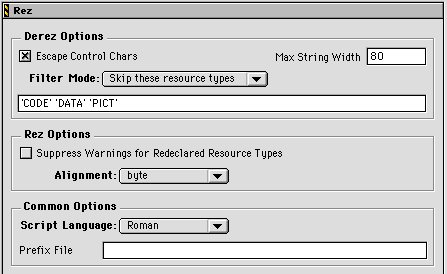
The Rez panel is shown in Figure 6.1. To see this panel, choose the Target Settings menu command from the Edit Menu. If the option Suppress Warnings
of Redeclared Resource Types is on, the Rez compiler doesn't warn
you when you declare the same type more than once. The Prefix
File entry field specifies a file that the compiler reads and
compiles before each Rez file in the project. It's as if the file
were included at the beginning of every Rez file that is processed.
Use it for common defines and include files. The alignment option
allows you to align the resources to word or longword boundries.
This allows the Mac OS Resource Manager to load them faster. The
Script Language menu is used for multi-byte character systems.
The Rez compiler doesn't know anything about settings in any other panels. If you need to know something like the processor or project type, define appropriate macros in your prefix file.
There are few differences between the Rez Plugin and MPW Rez. Most of the differences help the Rez Plugin work in an integrated environment instead of a command-line-oriented shell. It supports:
mw_rez is 1, rez is 1, and derez is 0.
#pragma once #pragma once on #pragma once off It ignores all other #pragma statements.
Including files with #include <...>. The Rez Plugin searches the folders in the System pane of the
Access Paths panel. For more information on this topic, refer to the IDE User
Guide. Using macros in the filename of an #include directive. For example:
// in prefix file #define User_Template_File "MyTemplateFile.r"
// in .r file
#include User_Template_File
If you plan to use the same source file with MPW Rez and CodeWarrior
Rez, make sure the mw_rez macro is defined before using any of the extensions above.
You can also include resources in a program by placing a resource file (or an alias to a resource file) in the same folder as your project file. The file must have the same name as your project with .rsrc appended, and the project must not contain any resource files or Rez files. For example, the resource file for SillyBalls.mcp is Sillyballs.mcp.rsrc.
 NOTE
NOTE The name of the project must contain 26 letters or fewer, so there's
room to add the .rsrc extension.
 WARNING!
 While this method still works, it really isn't recommended for new projects. It's a much better practice to add resource files explicitly to your project using the Add Files command of the IDE.
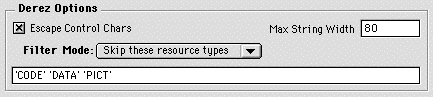
The Rez panel, as shown in Figure 6.2, contains a section for DeRez options. DeRez allows you to make
a Rez source file (of type `TEXT') from a resource file (.rsrc).
The Filter Mode has two settings: Skip these Resource Types or Only Derez these Resource Types. You can use this to only decompile (derez) specific resources.
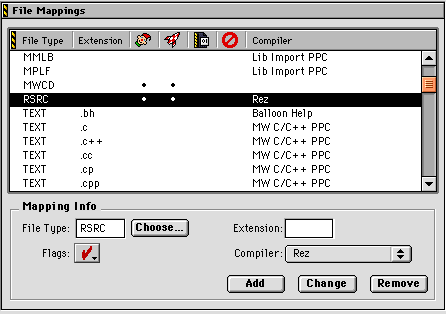
To derez a resource file, change the compiler setting in the File Mappings panel for a RSRC file to use the Rez compiler as shown in Figure 6.3 and click the Change button.
Now click on the resource file you want to decompile in the Project
window and choose Project > Disassemble. CodeWarrior will create a new window that has a .dump extension. You can then save this text file or print out the
resource descriptions for publications or other requirements.
NOTE The resource file type must be `RSRC' not `rsrc' for DeRez to work.