This chapter discusses how to edit a text traits resource.
Many parts of a visual interface involve text. PowerPlant lets you decide what you want that text to look like, on a pane-by-pane basis. PowerPlant handles the background housekeeping necessary to set a font, size, style, justification, color, and text drawing mode for the text in a pane. You simply set those properties in a text traits resource, and assign the resource ID to the pane.
Text traits are used in PowerPlant classes that have a textual content, including LCaption, LGroupBox, LEditField, LTextEdit, LListBox, and all the LStdControl classes (for the control's title).
This chapter discusses how to manage and modify the contents of a text traits resource. For information on how to create, copy, open, modify, and delete a text traits resource as a whole, see "Managing Resources Overview."
The topics in this chapter are:
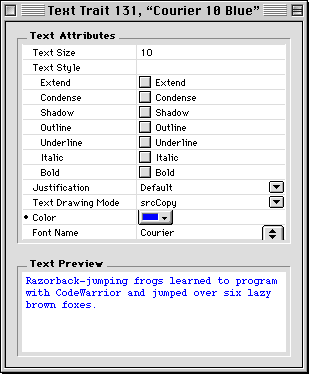
To modify text traits, you use the text traits editor window shown in Figure 7.1. It looks very much like a standard Property Inspector Window. Constructor does not support modifying a pane's text characteristics in the layout or hierarchy windows.
The bottom part of the editor window is a preview of the appearance of the text. The background of the preview pane changes color based on the foreground color of the text. For very light colors, the background becomes black so you can see your text.
You may set font, size, alignment, style, text drawing mode, and color.
To set a font, pick a font from the pop-up menu. The menu lists
every font available on the machine running Constructor. You may
also choose from System font and Application font.
The system font is the font the Mac OS System uses for menus. The Application Font is the default font used by applications in the Mac OS. In US Systems, the System font is Chicago and the application font is Geneva. Other language systems use different fonts. Users may also change the default application font.
Therefore, if you specify the system or application font, you cannot be 100% sure what font will be used on a given machine. In general you should specify common fonts such as those that are provided with the Mac OS System. If you use a non-standard font, make sure you license it and include it with your software.
Enter a font size (in points) in the Size field. A size of 0 means the pane will use the font's default
size, usually 12 points.
Generally you should use common sizes such as 9, 10, or 12 points. Non-standard sizes might look bad if a user does not have a TrueType font or Adobe Type Manager (ATM) for postscript fonts.
Choose the desired alignment from the pop-up menu. Table 7.1 lists each option and its effect.
| Option |
Text is aligned |
|---|---|
Click the check boxes for the desired combination of options.
Choose a text drawing mode from one of the options in the pop-up menu.
The text drawing mode controls how the text is drawn over the
background. The default value is srcCopy, which completely replaces the background with the text. This
works great for black and white, but srcOr works better on color backgrounds. For more information about
Mac OS text drawing modes, see Inside Macintosh: Text, pages 3-70.
Click the color control in the editor window to pick a color from the color palette. The color swatch in the center of the control shows you the current color. The default text color is black.
 TIP
TIP Option-click the color control to open the standard color-picker dialog to set a custom color.
A text traits resource is a description of a particular appearance, not text content. You set the font, size, style, color, alignment, and text drawing mode in the text traits resource, not the text itself.
Therefore, you do not have to create a text traits resource for each and every pane. You create a text traits resource for each and every different appearance you use.
If you want to use Courier 9-point bold text in red, create a text traits resource that describes the desired appearance. Use the pane property inspector window to assign that text traits resource ID to every pane whose text uses that appearance. If you later decide that you want the text to be blue, just change the text traits resource. All the panes that refer to that resource are updated automatically.
The text traits resource abstracts text appearance out of panes and into a separate object. This gives you the benefit of an object-oriented approach to text appearance. You create a text-appearance resource, and have panes refer to that resource. If you modify the appearance, you modify every pane that refers to the appearance resource. Simple, and elegant.
If you have several text traits resources in your project, there are two tricks that can help you manage them easily.
First, give each resource a name that describes the text settings. For example, the name "Courier 9 Bold Red" tells you what you need to know. Then you don't have to remember what the settings are in text traits resource number 134.
Second, if you are making a series of resources that vary in only one feature, make several copies of an original, and then modify just the one feature in the copies. For example, if you want three identical text traits resources except that one is black, one red, and one blue, define the first resource completely. Make two copies, and change the color of one to red, and the color of the other to blue.
PowerPlant panes that use text refer to a single text traits resource. Therefore, all text in the pane will have the same appearance. You can switch text traits at runtime, however. See The PowerPlant Book chapter on utilities for information on how to set up and modify text traits at runtime.