
To open an interface file from within a source file you are editing, click the Interface Pop-Up Menu at the top left of the editor window as shown in Figure 5.2. This pop-up menu lists all interface or header files used by the source file. Select a file from the Interface Pop-Up Menu to open it in a new editor window.
 NOTE
NOTE
Here is a different method. If you are editing any source code file, you can open an interface file mentioned anywhere in the text file with the Find and Open `Filename' command.
First, select text in the editor window containing the name of the interface file you would like to open. An example of a file name you might see in a C source code file is stdio.h. You could select stdio.h by double-clicking on the stdio portion of the text. Then, choose the Find and Open `Filename' command from the File Menu.
In order for this keyboard shortcut to work, your source and interface files must have the same name, excluding the file name extensions. For example, if you are editing myFile.cpp and you want to see the associated interface file, press Ctrl/Command \Q to display myFile.h in a new editor window. To find these related files, the IDE searches a project according to the items in the Access Paths settings panel. To learn more, refer to "Access Paths".
If you are editing a source code file and want to open a file without selecting any text, choose the Find and Open File command from the File Menu. This command will use the settings in the Access Paths for the project to search for the file to open.
After you choose Find and Open File, the CodeWarrior IDE then displays a dialog box, as shown in Figure 4.5. Type the name of the file you wish to search for in the Open editable text field.
Find and Open File Dialog Box: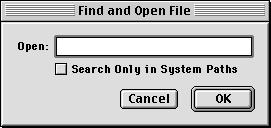
If you want to search both System Paths pane and User Paths pane directory paths (all paths specified in the Access Paths), turn the Search Only in System Paths option off.
To search only the CodeWarrior directory structure (the paths specified in the System Paths pane of the Access Paths), click on the Search Only in System Paths option to enable it.
To learn more about Access Paths and how to configure them, refer to "Access Paths" for more information.