When an error occurs during compilation, the Message window will show you the error message in the Message List Pane. The location in the source code that the message refers to will be shown in the Source Code Pane. You can navigate to the spot in your source code where the message refers to, and inspect or correct your code.
To correct a compiler error or warning, you must first find the cause. First, make sure that the Source Code Pane of the Message window is visible. If it isn't visible, refer to "Source Code Disclosure Triangle" to learn how to make it visible.
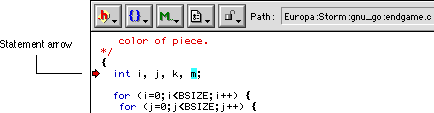
To view the statement that the compiler believes has caused the error or warning, select the message in the Message List Pane of the Message window. Notice that the Source Code Pane view now shows the source code that corresponds to the message. A statement arrow points to the line of code that the compiler reports as an error. The statement arrow is shown in Figure 10.4. Using the statement arrow as a guide, you can then edit the erroneous line directly in the Source Code Pane view.
Use the Interface Pop-Up Menu, Function Pop-Up Menu, or the Line and Column Indicator in the Source Code Pane to navigate your code or open interface files. To learn about how to use these navigational features, refer to "Guided Tour of the Editor Window."
To open a source code file that corresponds to a given message, select the message in the Message List Pane and press Enter/Return. You may also double-click the message in the Message List Pane to open the relevant file.
Statement arrow pointing to an error: