NOTE
NOTE
To save your changes to the current editor file, choose the Save command from the File Menu. The CodeWarrior IDE saves your file to your hard disk.
The Save command is dimmed if the window is new and has no data, if the contents of the active window have already been saved, or when the active window is the project window.
NOTE
Projects are saved when they are closed, when you quit or exit the CodeWarrior IDE, or when the Save A Copy As command is selected. You don't need to explicitly save projects.
The CodeWarrior IDE can automatically save changes to all your modified files whenever you choose the Preprocess, Precompile, Compile, Disassemble, Bring Up To Date, Make, or Run commands from the Project Menu.
Using the Save open files before build feature can save your work if your program should crash while running. However, if you're experimenting with a change and don't want to save changes, you may want to turn this option off.
To learn about how to enable or disable this feature, refer to the Save open files before build option in the section of this manual titled "Editor Settings."
If you want to save a new untitled file or save a file under a new name, use the Save As command on the File Menu. If the file is in the current project, the CodeWarrior IDE updates the project to use the new name.
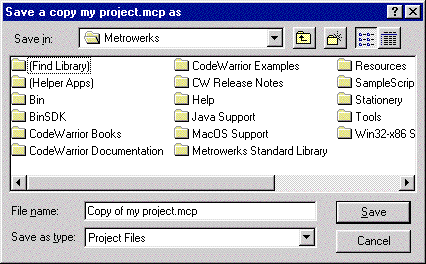
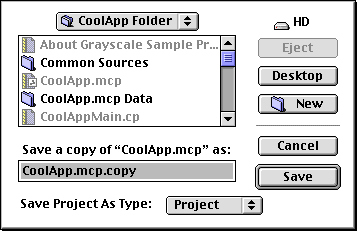
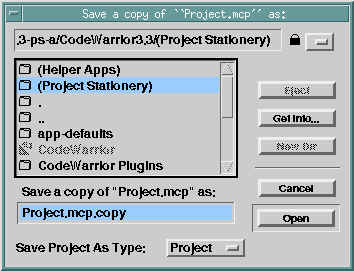
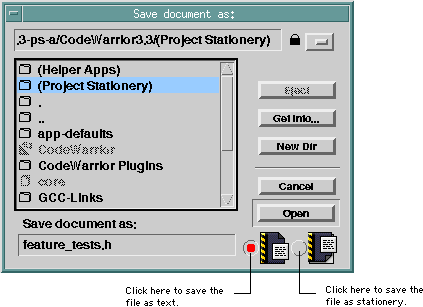
When you choose Save As from the File Menu, the CodeWarrior IDE displays the dialog box shown in Figure 4.6 (Windows), Figure 4.7 (Mac OS), or Figure 4.8 (Solaris).
Choose the Text or Stationery button to save the file as either a text file or a stationery file.
NOTE
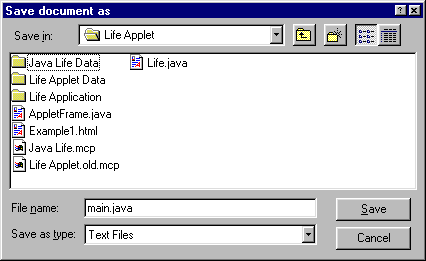
Choose the file location and name the file, then click the Save button.
If the file is in the current project, the CodeWarrior IDE changes the file's entry in the project to match the saved name. If you don't want to change the project, but still want to save the file, you can refer to the following section, "Backing up files."
If you want to save a backup copy of a text file before you make some changes to the original, use the Save A Copy As command in the File Menu. The CodeWarrior IDE creates a copy of the file under a new name that you specify, but leaves the original file unchanged and does not change the currently-open project to use the new file name.
Save As Dialog Box (Mac OS):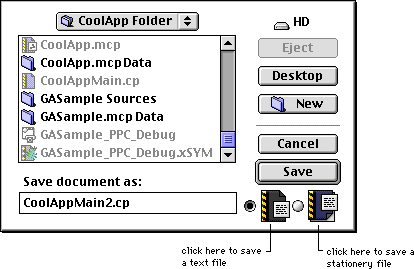
After choosing Save A Copy As from the File Menu, the CodeWarrior editor displays the dialog shown in Figure 4.6 (Windows), Figure 4.7 (Mac OS), or Figure 4.8 (Solaris). Specify the file's new location and choose a unique name for the file.
You can also choose whether to save the file as text stationery or a text file.
If the project window is the active window, Save A Copy As allows you to save the project using a new name, or as a text file. You decide which type of project to create using the Save Project As Type pop-up menu shown in Figure 4.9. If you save the project as a text file, that text file will contain the names of all the files in the project.
To learn about saving a text file under a different text format, see "Document Settings Pop-Up Menu."
Saving a Copy of a Project (Windows):