
The In Folders tab, shown in Figure 6.4, allows you to search specific folders (directories) in your computer's file system. This section describes how to use the options in the tab. For brief descriptions of each option in the tab, as well as other options, see "Find Options".
In Folders Tab of Find In Files Window: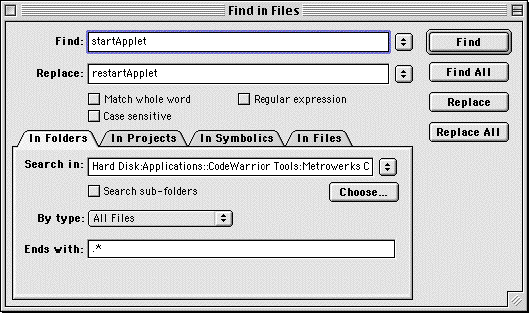
To choose specific folders to search, follow these steps:
1. Enter in the Search in field the path to the folder to search.
You can enter the path information in the following ways:
3. Choose the file types to search within the selected folders.
Use the By type pop-up menu to choose the file types to search within the selected folders. For more information, see "By type".
4. Edit the file-name extension list as desired.
Use one of the following techniques:
5. Click the Find, Find All, Replace, or Replace All button to perform the desired find or find-and-replace operation.
To continue the search in the next file, choose Search > Find In Next File. To continue the search in the previous file, choose Search > Find In Previous File.
 NOTE
NOTE
Find In Previous File menu command by default. See "Customizing Commands" to learn how to enable the menu command.
For multi-file search operations, a Search Results window appears and shows the search status. You can view individual matches and stop a search in progress. For more information, see "Search Results".
To cancel the find or find-and-replace operation, close the Find in Files window.