[ First ] [ Previous ] [ Next ] [ Last ] [ Manuals ]
In Projects

The In Projects tab, shown in Figure 6.5, allows you to search active projects. This section describes how to use the options in the tab. For brief descriptions of each option in the tab, as well as other options, see "Find Options".
In Projects Tab of Find In Files Window: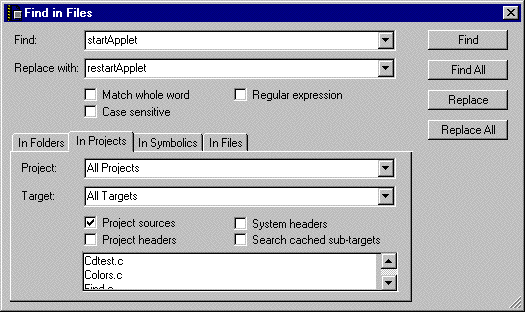
To choose specific projects to search, follow these steps:
1. Choose from the Project pop-up menu the projects to search.
By default, you can search All Projects currently active in the IDE. To search a specific project only, choose its name from the pop-up menu.
2. Choose from the Target pop-up menu the build targets to search.
You can choose one of the following options:
 NOTE
NOTE
In the subsequent steps, if enabling a checkbox does not add any files to the list at the bottom of the In Projects tab, choose Project > Make
3. Configure the Project sources checkbox as desired.
If you enable the checkbox, the search includes all source-code files that belong to the selected build targets and projects. If you disable the checkbox, the search ignores the source-code files.
4. Configure the Project headers checkbox as desired.
If you enable the checkbox, the search includes all header files that belong to the selected build targets and projects. If you disable the checkbox, the search ignores the header files.
NOTE
The IDE uses project build data, as opposed to text parsing, to select the project headers to include. You must compile the project in order to view project headers in the file list at the bottom of the In Projects tab.
5. Configure the System headers checkbox as desired.
If you enable the checkbox, the search includes all system header files that belong to the selected build targets and projects. If you disable the checkbox, the search ignores the system header files.
NOTE
The IDE uses project build data, as opposed to text parsing, to select the system headers to include. You must compile the project in order to view system headers in the file list at the bottom of the In Projects tab.
6. Configure the Search cached sub-targets checkbox as desired.
If you enable the checkbox, the search includes all cached sub-targets that belong to the selected build targets and projects. If you disable the checkbox, the search ignores the cached sub-targets.
7. Edit the file list as desired.
The file list at the bottom of the In Projects tab shows the files that the IDE will search. This list updates to reflect the changes that you make to other options in the tab. You can select and
8. Click the Find, Find All, Replace, or Replace All button to perform the desired find or find-and-replace operation.
The IDE searches the files listed in the tab for the first occurrence of text that matches the search criteria.
To continue the search in the next file, choose Search > Find In Next FileSearch > Find In Previous File
NOTE
(Windows) The IDE disables the Find In Previous File menu command by default. See "Customizing Commands" to learn how to enable the menu command.
For multi-file search operations, a Search Results window appears and shows the search status. You can view individual matches and stop a search in progress. For more information, see "Search Results".
To cancel the find or find-and-replace operation, close the Find in Files window.
[ First ] [ Previous ] [ Next ] [ Last ] [ Manuals ]
Visit the Metrowerks website at: http://www.metrowerks.com
For assistance contact Metrowerks Technical Support at: cw_support@metrowerks.com
Copyright © 2000, Metrowerks Corp. All rights reserved.
Last updated: August 17, 2000