
The Global Variables window (Figure 11.24) shows all global variables used by your program. You can also view static variables by selecting a file in the File pane. The static variables appear in the Variables pane.
Global Variables Window: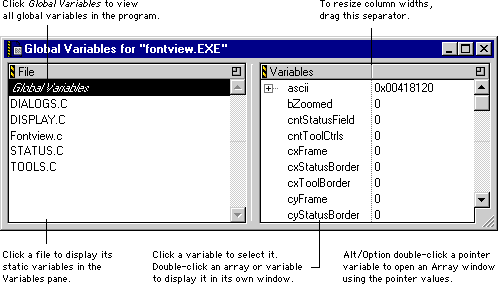
To display a global variable in its own window, double-click the name of the global variable in the Variables pane. A new Variable window opens and shows the name and value of the global variable. You can also open a Variable window by selecting the desired variable in the Variables pane and choosing Data > View Variable or Data > View Array, or choosing the same commands from the debugger contextual menu (see "Debugger Contextual Menu"). You can view and edit a global variable displayed in its own window the same way as in the Variables pane. You can also add global variables to the Expressions window.
For more information, refer to "Expressions Window," "Variable Window," and "Array Window".