[ First ] [ Previous ] [ Next ] [ Last ] [ Manuals ]
How Expressions are Interpreted

The debugger interprets expressions in various ways, depending on their locations:
Expressions in the Expressions Window
The Expressions window displays expressions and their values. To see the value of an expression, place it in the Expressions window.
To create a new expression, follow these steps:
1. Open the Expressions window.
Use one of the following techniques:
If the Expressions window is already open, click it to make it active.
2. Choose Data > New Expression
3. Enter a new expression.
The expression's value appears in the Value column next to that expression (Figure 11.70). You can also create a new expression by dragging a variable or expression from another window to the Expressions window.
An Expression in the Expressions Window: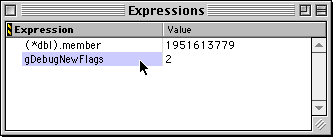
The Expressions window treats all expressions arithmetically; the debugger does not interpret the expression's result as a logical value, like it does in the Breakpoints window.
For more information, see "Expressions Window".
Expressions in the Breakpoints Window
You can attach an expression to a breakpoint in the Breakpoints window. The Breakpoints window treats expressions logically rather than arithmetically.
If the expression yields a false (zero) result, the debugger ignores the breakpoint and continues execution. If the result is true (nonzero), the debugger stops at the breakpoint if the breakpoint is active. To learn how to set a breakpoint, see "Setting and clearing breakpoints".
You can attach an expression to a breakpoint to make the breakpoint conditional on that expression:
1. Open the Breakpoints window.
Use one of the following techniques:
If the Breakpoints window is already open, click it to make it active.
2. Set a condition.
Double-click the condition field for the desired breakpoint and type an expression (Figure 11.71). You can also add or change a breakpoint's condition by dragging an expression from another window and dropping it on the breakpoint's condition.
A Conditional Expression in the Breakpoints Window: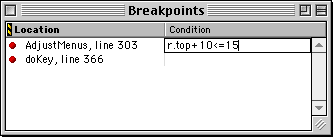
A conditional breakpoint stops the program if the expression yields a true (nonzero) result when execution reaches the breakpoint. If the expression produces a false (zero) result, execution continues without stopping.
For more information, see "Breakpoints Window" and "Conditional breakpoints".
Expressions in a Memory Window
In a Memory window, expressions are treated as addresses. The expression in the Display text field at the top of the window defines the base address for the memory displayed in the window. To change a Memory window's base address, follow these steps:
1. Choose Data > View Memory.
If a Memory window is already open, click it to make it active.
2. Enter a new expression.
Double-click the Display field and type an expression. You can also drag and drop an expression from another window into the Display field.
The Memory window displays the contents of memory beginning at the address obtained by evaluating the new expression.
Refer to "Memory Window" for more information.
[ First ] [ Previous ] [ Next ] [ Last ] [ Manuals ]
Visit the Metrowerks website at: http://www.metrowerks.com
For assistance contact Metrowerks Technical Support at: cw_support@metrowerks.com
Copyright © 2000, Metrowerks Corp. All rights reserved.
Last updated: August 17, 2000