In this background chapter we are going to talk about the structure of PowerPlant on three levels: object-oriented design, classes, and resources.
The first section of this chapter introduces you to some of the critical design decisions that make PowerPlant much easier to manage than your typical Macintosh application framework.
Because PowerPlant is a carefully designed application framework, you will see a clear relationship between the design patterns discussed in the previous chapter, and the important classes we're going to introduce to you here. We're also going to visit the basic PowerPlant resources so that you know what they are, what they are for, and how to use them.
Finally, we're going to talk about the steps you would follow as you develop a PowerPlant application.
The principal topics in this chapter are:
PowerPlant is a third-generation Macintosh application framework. Its designers learned a lot from the problems encountered in other application frameworks. PowerPlant has always been a pure C++ application framework. It hasn't inherited any baggage from earlier versions originally implemented in languages lacking object-oriented features. PowerPlant uses fundamental object-oriented behavior such as derivation and inheritance to build its class hierarchy and add functionality and behavior to the framework.
The design of the PowerPlant application framework is guided by the following fundamental principles:
These principles taken together ensure that the PowerPlant application framework is small enough that you can learn it quickly, yet powerful enough that you can create full-featured, world-class applications. Let's look at each of these principles to see how they affect the PowerPlant framework, and why they make PowerPlant easier to learn and use.
PowerPlant takes full advantage of C++'s support for multiple inheritance. As a result, the class hierarchy in PowerPlant is a series of small, interconnected trees rather than a monolithic monster tree.
PowerPlant has a large set of classes whose sole purpose is to be mixed into other classes by multiple inheritance. Among the common PowerPlant base or mix-in classes are:
Several important PowerPlant classes inherit from one or more of these mix-in classes to add functionality where and when necessary. For example the LControl class (which encapsulates control object behavior) not only inherits from LPane (because it is a visible object), but from LBroadcaster so that any control can also broadcast a message when something happens to it.
LPeriodical is another good example. Any object that should receive attention on a regular basis inherits from LPeriodical. For example, the LTextEditView class inherits from LPeriodical because it must keep the cursor blinking when it is active.
In subsequent chapters you'll learn all the details about how these objects work. The beauty of using multiple-inheritance in a mix-in architecture is that understanding the framework becomes much easier. In a very real sense, PowerPlant can mix and match classes to combine them into powerful subclasses with a rich feature set.
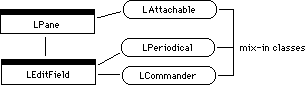
For example, consider the class, LEditField. This class encapsulates the behavior of an editable text field like you commonly see in a dialog box. LEditField is part of the LPane hierarchy. In addition, it inherits directly or indirectly from:
Edit menu.
 TIP
TIP Attachments are an extremely powerful feature of PowerPlant that we'll discuss later on in this manual.
Figure 5.1 illustrates how LEditField inherits from LPane, from two mix-in classes directly, and via LPane from LAttachable.
 NOTE
NOTE In class hierarchy diagrams in this manual, abstract classes have a grey bar across the top instead of a black bar. There is no example of an abstract class in this diagram. Mix-in classes are represented by rounded rectangles (whether abstract or not). Identifying any particular class as a mix-in class is arbitrary, and based upon the most common way in which the class is used for derivation. If the class is used as a base class by classes in different class hierarchies, then we have identified it as a mix-in class.
In addition to making the entire framework easier to understand (because behavior is factored out into mix-in classes), the fact that PowerPlant uses multiple inheritance has an even bigger advantage for you as a programmer-enhanced code reusability.
When you write PowerPlant applications, you will create your own classes derived from the PowerPlant framework. Because common types of object behavior have been intelligently grouped into a series of relatively small and distinct base classes, you can simply add the desired behavior to your own class without inheriting a tremendous quantity of unnecessary baggage.
To understand how this works, let's take a look at what happens if you derive a class based on a single-inheritance hierarchy.
In a single-inheritance hierarchy, commonly-used behaviors must appear high in the chain so that those classes that need the behavior can inherit them. Features tend to be piled onto classes not because all classes need them, but because some classes need them somewhere down the chain.
Consider how the editable text field would be implemented with single inheritance. The text object must draw itself in a window, so the text field class derives from a class in the view system. The text object should respond to mouse-clicks and typing, so the text field class also derives from the command system. Of course, that means that the view system must be part of the command system! Editable text needs a blinking insertion point, so the text object also needs to handle periodic tasks. That feature must be added somewhere up the chain, probably in the command system.
Single inheritance for a hypothetical edit field class: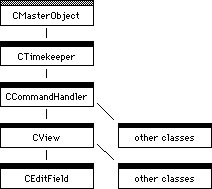
So, what's the problem? You've got all the same behaviors, just what's necessary and no more. It works fine for one kind of object, but there are many kinds of objects in an application.
Imagine you want a caption object that simply displays one line of text. The caption object doesn't respond to commands or perform periodic tasks, it only needs to draw itself. In the single inheritance design, the caption class would derive from the display classes, which are derived from the command classes and the periodical classes. The innocent caption class ends up inheriting a lot of baggage it will never use. When you look at that class in a browser, all sorts of spurious and useless functionality appears. You have to hunt through all the useless parts to find the behavior you need.
Single vs. multiple inheritance for a caption class: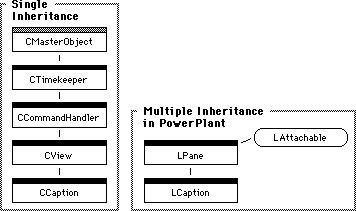
Using multiple inheritance as a principal design element in PowerPlant does not automatically make every class simple. But it does mean that any given class is far more likely to have just the behavior it needs. Some classes are still very complex, with dozens and even hundreds of behaviors. Nevertheless, without multiple inheritance the situation would be that way for almost every class, even those that are inherently simple.
PowerPlant works on the principle that isolating classes from one another reduces complexity and enhances code reusability. Multiple inheritance and the mix-in architecture are the principal reasons why PowerPlant can implement its second design goal-to keep classes as independent as possible.
Beyond the important base classes cited in the previous section, PowerPlant has a large collection of small base classes that you can use in a whole variety of circumstances-without using any other part of PowerPlant!
PowerPlant classes refer to as few other classes as possible. For example, the LMenu and LMenuBar classes refer to each other, but to no other classes. If you want to take advantage of PowerPlant's menu creation services, you can use those classes in your own projects without using any other part of PowerPlant. Not bad!
This design excellence makes PowerPlant a treasure trove of reusable code. Here are some more examples.
The LBroadcaster and LListener classes refer only to each other and the LArray and LArrayIterator classes. If you would like to implement a messaging system in your project, you can use these classes, and you're on your way. There's no need to inherit views, panes, commanders, or any of the other trappings of a powerful application framework.
PowerPlant includes a powerful class for string manipulation, LString. It is a complete, stand-alone class. You don't have to use any other part of PowerPlant to have access to the power of LString, as shown in Figure 5.4.
If you need to maintain dynamic lists in your project, you can use the LArray and LArrayIterator classes independently. If you want to filter keystrokes before processing them, check out the UKeyFilters class which has a variety of filters ready for your use. Interested in some powerful debugging code? Examine the UDebugging class and UExceptions.h. The list goes on and on. There are, quite literally, dozens of useful classes that have been purposely designed to be completely or almost completely independent of the rest of PowerPlant.
Of course, in an application framework some dependencies are unavoidable. You'll find these most often in the visible objects in the view hierarchy. For example, the classes that describe control objects assume that they exist in a containment hierarchy headed by a window or equivalent object.
All the same, you can see the difference between a monolithic application framework that requires you to buy the entire store every time you want to use one tool, and a well-designed application framework based on multiple inheritance and a factored design where you can take the tools you need and leave the rest of the hardware store behind.
The third principle that guided the PowerPlant designers is that behavior should be placed as low as possible in the class hierarchy.
This process goes hand-in-hand with the overall factored design of PowerPlant we discussed in the previous section. The distinction between a factored design and factored classes is simple. A factored design looks at the problem domain horizontally. What parts of the problem can we separate from what other parts? The process of factoring class behaviors is vertical. How far down in the chain do we place a particular behavior that belongs in this hierarchy?
A careful analysis of the design of a typical Macintosh application identifies the behaviors that various aspects of the application must provide. What does a window do? What does a scroll bar do? What does a radio button do?
By analyzing the behavioral demands on the various identified objects in the system, the designers of PowerPlant have carefully factored behavior so that it appears only when necessary. General behavior appears early on in base classes, so it can be inherited by all those subclasses that need it. Behavior that is more specific to a certain kind of object doesn't appear in a class declaration until necessary.
This doesn't mean that some classes aren't large and complex. The class that defines window behavior for example, LWindow, is quite complex. It has more than 60 member functions declared in the class, plus a couple of hundred more inherited from a variety of base classes.
NOTE Don't let LWindow scare you. Most of the functions are for internal use, and you won't use them directly. In PowerPlant, many if not most classes are small, with only a handful of member functions of their own.
However, because the designers paid attention to the underlying design, this complexity is easier to manage. Even in a complex class like LWindow you'll be able to recognize that certain member functions come from the LCommander base class, others from the LView base class, and still others from other base classes from which LWindow inherits. This logical structure allows you to break down even the most complex class into its constituent parts, making the whole that much more understandable.
In the process of actually writing the code for these well-considered classes, the PowerPlant authors also made some code-level decisions. To ensure that all derived classes have access to the protected members of their base classes, base classes are always public, and all derivation is also public.
There are very few private data members or member functions. Almost everything in PowerPlant has either public or protected access.
Generally, the private member functions are those that are called from within constructors. In C++, if you call a function from within a constructor, it is not treated as a virtual function call. Overriding such a function in a subclass has no effect-it will not be called. Therefore, we make such functions private, so that you will not mistakenly think that you can override such functions.
Of course, like any class hierarchy, PowerPlant uses function overriding extensively. Function overloading is not so common. PowerPlant uses function overloading for constructors, and in a few other cases where the designers deemed it advisable. The only exception to this rule is the LString class and its derived classes. These classes use both function and operator overloading extensively.
Function overriding occurs when a derived class declares a function with the identical signature as a virtual function in the base class (i.e. same return type, function name, and parameter list). Function overloading occurs when (usually within a single class) two functions have the same name, but a different signature (different parameters). Operator overloading occurs when a class declares a replacement behavior for a standard operator, such as the addition operator (the + sign). For example, in the LString class, the + operator is defined to mean "append one string to another," as opposed to adding two numbers together.
The final principle that guided the creators of PowerPlant is that complex behaviors should be factored into simple, constituent parts. Once again, like the emphasis on factored classes and a factored design, factoring behaviors into their component parts continues the trend toward small, simple building blocks that you see throughout PowerPlant.
To implement this principle, member functions that affect an object are usually split into two parts. We'll call them the setup part and the action part.
The setup part handles any state-testing or adjusting that must happen before the action takes place, and restoring any state after the action takes place.
The action part implements the actual desired behavior.
The name of the member function that handles the setup part is
usually the name of the action; for example, Draw(). The name of the member function that handles the action part
is the same as the general function with the word "Self" added;
DrawSelf() for example.
When you work with PowerPlant, you will find that you rarely if ever call a "Self" routine, but you regularly call setup routines. Conversely, you rarely if ever override a setup routine, but you regularly override the action or "Self" routine.
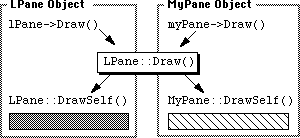
An example will help here. The LPane class declares two member
functions, Draw() and DrawSelf(). Together these functions draw the contents of the pane. If you
derive a class from LPane, you would typically call Draw() and override DrawSelf().
The Draw() function makes sure that the pane is visible and that its coordinate
system is set up. Then it calls DrawSelf()-the action routine. You have to do the setup work no matter what
you draw. Setup work is usually constant so it rarely needs to
be replaced, but it almost always has to be called. You can't
skip the setup, but you don't normally need to replace it.
The action, on the other hand, will vary. The DrawSelf() function does the actual drawing, and because each pane varies
you will certainly override it in a class derived from LPane.
(In fact, the LPane::DrawSelf() function does nothing!) However, you shouldn't call DrawSelf() directly because the necessary setup work won't be performed
and "unexpected results" will occur.
Because the PowerPlant designers factored these two behaviors into separate functions-setup and action-you don't have to write housekeeping code every time you override a function for a derived class.
You will find this type of factoring throughout PowerPlant. As you work with the code you will become familiar with what functions perform what behaviors, what functions you commonly override, and what functions you commonly call. You'll start working with code intensively in the next chapter.
Before then, however, let's take a quick tour of the actual PowerPlant classes you'll be working with. In the process, let's keep an eye on how they fit into the overall application framework design we talked about in the previous chapter. By the time you finish this chapter, you will have a really solid foundation on which to build your PowerPlant expertise.
When we start working with the different PowerPlant classes in detail, we must present them to you in piecemeal fashion. You can't do everything all at once. In addition, the remaining chapters in this book are task-based. That is, we're going to be talking about how to accomplish particular programming tasks, and discuss what PowerPlant classes you use in that context.
This section gives you a class-based and relatively brief introduction to the various classes you'll meet in PowerPlant. This will give you an idea of what the classes are, and how they fit into the overall application framework. As a result, when you encounter them later on in this manual (from a task-based perspective) you'll know how the work you're doing fits into the big picture.
This section is organized exactly like the discussion of application frameworks in the previous chapter. Instead of theoretical design patterns, we're going to be talking about real classes. The discussion is divided into:
This is not all of PowerPlant. Beyond these groups of classes, there are several more classes for advanced programming issues like threads, drag and drop, scriptability, tabular data, and so forth. These additional classes are not covered in this book.
Applications are the core of PowerPlant programs. There are two application classes in PowerPlant, as shown in Figure 5.6.
PowerPlant application classes: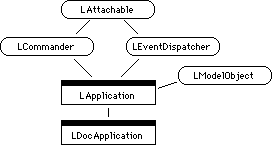
LApplication encapsulates the common behavior of an application. You create a single object of this class. The application object manages the execution of an application program. It handles start up and shut down, runs the main event loop, executes application-level events (using LEventDispatcher), handles Apple events, updates menus and the menu bar, and adjusts the cursor.
LDocApplication inherits from LApplication. Additional member functions support opening, closing, and printing documents. Because most Macintosh applications store data in files on disk, you'll most likely use LDocApplication as the basis for your own application.
Typically you will derive your own application class based on one of these two classes, and override several member functions to create your application's unique behavior, handle your own menus, open, close, and print your own documents, and so forth. The functionality provided by PowerPlant for free includes initializing the environment, running the event loop, and quitting the application.
The main event loop retrieves events, and passes them on to LEventDispatcher for parsing and dispatch. The main event loop also distributes time to objects that need attention every time through the event loop.
The application is also the top of the command chain described below in the Commander Classes section. Any event not handled by some subcommander will reach the application, where you can either process or ignore it, as appropriate. In other words, the application gets the last chance at the event.
LEventDispatcher takes care of all event processing after the application retrieves the event in the main event loop. Event dispatch is a fairly constant process, and in many cases you won't have to override any functions in LEventDispatcher. For the most part, PowerPlant gives you event dispatch for free.
NOTE Unless you use the Mac Toolbox directly for tasks such as running
a dialog box with ModalDialog(), all event processing goes through the main event loop and LEventDispatcher,
even for modal dialogs.
LEventDispatcher is also responsible for adjusting the cursor, distributing time to idle-time processes, and initiating menu updates before displaying menus.
LCommander is the base class from which all commander objects inherit. It has functions for command chain maintenance (changing supercommanders, or adding or removing subcommanders). Each commander can also manage the target object with member functions to set the target, be the target, not be the target, and so forth.
If you are not familiar with the concept of a target, see "Command Hierarchy."
A commander may be on or off duty, and has functions to manage the duty state. This is an important concept, because an off-duty commander will not receive or respond to events. When off duty, however, it is important to keep track of which subcommander (if any) was the target object the last time this particular commander was on duty. Then, when this commander resumes duty, the framework can activate the correct subcommander as the target object. This is called the latent subcommander. Each commander has the ability to set or change its latent subcommander.
Commanders are responsible for managing the state of menu items
while they are the active target object or in the active chain
of command. Each commander has a FindCommandStatus() function. When the application wants to know the state of a menu
item, it calls the target object's FindCommandStatus() function. In response, the target object tells the application
whether that particular item should be enabled, disabled, have
a check mark, and so forth. If the target object does not concern
itself with a particular menu item, it passes the message back
up the chain of command. You will become very familiar with and
override this function regularly.
Finally-and perhaps most importantly-each commander has member
functions to respond to commands. You will become very familiar
with the ObeyCommand() member function, and override it regularly as well.
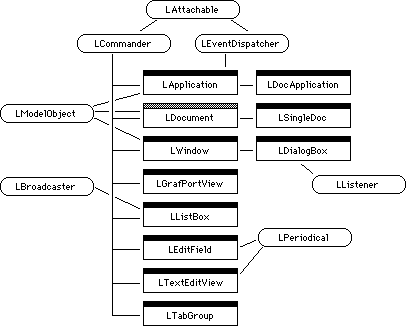
NOTE LDocument is an abstract class. Some of the classes that inherit from LCommander also inherit from other classes, such as LPane, LView, or LControl. In this diagram we emphasize LCommander. In other diagrams we'll highlight the LPane, LView, and LControl hierarchies and treat LCommander as a mix-in class.
There are several classes in PowerPlant that inherit from LCommander. Among them are:
In addition to these PowerPlant classes, you are likely to derive your own classes from LCommander (or one of its descendants), when your object needs the ability to respond to commands.
Classes designed to create the visual interface form the most complex and numerous group of classes in PowerPlant. That's not surprising, because the primary purpose of an application framework is to create the visual interface.
If you are not familiar with the concept of a view, see "Visual Hierarchy."
We're going to be very careful with terminology here. A "view" is a generic concept in application framework design, as described in the previous chapter.
In this section we're going to talk about two important PowerPlant classes, LPane and LView. Objects of the LView class are frequently referred to as "views," and in fact that's what they are. But a view object is a very special and distinct item, in addition to being a "view" in the generic sense.
In the rest of this chapter we will refer to views (meaning the framework concept) and LView objects (meaning any object derived directly or indirectly from LView). In subsequent chapters we leave the general discussion of frameworks behind, and we will use the term "view" more loosely to mean both the concept and the object. Context will tell you which meaning is intended.
In PowerPlant, the fundamental visual class is LPane. Every area you draw in, and everything you draw, is an LPane derivative. There are about 30 classes derived from LPane to handle different kinds of visual elements. There are pane-based classes for text, pictures, lists, tables, controls, and much more. We'll discuss all the details about panes and the various kinds of pane classes in the next chapter.
Recall from our discussion of views in application frameworks that views are typically arranged in a hierarchy. PowerPlant is no exception. The LView class forms the basis of the visual hierarchy.
An LView object is a pane that can contain other panes. LView inherits from LPane in the class hierarchy. However, in the visual hierarchy LView objects come first and contain all the panes that you draw. A simple way of looking at this relationship is that an LView object is a container. The panes are the contents. (Remember that an LView object can contain another LView object, creating a hierarchy of arbitrary depth).
In general, then, objects that derive directly from LPane (with the exception of LView) are those that you actually draw-objects like radio buttons, check boxes, captions, icons, and so forth. Objects that derive from LView are usually places where you draw things-objects like windows, dialog boxes, grafPorts, text views, scrolling areas, and so forth.
Figure 5.8 illustrates the different hierarchies. The simplified class hierarchy shows that LView inherits from LPane. By contrast, the topmost object in the view hierarchy is a type of LView. The contents of the window is a series of panes of various types including edit fields, captions, popup menus, check boxes, standard buttons, and so on. The scrolling list in the bottom part of the window is a scrolling view inside of the window view.
LPane and LView class and view hierarchies: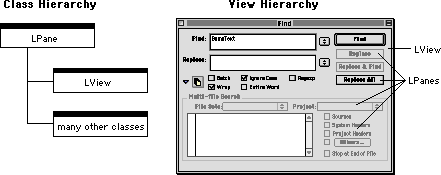
Because it inherits from LPane, LView has all the behaviors of LPane. In addition, LView has behaviors for managing the view hierarchy by adding and removing subpanes. In PowerPlant terminology, when an LView object contains other LView objects or panes, it is a superview. Its contents (regardless of whether they are in fact panes or LView objects) are called subpanes.
NOTE You create the view hierarchy in Constructor. In a typical application the view hierarchy doesn't change. Some applications modify the view hierarchy at runtime.
Inheriting from LBroadcaster gives an object the ability to broadcast a message. A broadcaster has a list of listeners. This simple class has functions to add and remove items from the list of listeners, and to broadcast a message.
In PowerPlant, classes that descend from LControl are all broadcasters, as is LListBox. When you create your own classes you can inherit from LBroadcaster when necessary.
Inheriting from LListener gives an object the ability to receive a message from a broadcaster.
This simple class has a ListenToMessage() function that receives and can respond to messages received from
broadcasters.
You will work with broadcasters and listeners often while writing PowerPlant code. We'll save the details for Chapter 8, "Controls and Messaging."
PowerPlant provides built-in support for files and streams. The LStream class is the basis for stream operations. It has subclasses to handle pointer-based and handle-based streams. The LStream class provides functions for reading and writing data, as you would expect.
LFile is the principal file-related class. It provides functions for opening, closing, reading, and writing both the data and resource forks of a file.
The LFileStream subclass inherits from both LStream and LFile, allowing you to stream data into or out of a file. We'll work extensively with these classes in Chapter 13, "File I/O."
Stream and file class hierarchy: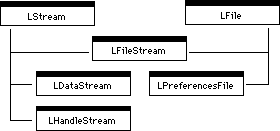
Like a good application framework, PowerPlant provides a wide variety of utility classes. We will encounter some of these classes at various points throughout this manual. We discuss the rest in Appendix A, "PowerPlant Utilities."
Among the more important utility classes are:
There are many, many more small classes for managing memory, preserving drawing state, and performing PowerPlant-related housekeeping such as registering classes.
In many of the utility classes, the member functions are static. You do not create objects based on those classes, you simply call the static member function to get the service provided.
According to PowerPlant naming conventions, classes that begin with the letters "St" are stack-based classes. Typically the class constructor does all the setup work, and the destructor does all the tear-down work. Stack-based classes are frequently used in PowerPlant to preserve state information like the state of the pen, the current colors, the current grafPort, and so on.
The final element of PowerPlant architecture is its resources. PowerPlant depends upon the presence of certain resources. Without them, a PowerPlant application simply won't work. They are:
A PPob resource describes the visual hierarchy: the various LView objects and panes, where they are located, and which LView objects contain which other LView objects and/or panes.
The easy way to create a PPob resource is with Constructor. Essentially, each class has a unique, four-character identifier, like the Finder's file type and creator codes for documents. When you issue a command to build a window based on a PPob resource, PowerPlant reads the data from the resource and recreates the necessary objects of the appropriate classes, based on the data you specified.
In Constructor you specify the nature of the pane or LView object, its position within the view hierarchy, and all the appropriate characteristics of the pane. For example, when you create a standard button you specify location, size, pane ID number, and a variety of other characteristics as shown in Figure 5.10.
Specifying a standard button in Constructor: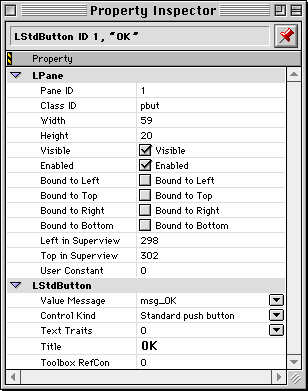
We'll discuss each of these fields when you start building a PPob resource a little later. The point here is that you specify the complete visual appearance of a window using Constructor, and PowerPlant rebuilds the window from the PPob resource.
The Constructor Manual for details of Constructor's operation.
PowerPlant uses specific command numbers for each menu item. In a classical Macintosh program, you determine what menu item the user has chosen by identifying which menu the user picked, and then what item number in the menu the user picked.
This approach works fine, but has one significant disadvantage. The code that dispatches menu choices is dependent upon the order of items in the menu. If you add, remove, or relocate an item in a menu, you must rewrite dispatch code to adjust for the change.
In PowerPlant, you assign each menu item a unique ID number, the menu command number. You store these numbers in Mcmd resources. There is one Mcmd resource for each menu, and each has a command number for each item in the corresponding menu.
Figure 5.11 shows the Constructor menu bar editor window. Each menu item has an associated command number. The command numbers are kept in an Mcmd resource. Constructor builds the Mcmd resource automatically. See the Constructor manual for details of how to build MBAR, MENU and Mcmd resources.
Menu bar, menus, and Mcmd resources: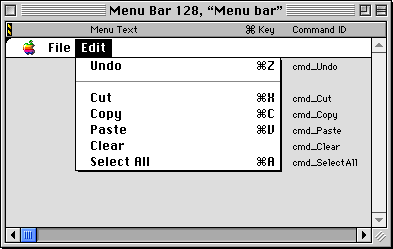
If you use Constructor to build your MENU resources, when you modify menus you don't have to change your source code at all. The commands stay with the menu item wherever you put it. At runtime, PowerPlant reads the menu and menu item selected, looks up the corresponding menu command number, and sends that number to your menu dispatch code for processing. Because the command number is constant, your code remains constant.
You can also build MENU and Mcmd resources with ResEdit, Resorcerer, or Rez. If you use these editors, you are responsible for making sure the MENU and Mcmd resources remain synchronized.
"Installing Resource Templates" for information on installing Mcmd resource templates.
A RidL resource is a list of one or more LControl pane IDs. A control is always a broadcaster but a broadcaster isn't necessarily a control. The RidL resource links a listener to controls and is a useful tool for messaging within a PowerPlant application.
In order for a listener to hear the message from a broadcaster,
you must link the two of them. Suppose you have a dialog box (which
inherits from LListener) that contains controls. If you want the
dialog to "hear" the messages from the controls, you can use a
RidL resource and the function UReanimator::LinkListenerToControls() to link it to each control in the dialog.
NOTE There is another way to link a listener to an individual broadcaster. We'll discuss the topic of linking listeners with broadcasters in detail in "Broadcasting."
The Constructor view editor creates a RidL resource automatically for every window that contains controls. The RidL lists every non-zero control pane ID in the window. However, you cannot see or edit the RidL in Constructor.
There are other kinds of broadcasters besides controls, and they are not included in the automatic RidL resource. If you wish to make a custom RidL resource, or edit an existing resource, you must use ResEdit or Resorcerer.
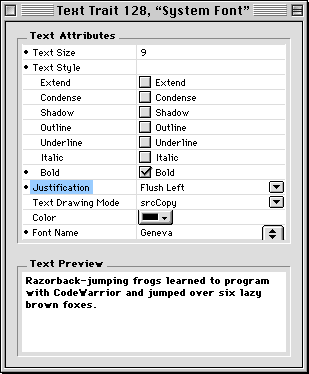
The Txtr resource (text traits) describes the font, size, style, and alignment, color, and drawing mode for text. You can create and modify Txtr resources in Constructor. Figure 5.12 shows the text traits editor window for setting these traits.
When you create text-related panes in Constructor, you can specify
a Txtr resource by ID number. The text in that pane will be drawn
according to the values in the specified Txtr. You can switch
the Txtr resource for a pane at runtime if you wish, by using
the SetTextTraitID() function for the class.
The Txtr resource lets you encapsulate standard text-related settings into a single resource, which PowerPlant then uses to display text according to your wishes.
There are other PowerPlant resources, but the PPob, MBAR, MENU, Mcmd, RidL, and Txtr resources are the resources you see most frequently.
Now that you have a clear picture of the architecture behind PowerPlant, you might be asking yourself, "What's it really like to write a PowerPlant application?"
If you have never written an object-based application before, you're going to find the process quite a bit different than what you're used to as a procedural programmer, and very rewarding.
In this section we'll list the typical tasks you'll perform while developing a PowerPlant application. Of course, depending upon your personal style, and the needs of your project, you may perform the necessary tasks in a different order.
The development process breaks down into three segments:
This is an iterative process where each segment provides feedback for the others.
The PowerPlant development process: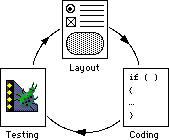
This task list assumes you use Constructor to build an interface based on an LWindow object. Other objects may be the top-level LView object, including LDialogBox, LPrintout, LGrafPortView, or LView. You may not understand some of the items in the list of tasks presented here. However, keep them in the back of your mind. When you perform these tasks later in this manual, you'll recognize them.
Your first step (after designing your interface) is to do the initial layout work in Constructor. You performed most or all of these tasks in the code exercise in the Introduction to this manual.
Of course, you won't get the entire layout done on the first run. You'll come back to these tasks again after you write some code and test your work.
TIP Many PowerPlant developers like to have at least two resource files for a project. One contains the PPob, MBAR, MENU, Mcmd, Txtr, RidL, and WIND resources built by Constructor. The other contains the remaining resources. That way, you can have Constructor as the creator for your PowerPlant resources, and your favorite resource editor as the creator for your other resources. Include both resource files in your project. When you double-click the resource file, the right editor opens up.
The Constructor Manual for more information about Constructor.
Writing PowerPlant code is in principle the same as writing any kind of object-oriented code. However, you'll be writing code that takes advantage of PowerPlant's many outstanding features.
Of course, no project is complete without testing.
Enable Debugger from the Project menu.
Run from the Project menu to run your code with the Debugger.
These tasks-layout, coding, testing-are not linear. You will perform all of these tasks more or less simultaneously at times. Running the project will allow you to discover ways of improving your interface, so you'll go back to Constructor and revise the resources.
You'll add new windows, perhaps floating palettes, dialog boxes, and other objects as necessary. Over time the interface will become more complex. However, building incrementally makes the process a lot more manageable.
Ultimately you will create your own pane classes, add them to the resources, and watch your application achieve its final form. It's an exciting process, and one that we are about to embark on.
In the next chapter we start looking at panes and LView objects (from now on simple "views") in detail. We'll examine the class hierarchy, and the typical view hierarchies you'll likely use. For now, let's look at where we've been.
The Debugger User Guide for information on debugging tools as well as the PowerPlant Advanced Topics chapter on the new PowerPlant Debugging Classes.
In this chapter you have learned many important concepts about the design philosophy behind PowerPlant, and how that design leads to a remarkably flexible and extremely powerful application framework for the Mac OS.
You have seen how that design extends itself directly into class implementation, function implementation, and even into the PowerPlant resources. Whenever possible, resources, functions, classes, and groups of classes are modular. You've met the principal classes and resources, and you know something about how they work together.
This is also the end of the background section of this manual. Taken together, the background chapters have given you a solid understanding of what an application framework is, why it is useful, how it works, and how PowerPlant in particular implements the features of a framework.
Now it's time to put that knowledge to work. In the next chapter you start serious work with an outstanding world-class development tool-PowerPlant.